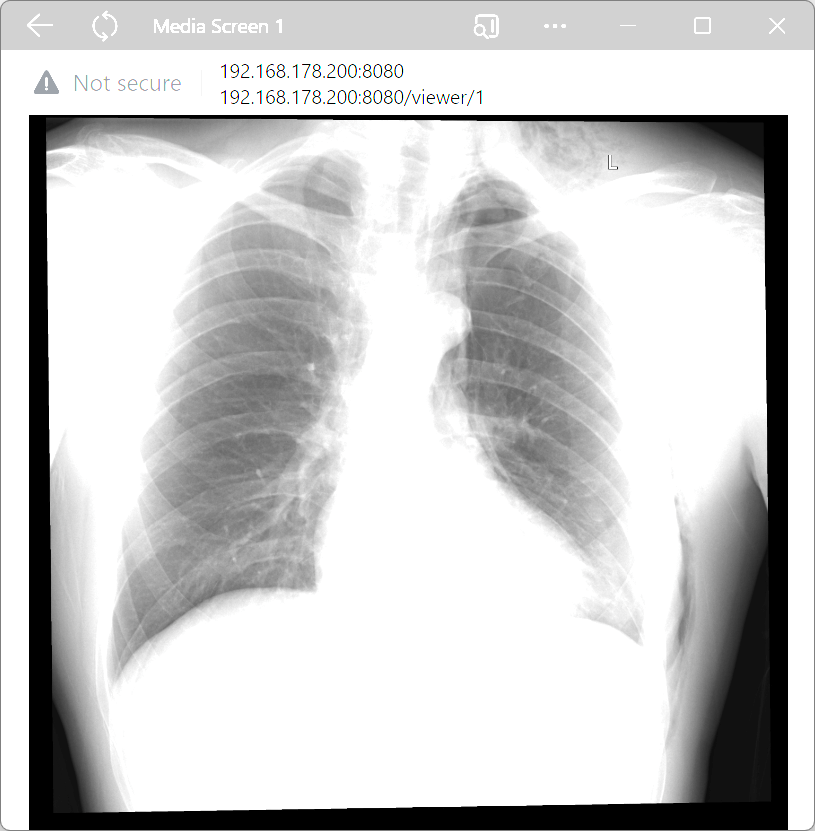
You can display a multimedia file from the media database on a viewer or media screen over the network, either through VideoSyncPro Studio or directly from within the media database.
This Viewer screen is accessible through a fix URL in any modern Browser.
The URL required to access a viewer contains the IP-number of the recording station and the number of the viewer,
Per default, it looks like this :
http://192.168.178.77:8080/viewer/1
▪For additional viewers, change the number at the end or the URL.
Pedefine Viewers
Inside the start.bat file of the webroot folder (inside the Mangold VideoSyncPro Studio Data folder), you can specify the number of viewers that can be accessed right from within the Media Database:
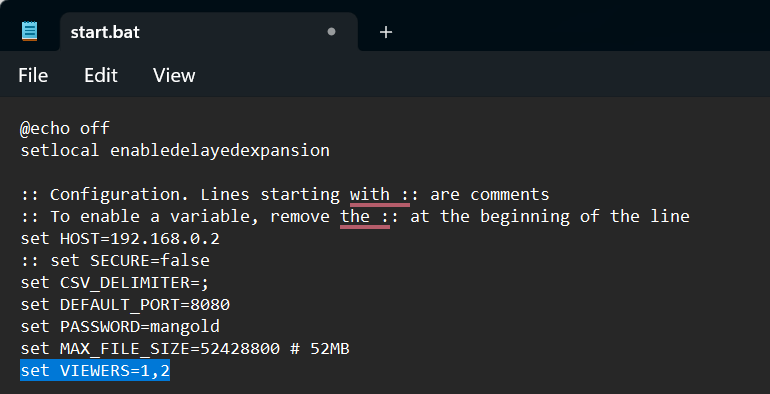
▪Enter a number for every viewer, separated by a comma (per default there is just viewer 1).
Note: Viewers available from within VideoSyncPro Studio must be specified per Scenario.
Show File in Viewer
To display a media file inside the media database on a viewer page, you need to open a browser window for that viewer.
▪Use the URL mentioned above to access that viewer inside a browser on a device connected to the Mangold camera network.
This browser window automatically displays the current content of that viewer.
▪Inside the Media Database, select the media file you want to display on the viewer.
▪Click on the Show in viewer button that appears if you mouse moves inside the file object.
▪In case multiple viewer were defined in the start.bat file, select the viewer of your choice.
Now the content of the selected file will appear on any device on the camera network that opens the viewer URL in a browser.
Create Viewer App
If you have a device that is often used as a media screen, having a dedicated window for displaying the corresponding media is useful. It looks much better because it removes standard clutter of a normal Browser window.
Creating such an 'app' for a website can be done with Microsoft Edge:
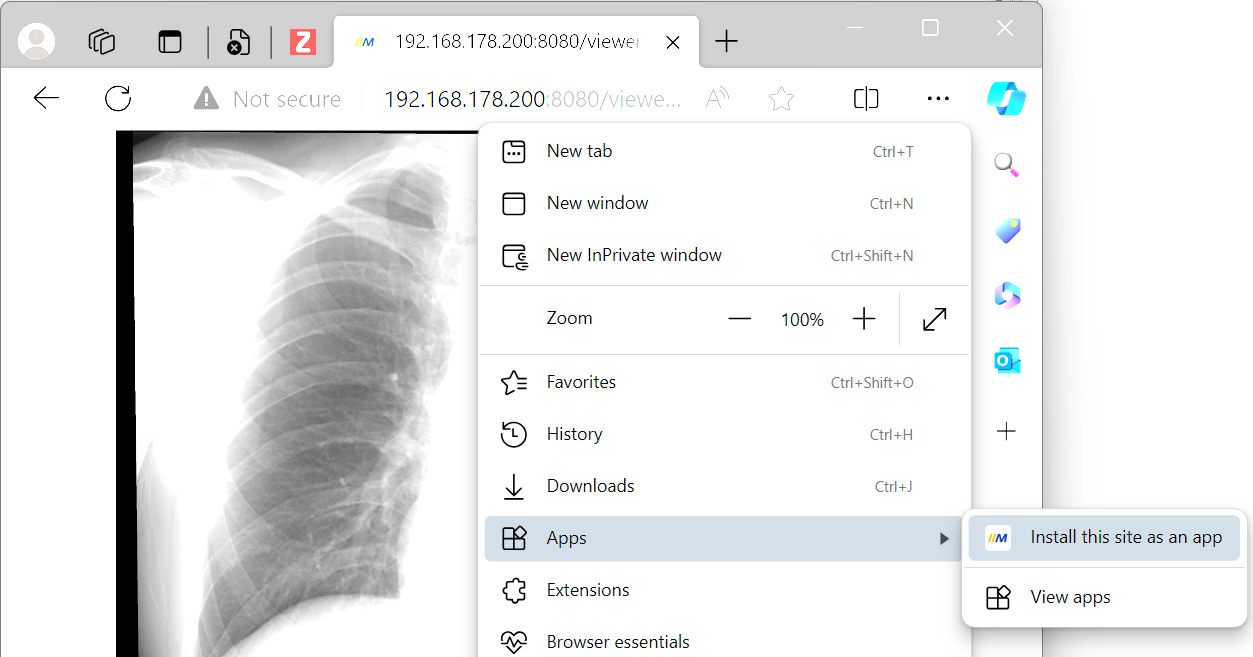
▪Use Microsoft Edge to open the viewer you need on the target device.
▪Select the command Install this site as an app from the Edge menu:
▪In the next dialog, enter a name for your new 'app':
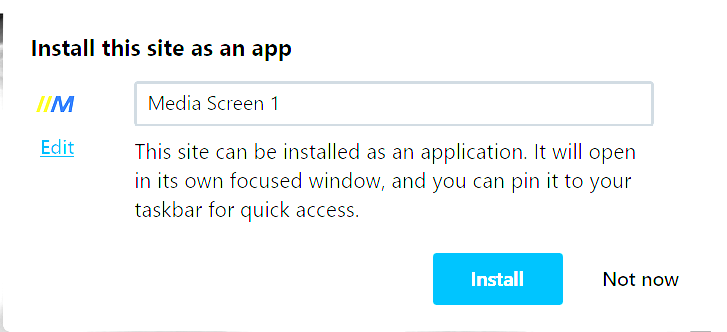
▪Select and confirm how and from where you want to access the new 'app'.
This results in a dedicated app window showing the current media for the specified screen: |