Nested Markers allow you to access a wide range of different markers without cluttering your Marker section in VideoSyncPro Studio.
Nested Markers are, just like the Markers explained before, regular *.png files but located within sub-folders inside your Coding System folder. To access the icons in such a sub-folder, a regular top-level marker icon must be named like the folder that contains the sub-level markers.
This enables you to limit the number of available icons inside the Marker area, while still being able to log all required markers.
Create Nested Markers
Nested Markers only appear after you click a certain icon on the top-level.
▪Create a folder inside your coding System folder.
▪Name this folder like the icon for which it becomes the sub-level.
▪Copy the required sub-level-icons inside that folder.
Note: If you click on an icon with nested Code, only the time information of your click is entered into the log file.
The marker text is only entered after you have clicked on one of the now automatically appearing symbols from the sub-folder.
In this example, the top-level Coding System folder 'Nested Markers' (inside C:\Users\Public\Documents\Mangold VideoSyncPro Studio Data\Marker) holds the following 5 icons:
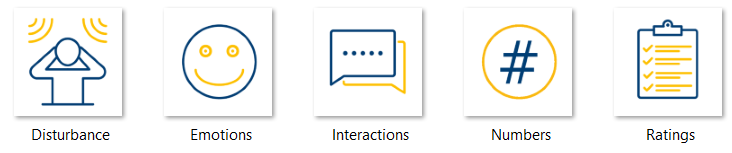
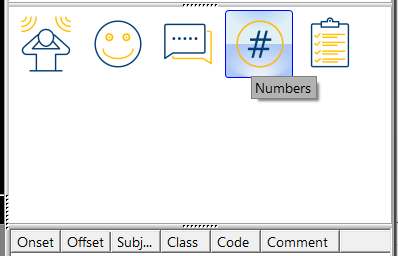
Resulting in five icons in the Marker section of your VideoSyncPro window:
In addition to each picture, this Coding System folder 'Nested Markers' also contains an additional folder for each icon file; each folder named identically as the corresponding picture file:
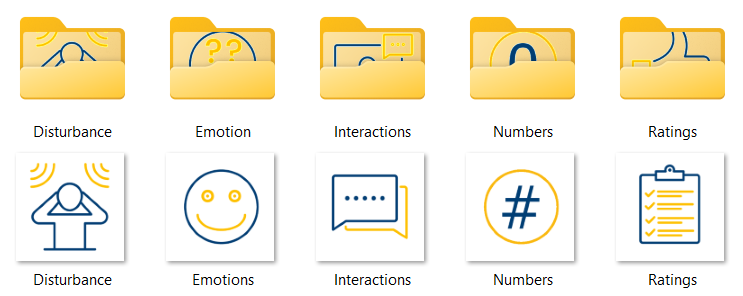
Note: You do NOT NEED a folder for each icon; icons without a sub-folder are used as a regular marker straight away. So you can create a mix of directly accessible markers and nested markers. E.g. in the field of medical simulation only for the 'drug administration' to further specify a drug-type by means of a sub-folder, without these drug-types being constantly visible.
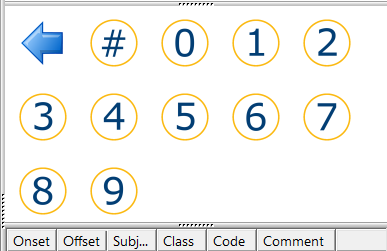
The moment you click one of the top-level icons, VideoSyncPro Studio switches to the folder with the exact same name as the icon file - revealing the icons available within.
So, for example, the moment you click the 'Numbers' # icon, the available number-icons from that folder appear:
You can download this nested example here:
www.videoanalysis.net/resources/videosyncpro/examples/icons/marker/NestedCodes.zip
Note: Currently, each Marker is a stand-alone entry in the log file. The nested icons are treated independently, which means they do not reflect a real hierarchical system.