If you need to compare the observations of multiple observer (rater), INTERACT offers you an Inter rater reliability check, based on Cohen's Kappa.
The Kappa formula can compare the data of multiple raters, each rater MUST store its data in separate data-files.
Those files need to have the same structure in Classes as well as DataSets and DataGroups!
K = (Pobs – Pexp) / (1 – Pexp) |
It is an often misunderstood issue that KAPPA is just comparing single codes between two raters. But it is not!
It is more a grade for the quality of your data and it needs a lot of data (Codes and Events) to calculate a reliable probability, on which its value is based.
KAPPA is not suited for a single Code within a Class!
Our Kappa implementation however, offers an additional overview in percentage per document, based on the pairs found, as well as a graphical view on all the pairs (correct and wrong ones), for better understanding.
Changing the default parameters, so that they suit your data best, enables you to influence the Kappa value.
Note: There is no such thing, as an overall Kappa for multiple Classes. Mr. Cohen designed the Kappa formula for sequential, exhaustive codings. INTERACT data, when split over multiple Classes, is usually not sequential nor exhaustive.
Run Kappa
To compare documents, containing the same Classes and Codes, do as follows:
▪Click Start - Files - Open  in the toolbar and select the two documents to be compared.
▪Close all other documents.
▪Click Analysis - Reliability - Kappa in the toolbar.
The following dialog appears, allowing you to select the level of comparison:
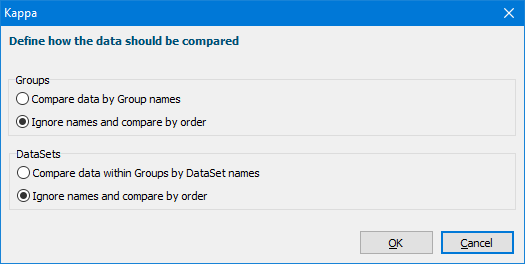
This selection is very import because the comparison is made per DataSet:
•If the order of all DataGroups and DataSets is the same in both documents, you can ignore the names. In this case use the second option!
•If the order of the DataSets is not the same, the DataGroups and DataSets need to have the exact same name entered into the description field, for each of the corresponding Sets and Groups, in both documents.
▪Select the applicable structure and confirm the upcoming dialog with OK.
Next, the Kappa Parameter dialog appears.