Video Codecs used to cause quite a lot of trouble, but with the INTERACT Player, most of them are a thing of the past.
Is some rare cases, the old, DirectShow based Windows-player is still required and than all the old rules apply.
Identify the Video Codec Used for Compression
If you do not know how and with which Codec the video was created, you need to take a look 'inside'.
The following method is a quite reliable way to investigate:
▪Start MediaInfo (GSpot work only for older formats).
▪Drag the video file you are investigating into the application.
•MediaInfo: Switch to the Tree view for more details
•GSpot: Take a look at the Codec information in the upper right corner, where you find the name of the Codec that was used to store the video. The bigger description field at the left side also contains interesting information.
▪Make a screenshot of your window to send to us, if need be.
Now you know what kind of video it is.
If GSpot tells you Codec NOT installed, you need to install the proper Codec and try again.
If GSpot tells you the Codecs are installed, but things still do not work correctly, your system does use a Codec that is recognized as a proper Codec for that video format, but the Codec does not provide INTERACT with accurate time information.
In this case, you need to find out what Codec is actually used for play back on your system.
IMPORTANT: The following information ONLY applies if you did select the Windows Player INSTEAD of the default INTERACT Player.
Identify the Video Codec used for Playback
 | From within INTERACT - If INTERACT is able to open the video, but you still have time code related problems, the multimedia window of INTERACT can help you to identify the codec being used. |
▪Click on the Video details  icon at the bottom of the multimedia window.
An Information dialog like this appears:
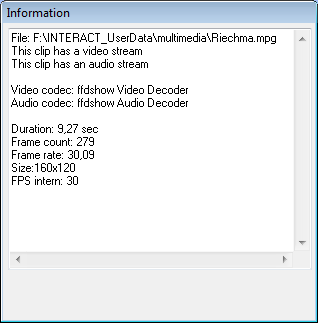
Depending on the player and codecs being used, this dialog gives you information that can enable you to identify the source of your trouble. This dialog does only give you the name of the codecs (no in-depth information like the name of the splitter or multiplexer underneath the video codec). But in some cases, a wrong splitter is the cause of your trouble. This can only be identified by the external method.
| Externally - If you cannot open the file in INTERACT (or the right codec is listed in the INTERACT Information dialog so you need to dig deeper) you need a utility like GraphStudio to identify the codec being used by the system. Even if the correct codec is installed, Windows does not automatically use it to play your video. |
▪Start MONOGRAM GraphStudio.
▪Drag your video file into the empty window.
A graph appears, showing you how the file is handled by your system:

It tells exactly what splitter is used, for demuxing the audio and the video stream of your file, and what Codec is used for video and audio playback on that system.
▪If possible, compare this Graph with that of another computer, if you do have a system on which everything works fine.
▪Use the Win7DSFilterTweaker to adjust your codec situation, as is described in Video Codec setup.
•XP users: Re-install the codec, if you know what you need. This might solve the problem, because the latest installation often tends to increase its priority.
If this does not solve the issue, you need to start shuffling with the priority (called merit) of the video codecs using a Direct Show Filter Manager or similar. This is definitely an administrator's job!
Even if everything once worked fine, installing any kind of multimedia application like Nero or converter apps like FormatFactory probably mix up your system!
Note: If you are not able to solve this problem with your in-house computer specialists, make a screenshot of both GSpot and GraphStudio showing the details of your video and send it to support@mangold-international.com. We are always happy to assist.
Tips and Handy Tools
•Mangold Video Codec Tools - You can download the tools MediaInfo, GSpot, GraphStudio, Win7DSFilterTweaker and DSFM from this link www.videoanalysis.net/VideoCodecTools.zip
•Win7DSFilterTweaker - A must have utility for all Windows 7 or 8 users. It enables you to overrule the default Windows video codecs, as is described in Videos Codec Setup.
•GraphEdit - Is a utility from the Microsoft DirectShow SDK that shows you exactly which codec is used for video playback on your computer. Sometimes, you do have the correct codec installed, but for some reason Windows uses another codec during playback. GraphEdit shows you what your computer does use.
•MONOGRAM GraphStudio - Open-source follow-up for GraphEdit.
•GSpot - This is a free utility which identifies the codec required to play an AVI file and supplies other information as well, like whether there is a hidden VOB layer in your mpeg files.
•VirtualDub - Allows you to convert, edit and manipulate your digitized video in virtually every way you want. You can adjust the frame rate, join avi files or cut them in pieces, get rid of the interlacing and so on... (virtualdub.sourceforge.net).
•Mangold VideoConverterPro - Free Video converter for MPEG2 and MOD videos as well as the *.H264 videos Created by our VideoSyncPro Classic recording stations. Output only to the two currently best compression routines XVID and X264vfw.
•xMedia Recode - This is a great free-ware conversion tool, which enables you to reconvert your video into multiple formats (www.xmedia-recode.de/download.html), without messing up your codec situation.
•DVD's & VOB's - If you burn videos on a DVD, do NOT burn them as a Video DVD but create a Data DVD!
Video DVD's are MPEG2 files packed in a specific VOB format. Sometimes obviously, with the suffix VOB and sometimes hidden, showing just the *.mpg suffix. This will result in single video files that are not divided in logical parts, causing multiple sessions to be joined in one file or, worse, single sessions cut into multiple files. The corresponding DVD typical index files are not recognized by INTERACT.
•MPEG2 - Generic MPEG2 files are the old DVD standard and still widely spread. You need to tweak your system and install the Commercial Elecard Video Codec for frame accurate control. We strongly recommend converting those videos to much smaller and better controllable Xvid compressed avi files, using our free converter Mangold VideoConverterPro.
•Elecard - If you need to stick with your VOB or other MPEG2 based videos, the latest Elecard Codec needs to be purchased and installed correctly, for accurate video control
(http://www.elecard.com/en/products/end-user-software/playback/mpeg2-plugin-wmp.html).