This routine can be helpful for various scenarios:
oConvert Repetitive Markers into Events - If you have coded various repetitive activities with a simple Marker for Frequency counts (e.g. placed a marker for every time a dog says "woof"), but discover during analysis that it would be good to have those activities converted into Events with duration whenever die repetition took place within a specific interval.
E.g. turn "woof" - "woof" - "woof" into an Event labeled "Barking" .
oMerge Repetitive Events - If you have observed many rather short behaviors, but figure out that those activities actually belong to a more generic, longer lasting Event, whenever they occur within a specific time frame. E.g. turn "chewing" .... "chewing" ... "Chewing" ... "chewing" into an Event named "food intake", whenever the chewing was observed within 30 seconds and the pauses in-between should be ignored.
oMerge Identical Overlapping Codes - If your data contains Events in which identical Codes are overlapping, maybe because the data was coded in multiple passes or if you use a lexical coding system that collects multiple activities for the same person, statistics will result in values far too high for such a Code. This routine will create new Events that only covers the time frame for that Code once. For further details, read Consolidate Overlapping Events.
You can perform this routine for a specific Code or for all Codes at once.
Note: All original Codes and Events are kept as well, so you need to pay attention to what you select while calling what statistics.
Merge Successions of a Specific Code
The merge example with the barking dog, that has been coded with single 'barks' initially, is a typical case for this routine.
•Select the command Transform - Events - Merge  > Merge specific successive identical codings.
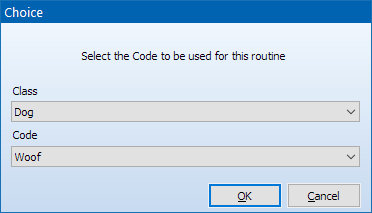
•Select the Class and the Code you want to merge in the upcoming dialog:
•Confirm with OK.
•Enter the maximum distance between two "Woof" Events that should be considered as the same "Barking" period.
Only events that occur within this time range will be merged:
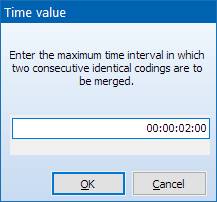
In this example all single "Woof" Events are merged if they are less than 2 Seconds apart.
•Confirm with OK.
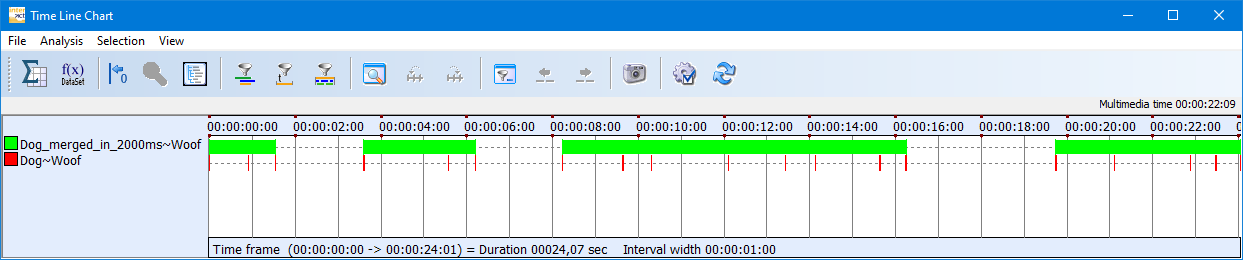
The results appear as new Events within the original DataSet. Each Event holds the original Code, but a new Class has been created.
The name of that new Class is extended by '_merged_in_xxxx ms', allowing you to merge the same Code with different distances between the Events and still be able to tell them apart.
In this example the new Events hold the Code 'Woof' in a Class named 'Dog_merged_in_2000ms':
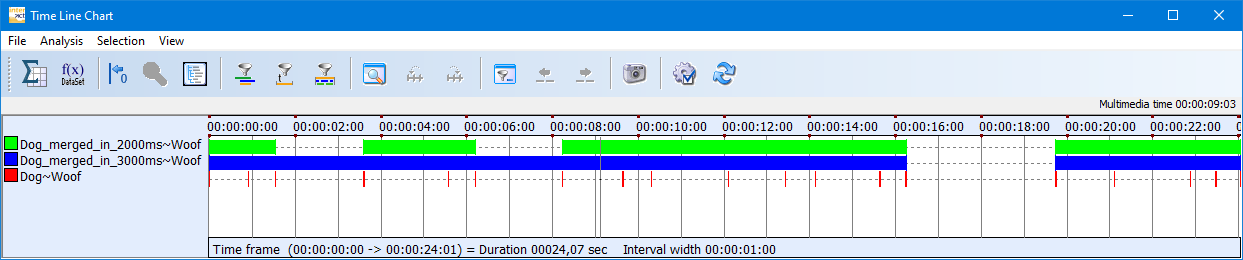
If you run the same command using a max gap of 3 seconds, an additional Class with the extension '_merged_in_3000ms' is added:
| TIP: | You can tripple-click the Class header to rename that Class and use the command Edit – Find & Replace - Replace  to rename the Codes 'Woof' with 'Barking'. to rename the Codes 'Woof' with 'Barking'. |
Merge All Successive Codes
If your date contains successions and or overlaps as described in the three most likely scenarios at the beginning of this topic, you can perform the Event-Merging routine for all Codes at once.
•Select Transform - Events - Merge > Merge all successive identical codings.
•Enter the maximum distance between two Events that should be merged into one coherent period.
Only events that occur within this time range are merged:
INTERACT now checks all Events per Class and whenever an identical Code was detected within the given interval, those Events are merged as described before..
IMPORTANT: This routine works its way through you data per Class and only looks for re-occurrences of an identical Code within the specified time frame, INDEPENDENT of the fact that another Code might have been coded in-between!