This is a detachable ribbon and can be torn of as a floating Observation panel.
The available controls only appear if you open at least one video or switch to the live-observation mode.
If you are in Live Observation mode, the current time information is shown here instead.
Per default, the Observation Ribbon is available underneath the main toolbar:

|
Observation Ribbon - Detachable ribbon with multimedia controls and observation relevant commands. |
|
Multimedia Progress Bar - Progress indicator for the duration of the current multimedia file(s). |
|
Timer display - Shows the current multimedia time or an ongoing time value during a live observation. The time format can include a date (year-month-day) and the time can be displayed in Hours:Minutes:Seconds:Framesor Hours:Minutes:Seconds.Milliseconds |
|
Start Session - Activates the Observation mode, which is obligatory to log behavioral Codes. |
|
Position Slider - Shows the current position of the multimedia file(s). |
|
Multimedia Controls - Detailed explanation under Available Multimedia Controls, in the INTERACT User guide – hints appear if you move your mouse over the buttons. |
|
Play selected - Plays the currently selected item(s) from onset to offset (successively). |
|
Speed control - Enables you, to change the play speed of the multimedia file(s), by increasing (=faster) or decreasing (=slower) this value. |
|
Time Control Options - Define Step width, search speed and pre-roll for individual multimedia control. |
|
Current Coding Mode - Displays the Coding mode, as selected in the Observation settings. |


Multimedia progress bar
This Multimedia Progress Bar is visible, if at least one video has been opened. The Video progress slider covers the total duration of your video.
oThe Multimedia Position Slider indicates the position of the current video.
oDrag the slider with your mouse, to position your video.
oClick inside the progress bar, to position the video at the next (or previous) step, as is predefined as your preferred step width.
Available Multimedia Controls
|
Play - Plays forward at regular speed or at the speed set using the speed control arrows (F7). SHIFT+Play = Play Reverse |
 |
Timer Display - Shows the current multimedia time or an ongoing time code based on the current time during a live observation. The time format can be Hours:Minutes:Seconds:Framesor .Milliseconds |
|
Pause - Pauses the video at the current position, only visible when the Video is playing (F9). |
 |
Start Observation - Activates the INTERACT Observation mode, which is obligatory to log Observation Codes. |
|
Fast search - allows you to run and view the video at high speed, the speed can be set within the Time control settings. Multiple clicks will multiply the speed (F5 & F8). |
|
Speed control - Enables you to change the play speed of the video by increasing (=faster) or decreasing (=slower) this value. •Click the value to return the original speed. |
|
Frame by frame - Each mouse click moves the video just one frame, either forward or reverse (F10 & F11). |
|
Play selected - Plays the currently selected item(s) exactly from start- to end time code (F12). |
|
Go to Start or Go to End- Positions your video at the first or the last frame with just a single click (CTRL+F5 & CTRL+F8). |
|
Time Control Settings - To influence default Pre-roll, Search Speed and Step width functionality. |


Note: The time code information can be displayed in HH:MM:SS.MS or as HH:MM:SS:FF for 'Frames'; you can select your preferred display under General - Program - Settings - Time format.
Additional Video Control Possibilities
Content based Video Control
Besides the obvious video controls, INTERACT offers other ways to control your video(s). The most important one is based on the available events:

|
Double click on any onset time to position the video at that time value. |
|
Double click on any offset time to position the video at that time value. |
|
Double click anywhere in the codes area of an event to play the video from onset to offset of that selected event. |
Enter Time Value
If you know exactly at what time you want to position your video (and this information is not available as a time code to click on), it is possible to enter this time value manually:
•Double-click inside the Time Code Display field.
The displayed time value shifts from left to right and a blinking cursor appears.
•Enter the time value you want to go to.
•Press ENTER on your keyboard.
INTERACT now positions your video(s) to the entered time value.
Fixed Intervals based Steps
In addition to the frame by frame based steps available in the video controls, it is possible to 'jump' through your video at fixed interval steps, using the LEFT and RIGHT ARROW KEYS on your keyboard and the Step-Width function.
This allows you to proceed through your video at a preset step size:
▪Click Observation Ribbon - Time Control Settings , to open the 'Time Control Settings':
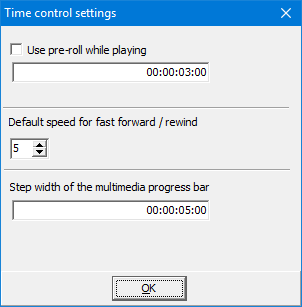
▪Define the Step size you need within the third section of this dialog
▪Confirm with OK.
▪Select the Multimedia Progress Bar or a Multimedia Window.
▪Use the ARROW LEFT and ARROW RIGHT keys on your keyboard, to jump through the video or click in front of (or behind) the position slider inside the Multimedia Progress Bar.
IMPORTANT: Either the multimedia window, the Coding panel or the Multimedia progress bar needs to be selected!
Lead Time
In some cases, people do want to see a certain number of seconds preceding the onset of the logged behavioral Event. So you see what happened just before the selected Event, allowing you to focus on the beginning of the actual Event.
This time frame, preceding the actual Event, is called pre-roll. The length of this pre-roll can be set to your needs:
▪To activate this function, select Use pre-roll while playing.
▪Enter your referred time value into the text box, to set the exact pre-roll time interval.
▪Click OK to confirm your settings.
Every time you replay a logged Event, INTERACT now automatically starts the video as many frames or seconds BEFORE the original onset of the selected element.
| TIP: | Press CTRL while double clicking an ONSET or OFFSET time value in your document to replay only the specified pre-roll period until the clicked time value. This allows you to easily replay the LAST 2-3 seconds of any longer Event or just the few seconds BEFORE the selected Event starts! |
IMPORTANT: Use this functionality with care, in order not to confuse other team members!
Floating Observation Panel
For INTERACT users that prefer a free floating panel, it is possible to detach this Observation Ribbon from the menu. You can position the panel wherever you prefer.
Detach Observation Ribbon
•Click on the dotted vertical line at the far left of the ribbon.
•Drag the ribbon down until its appearance changes.
Now the Observation Ribbon is a free floating panel:

•Drag one of the borders to resize the panel to your preferred size:
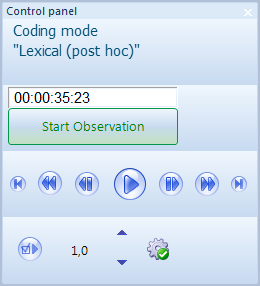
Note: The Multimedia progress bar is still located underneath the main toolbar!
Attach Observation Ribbon
INTERACT memorizes the last position and size for your Observation Panel. You can re-position those controls to their original position:
•Click the Close icon in the upper right corner.
or
•Drag the floating panel between the video position slider and the main toolbar.
•Let go of your mouse the moment the required position is reached.