If you own a network license for one of the our Mangold products, you can access the license information from anywhere in your network.
To make this work, the computer that has your license key physically inserted needs to serve as a license server. This sounds much more complicated as it is!
Setup CodeMeter License Server
Any computer (Windows, OSX or Linux) within the same network as the clients will do.
▪Make sure the latest version of the CodeMeter RunTime kit installed locally on that computer:
http://www.codemeter.de/us/service/downloads.html
IMPORTANT: Since Version 7 of the CodeMeter Software it is important to activate the Networkserver option DURING INSTALLATION, in order to set the required Firewall Settings: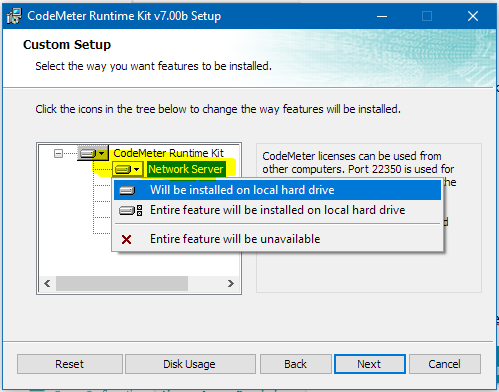
▪Open the CodeMeter Control Center application.
▪Click on the WebAdmin button in the lower right corner.
▪Navigate to Configuration / Server
(http://localhost:22350/configuration/server_access.html)
▪Select Activate in the section the network server.
▪Click Apply to save your changes your changes.
▪Return to the Codemeter Control Center.
▪Select Process - Restart CodeMeter Service to make sure the server is started correctly.Setup Mangold Network Client
If your clients do not find the license server automatically, you need to enter the license server into the server search list:
▪Open the CodeMeter Control Center application.
▪Click on the WebAdmin button in the lower right corner.
▪Navigate to Configuration / Basic / Server search list.
(http://localhost:22350/configuration/server_search_list.html)
▪Add the network computer name or IP number of your license server to the server search list.
▪Apply your settings.