To observe a remote session, the computer that runs our Mangold Remote Observer needs to be in the same network range (LAN or WLAN).
▪Start the Mangold Remote Observer:
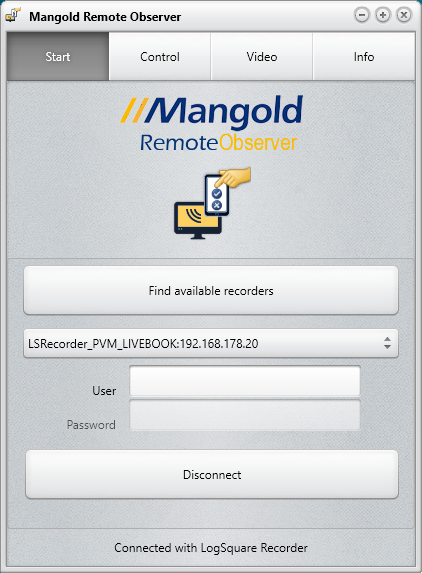
When only one compatible recorder is found, it is selected automatically.
▪In case there are multiple recorders available, select the one you want to connect to from the drop-down list.
▪If you specified a password in the currently selected Mangold LogSquare recorder, enter that password into the Password field.
▪Click Connect to connect to the selected Recorder.
The connection will be established if enough free licenses for remote connection are available.
Additionally, if running the Mangold Remote Observer on a Windows PC and network video streaming is activated on the PC running LogSquare Recorder, you can open a separate window showing the participant screen:
▪Switch to the Video tab.
▪Select the Recorder-name listed.
▪Click Show videos at the bottom of the Remote Observer window.
A new Window appears and after a few seconds, the content streamed from the LogSquare Recorder station appears in this window:
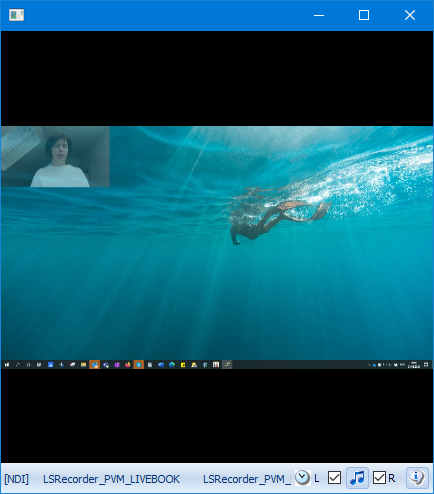
If webcam streaming was also activated, the user face appears Picture in Picture in the specified corner of your Remote Viewer window.