To fill out a checklist or questionnaire, the required Checklist(s), Scenario(s) must be preconfigured by the Administrator and a Session must be available.
Per default, each Session is automatically created from within Mangold VideoSyncPro Studio. For stand-alone setups, the Administrator also needs to create each session manually.
There are two ways to join a Session:
QR Code
The administrator can display an automatically generated QR-Code on the CheckIT Server.
Within VideoSyncPro Studio, the associated session can be can be called up directly.
CheckIT creates this QR Code per User Group for each session:
▪Switch to the Sessions tab.
▪Select the session about to start.
One or more QR-Codes appear like this:
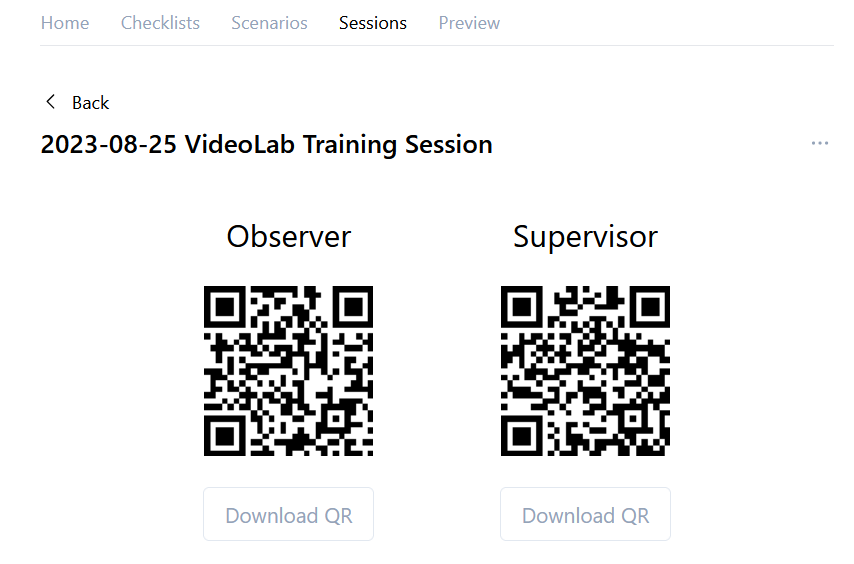
You can download the QR Code for printing or displaying it on a separate monitor so users can easily access the correct checklist.
If you plan to fill out the checklist on the device that shows the QR-Code:
▪Click the QR code to join the session.
If you need to fill out the checklist on another device:
▪Scan the QR code to log in and join the session.
Printing or displaying the QR Code is helpful if many different observers need to log in to a session.
Users can scan their QR code without entering the CheckIT server's IP number.
| TIP: | VideoSyncPro Studio can open the current Session QR-Codes directly, for easy access. |
CheckIT -URL
Users who access the CheckIT server by entering "<IP number>:8080" of the CheckIT server have a limited view of the app and will automatically see the Sessions list with available sessions.
▪To join a session, click the appropriate session.
▪Select the User Group you belong to.