Instead of using plain RTSP, some PTZ-cameras need to be connected using an ONVIF-URL in order to control the camera position.
It this case, some additional settings must be applied.
Suppose we want to include a Wisenet PTZ camera using ONFIV in the common sources list:
•Create a new Video Stream Source.
•Enter a valid Source name.
•Enter the IP number of the camera into the IP Address field.
•Enter this URL into the URL field of the Network Streaming source:
URL=rtsp://<CAMERA-IP-NUMBER/onvif/profile2/media.smp
•Activate Frame stabilization .
•Enter the Username that has ONVIF control enabled on the camera.
•Enter the corresponding Password, as specified in the camera.
•Select Protocol type ptONVIF from the list.
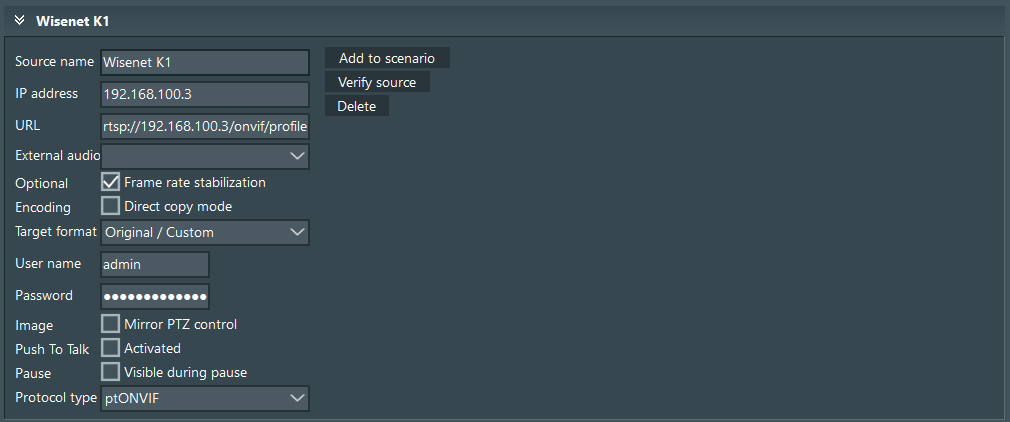
•Create additional ONVIF sources, if available.
•Save your changes by confirming with OK.
To make these sources work properly, we need to add some information to the source definition file for which no GUI element is available.
•Close VideoSyncPro Studio.
•Navigate to C:\Users\Public\Documents\Mangold VideoSyncPro Studio Data.
•Open the Mangold VideoSyncPro Studio Sources.ini file in a text Editor.
•Each source starts with a cryptic line with characters like this:
[{940CDB3F-A17C-4427-8A9A-D9603BEE72BF}]

•Find the line OnvifURL= in each source block and enter the appropriate URL per cameras, like this: http://<IP-NUMBER_CAMERA>
•A full source block in the text editor may look something like this:
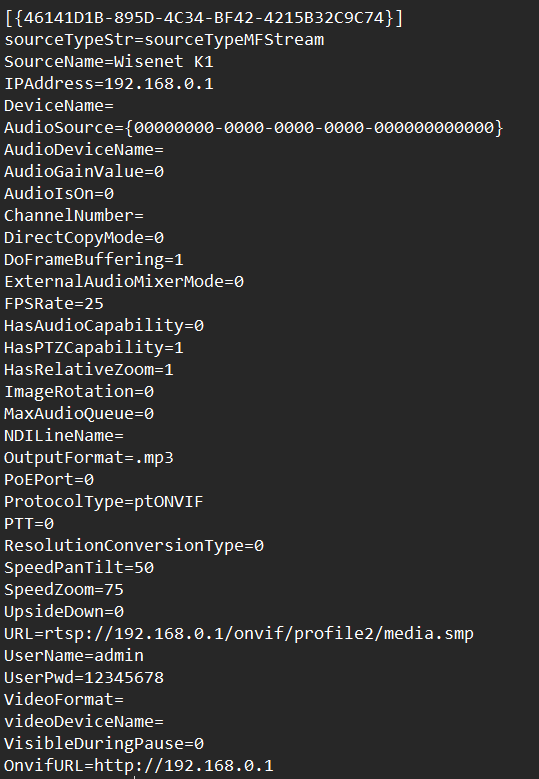
•Save and close the text file.
•Start VideoSyncPro Studio.
•Open the Common Sources list and add the new ONVIF sources to a scenario.