•
The Legend tab of the TLC options influences the display of the legend at the left side of the window.
•Click the Settings  icon, within the Time Line Chart window.
•Switch to the Legend tab.
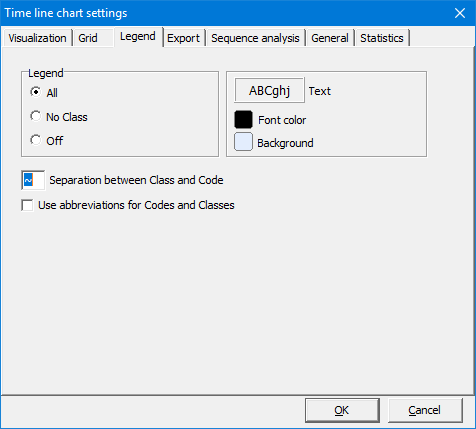
Legend Content
What is displayed here can be altered:
•Choose what Class and Code information is displayed:
•All - means Complete Class and Code information. You can set the separator between Class and Code in the Separation between Class and Code field.
•No Class - leaves out the Class names
•Off - makes that neither Code nor Class information is displayed
Font and background
Change font type and size for the left hand legend:
•Click on the sample text 'ABCghj' in front of Text and select a font type, style and size from the now appearing dialog.
Change the color of the background and text (=font color) of the left hand legend:
•Click on the colored square and choose the color of your choice from within the now appearing default Windows "Color" dialog.
Separation
You can, for the left hand legend, decide how the Class description is separated from the Code.
•Define the separator that is used to separate Class and Code, by entering a character into the Separation between Class and Code field.
Abbreviation
•
The option Use abbreviations for Codes and Classes enables you to display and export the abbreviations defined in the Code Archive.
•Read Translate Statistical Results for details.
•