A Code Archive enables you to define alternative expressions for every Code and Class, within the field Abbreviation.
Abbreviations can be used for:
oTranslating analysis results, if you need to make a publication in another language.
oRenaming codes for a special publication.
oShorten variable descriptions for further data processing.
oCombine statistical results of multiple Codes, by using the same 'abbreviation'.
The information can be displayed in the Time Line Chart legend, as well as in various export routines from within the Time Line Chart.
Example: Presume you need to process your data with an other program. This program does only accept variables with up to 8 characters and no spaces in between.
Now you have a Class "Gaze" with a Code e.g. "to the left", resulting in the variable 'Gaze_to the left', which has 14 characters and two blanks. This variable is not accepted in the other program, so you rename the headers in your export file, before importing the data into the other program.
INTERACT solution: Instead of renaming the exported data manually, define the abbreviation "G" for the Class "Gaze" and "tl" for the Code "to the left". This result in the variable "G_tl" in the export file, if required, which resolves your import problems in the other application. So defining an abbreviation for each Code and Class in a CodeArchive, saves you from cleaning up your export files again and again.
The same method can be used, if you have used Codes in your native language, but now need to make an publication in English (or vice versa).
Definition steps
To define abbreviations or translations do as follows:
•Click Start - Current Document - Properties  and than the Code Archive
  icon, to open the currently active Code Archive.
•Select the Code or Class name, for which an abbreviation or translation should be defined.
•Write the abbreviation or translation of your choice into the Abbreviation column.
Note: If you enter the same expression for multiple Codes, all corresponding Events are accumulated in the statistics! this way you can virtually accumulate different Codes.
(De)activate Abbreviations/Translations
Once the alternative expressions are defined, you can decide to use them and or not.
Whenever you create a Time Line Chart, you have the opportunity to (de)activate the use of those expressions, within Time Line Chart settings:
•Click Time Line Chart Settings .
.
•Switch to the Legend tab:
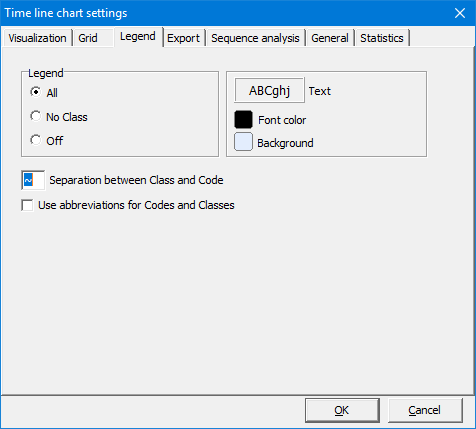
•To display and export the Abbreviation expressions, select Use abbreviations for Codes & Classes.
•To display and export the original Code expressions, clear Use abbreviations for Codes & Classes.
After you have closed this window, the data in the Time Line Chart will be re-drawn, so can directly approve your changes. All statistics and export routines from within the Time Line Chart will now use the chosen version to display your legend (variable names).
IMPORTANT: The Trim on Code filter and the Co-occurrence Filter do not work, if the abbreviations are displayed!