All properties of the currently opened document can be found in the 'File properties' dialog. Here you can assign a project specific Code Archive, define default independent variables and change any of the available Document properties.
▪Click Start - Current Document - Properties  to open this dialog:
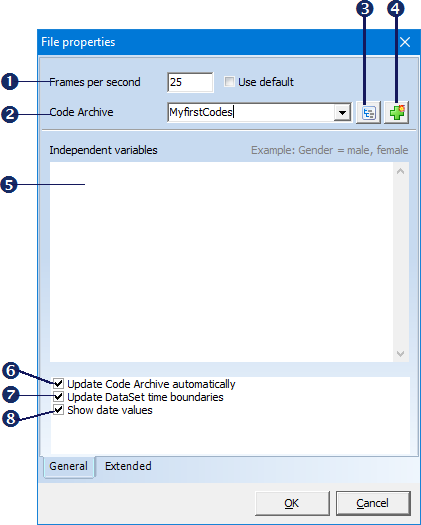
General File Properties
The following properties are available in this dialog:
 Frames per second
Deactivating the option Use default reveals an fps text box. Its value is automatically set to the fps value of you active multimedia file, the moment you start the Observation mode.
If you manually copy data into a new document, make sure you manually enter the original fps value of the copied data, before you paste the data. Another reason to set this value manually, is before you start a live observation session; to make sure your live data does fit the corresponding video later on:
▪Clear the Use default check box and enter the fps value in the now appearing text box.
Note: You cannot log Events for a video with another fps value, within the same document.
 Code Archive Name
This field offers a drop-down menu containing all available Code Archives in the folder ..\Mangold INTERACT Data\CodeArchives\. Entering a new name automatically creates a new Code Archive. The Code Archive can be seen as an analysis template.
▪Read more about the functionalities of a Code Archive in the section The Code Archive.
 Show Code Archive
Opens the Code Archive editor, showing the current Code archive.
 Create a Code Archive
Clears the current Code Archive entry, so you can enter a new name.
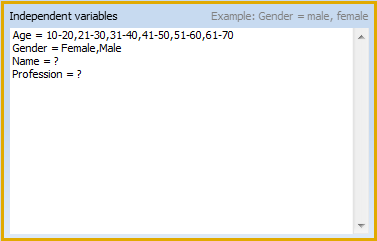
 Independent Variables
Here you can define your independent variables and corresponding value lists.
Details about Independent variables and how to define those defaults, can be found in the section Identify DataSets and Groups.
 Code Archive update
Per default, the Code Archive is updated automatically, so it always contains all Code-Class combinations, ever coded within any of the linked files.
If you do not want that to happen:
▪Clear Update Code Archive automatically.
Read more about Code Archives in the section The Code Archive.
 DataSet time boundaries
Per default INTERACT does check and correct the time boundaries of each DataSet as soon as a TLC is created. If you do not want the time boundaries of your DataSets checked in a specific document: Clear the option Check DataSet time boundaries. Read more about the use of DataSet boundaries in Using DataSet time code boundaries.
Note: All settings are automatically entered in the script editor, which is available on the 'Script' tab of this dialog.
 Show date values
If you log behavioral data that exceeds a single day, you can activate this Show date values option per default.
Extended
The Extended tab shows you the basic file structure elements and properties in plain text format - previously called Script:
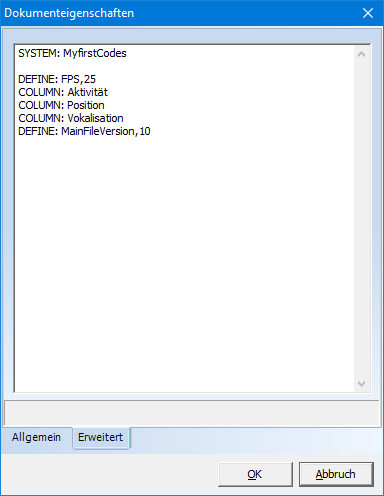
IMPORTANT: It is possible to change Class descriptions in this dialog, but BEWARE of changing the order of you Classes if your data-file contains any data!