If you have logged multiple Codes per Event, usually each Code describes only part of the behavior, movement or situation. In the INTERACT statistics, each Class is handled separately, though. This does allow you, to extract many overall statistical figures per Code, but does not provide you with the statistics on the actual behavior, which depends on the combination of Codes logged per Event.
To get results, based on a combination of those single entries, you need to aggregate one or more Classes to get the values you need. This aggregation afterwards, is a lot easier than splitting up combined Codes!
Another application of this routine is, to move Codes to another Class. This helps you to restructure your Codes and Classes in fully coded data-files, allowing you to correct definitions errors.
Combine Codes
Note: This routine combines Codes from the same Event only. To create combinations of overlapping Codes from separate Events, you need to find co-occurrences, as is described in Co-occurrence Filter.
Assume we have a data-file in which, among other Codes, the 'Emotion' of a test person and the corresponding 'Scale' has been logged in two separate Classes, like shown in the picture:
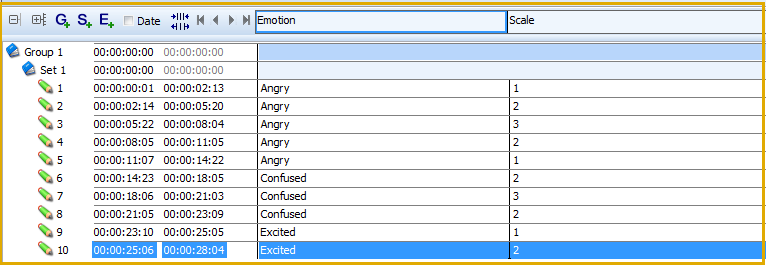
Those Codes, as shown, allow you to:
oGet the frequency and the duration per emotion, independent of the scale, which is a good thing.
oGet the statistics on the time(s) spent in a specific emotional scale, which is good too, because it allows you to judge whether it is a very emotional person or not.
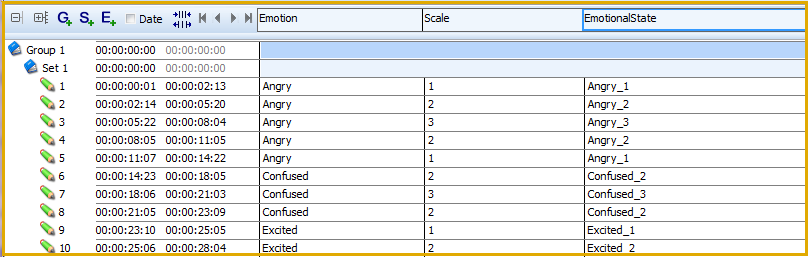
To get statistics on e.g the times the test person was Angry on the scale of 2 or Confused at the scale of 3, you need to combine those Codes in an additional column, so you do not loose the original information:
•Click Transform - Codes - Move and Combine  to open the following dialog:
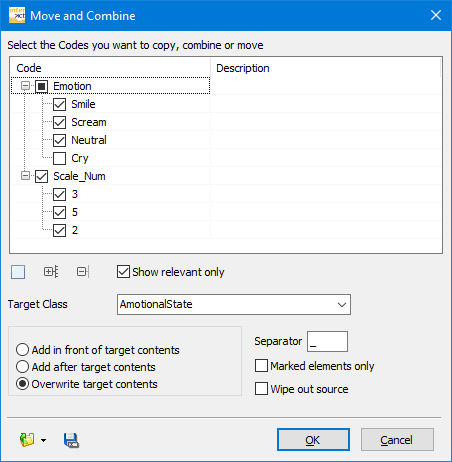
This dialog, shows Codes and Classes as they are available in the current CodeArchive and allows you to select exactly those Class and Code combinations you need.
In our situation, we want all emotions (except 'Neutral')) to be combined with the rated scale per Event (we only coded the 'Neutral' Events to create a mutual exclusive set of Codes):
▪Select the required Codes from the class 'Emotion' as well as the class 'Scale'.
▪Enter a new name, here EmotionalState, into the Target Class field (or select an already available Class, if you are sure that is the Class you want - this can result in over writing the existing Codes in the selected target Class).
▪Rearrange the order of the listed Classes by drag & drop, to influence the structure of the resulting Code combinations (e.g. 'Smile_1' or '1_Smile').
▪If you did select an existing Class, select one of the three available options about where to put the new, combined information: Overwrite target contents, Add after target contents, Add in front of target contents.
▪Change the Separator, if you want to use another character between the combined Codes.
▪To apply the combination only to the Events currently selected, select the option Marked elements only.
▪To delete the selected Codes from the original Class, select Wipe out source.
▪Confirm with OK.
| TIP: | Use the Edit - Find command to select a specific number of Events and use the option Marked elements only to create combinations for specific Events only. This little option opens up a whole new world of restructuring possibilities! |
Note: You can select any number of Codes and Classes to be combined into a single new Code.
INTERACT now performs the combine operation which results in the following data-file:
Move Codes
If you want to physically move one or more Codes from one Class to another Class, this routine is your best friend as well.
•Select the Code(s) you want to move (pick only Codes that have the same target Class, per pass).
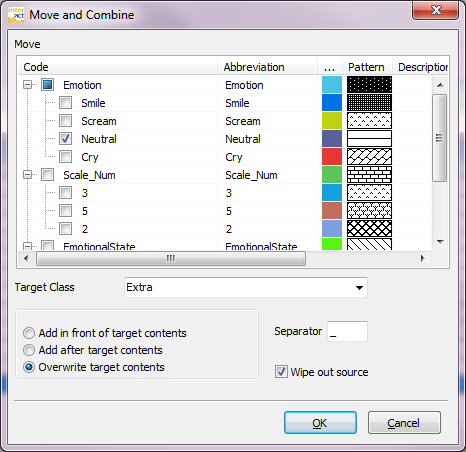
•As your Target Class, select the Class those Codes need to be moved to, or enter a new name for a new Class.
•Select the option Wipe out source, to delete the selected Codes from their current Class.
•Confirm with OK.