Find specific combinations of behavior, that happened simultaneously, within the same DataSet i.e. find Observation Codes that are overlapping in time - also called Co-occurring Codes. It is the perfect routine if you want to know, how often and/or for how long a certain behavioral combination occurs (like all parts where "Code A", "Code C" and "Code E" are coded simultaneously), or any other combination of your choice.
In many studies, such a combination of Codes often specify a specific behavior. That is why you can use this routine to create new Events with a new Code, describing this 'new' behavior, based on the overlapping found.
This powerful functionality allows you to:
oIdentify Codes that do overlap in time
oAutomatically create new Events that exactly represent the overlapping intervals
oUse new Code expressions, including a new Class, for those new Events
oDecide about the destination position of those new Events (inserted in the original DataSet or in new DataSets)
oExtract all statistics for those automatically generated Codes
All of this, is done from within the Time Line Chart window.
Example: We want to find all parts where two test persons look and show 'Positive affect' at the same time, but the steps below can be applied to ANY combination of Codes!
The following example is based on a very simple set of data, which allows us to easily check and track what happened. You can also select more than two Codes. INTERACT searches for those sequences, where ALL selected Codes where coded simultaneously!
IMPORTANT: Only Events within the same DataSet are compared.
Identify Co-occurrences
•Click Analysis - DataSet - Main Statistics  , to open the Time Line Chart window.
•Click on the Co-occurrence filter icon or choose Analysis - Co-occurrence filter from the Time Line Chart menu.
The Filter dialog appears:
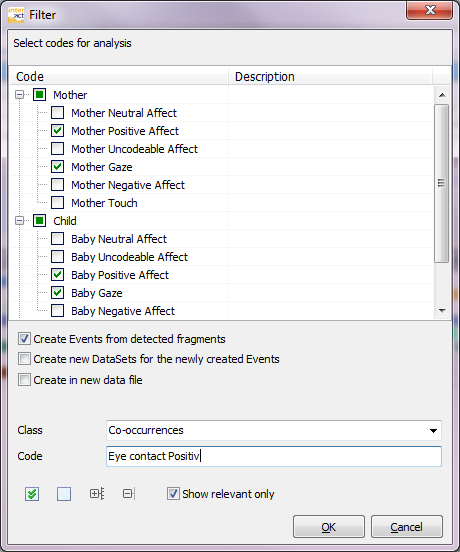
•Select the Codes you are interested in.
| TIP: | Click on the File open icon in the bottom left corner, to restore your last selection of Codes! How to save the selection of specific groups of Codes is described in Save and re-use predefined filters. icon in the bottom left corner, to restore your last selection of Codes! How to save the selection of specific groups of Codes is described in Save and re-use predefined filters. |
New Events
To automatically create new Events, describing the parts where your selected combination was observed simultaneously:
•Select Create Events from detected fragments.
Coding System
To tell the automatically created Events apart from the original coding, we advise to create new Codes to identify this 'new' behavior:
 | Use new Codes - If you use a new behavioral Code for the combined behavior and maybe even create a new Class, use the following fields to enter this information: |
•Enter a new Class name in which the new Codes are entered, or select an existing Class from the pull down menu.
•Enter the name of the new Observation Codes into the Code field.
| Use original Codes - INTERACT automatically enters all original Codes in their original Classes in the new Events, if you do NOT enter any new Code or Class information. It will be harder to tell the original Codes apart from the overlaps, though. |
Data Structure
Decide where the new Events will be created.
| Keep data structure - Per default, those new Events are entered into the DataSet they occurred. You do not need to take any further action. |
| Extend Data Structure - If you want, for some reason, to create your new Event into a separate set of DataSets, you can do that as well: |
•Select Create new DataSets for the new Events.
•Enter a DataSet description, for the new DataSets, into the now appearing DataSet text field.
Now, for every DataSet, in which at least one overlapping was found, a new DataSet is created. The original DataSet description is added behind the DataSet text, as entered into this dialog, so you are able to keep track of its origin.
| Extract Co-occurring data to New Document - Especially for large documents, the third option might prove to be very helpful. Inserting new Events into very large documents (>50.000 lines) can become quite time consuming; creating a new file that contains just the overlapping sequences, speeds up the procedure dramatically. |
•Click the option Create in new document to export the overlapping sequences into a new document.
•Check your entries and confirm with OK.
TIP:If you create a new set of DataSets for the new Events, it is advisable to manually create a new DataGroup first, for all new DataSets are created within the last available DataGroup.
Start Search for Co-occurrences
After confirming all entries above, INTERACT scans the data currently visualized in the Time Line Chart. For those parts where the selected Codes where logged overlapping in time (per DataSet) new Events are created, according to your settings.
As soon as all data is processed, INTERACT shows a message in which the number of co-occurring Codes (=overlaps) is displayed:
•
•Close the Time Line Chart window now, to take a look at the results.
| Events in original DataSets - You see the new class among the column headers. The new Codes can be found in the new, automatically inserted, Events. Those Events are inserted into the DataSet in which the co-occurrence was detected! |
| Extended data structure - If you did select the checkbox Create new DataSets for the newly created Events, your document has 'grown' for at least one new DataSet. |

In this case you now see a new 'DataSet 4', containing the new Events, filled with the new behavioral Code 'Eye contact Positive', within the new Class 'Co-occurrences.