A coding system with mutually exclusive Codes simplifies the coding process a lot.
Additionally, it helps you to code consistently.
| TIP: | If you are focusing on a single Class per pass, you may also use the Coding Mode Lexical (post-hoc) instead. Using only the SPACEBAR to create an exclusive and exhaustive string of Events and entering the Code(s) while the video is automatically paused is a more laid-back way of coding. |
For all Codes that do exclude each other mutually (which means that those Codes cannot occur simultaneously), you define 'exclusions' (grouped in 'Exclusion lists').
Hinweis: Mangold LogSquare acknowledges those exclusions within a single coding session, only!
Defining exclusions is simple:
▪Click Start - Observation - Define Codes  to open the Code definitions window.
▪Enter Codes, Classes, and Keys like for regular Codes.
▪Enter identical exclusion identifier* into the column 'Excl.', for all Codes that do exclude one another:
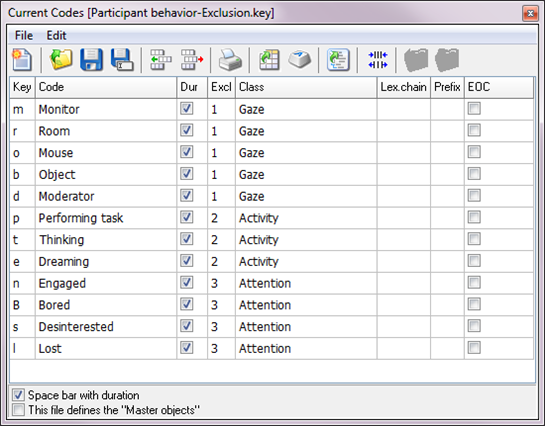
oThis method allows you to log multiple exclusive behaviors simultaneously in a single pass.
oYou can define as many exclusion lists as you need.
oEach Code, that does NOT have an entry in the Excl. column behaves as a regular (non-exclusive) Code, which means that onset and offset needs to be coded with the same Codes.
oCodes assigned to different exclusion lists can still overlap.
oIf required, a Code can be assigned to multiple exclusion lists.
*) As an exclusion identifier (the name of the Exclusion list), you can use numbers or characters or a combination of both (for example, use the numbers 1...0 for the first 10 different groups).
Those identifiers are entirely independent of the [key] assignments!
▪Close and save your changes.
Logging Events
With valid exclusion lists in place, you only need to log the START of each behavior:
▪To activate the observation mode, click  .
.
▪Click a ‘Gaze’ Code that corresponds with the situation at the start of your session (for example, Monitor) to log the start of the gaze being on the monitor.
▪Click an ‘Attention’ Code that describes the start of the session.
▪To start the video, click Play  .
.
▪Click the Code Moderator, the moment the gaze shifts from the monitor to the moderator.
▪Click the Code Room, if the gaze wavers through the room, etc.
▪Click another ‘Attention’ code the moment you notice a change in the attention
Each Code automatically closes the Event of its predecessor, from the same Exclusion list.
Note: For a continuous coding rhythm, you need a Code for every situation. This means that some additional Codes (like 'NILL' or 'neutral') that cover the uninteresting parts simplify and speed up the logging process. Because switching between logging only the start for most Events and then sometimes needing to code the end separately is confusing and therefore a source of error.
Multiple Exclusions
A single Code can be assigned to multiple exclusion lists. This can be useful if a specific situation blocks all other activities.
▪Enter multiple identifiers into the Excl column.
Different identifiers are separated by a comma (no space after the comma!):
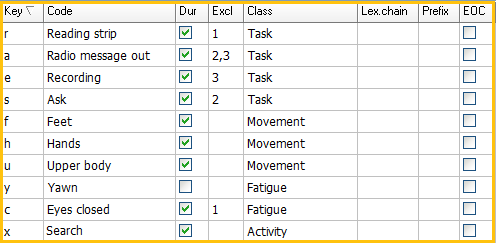
In this example, we presume that it is impossible to be 'Reading strip' whenever 'Eyes closed' is logged and vice versa. Also, the behavioral code 'Radio message', should not be overlapping with 'Recording' nor with 'Ask'.
| TIP: | The Mangold LogSquare Help offers more details in the section Coding Consistently & Sequentially. |