With the LogSquare Analyzer it is possible to describe your observations by setting markers and logging Events after the participant has left the session.
Note: For coding during a live-observation you need to use the Mangold Remote Observer.
In order to create a structured data pool from your observations, that can be statistically analyzed and compared over multiple participants, you can define a set of Observation Codes that allow you to enter and describe your observations with just a click of your mouse.
The required complexity of your Observation Codes totally depend on the aim of your study.
Note: The coding facilities available in LogSquare are an exact copy of the facilities available in our video coding and analysis software INTERACT. Code Definition files can be exchanged.
Different studies require different approaches and thus might require a completely different setup of Observation Codes.
Setting up a simple list of some independent Codes to label your observations is easy enough. Handling dependencies and other hierarchical setups may require some practice.
Note: Don't hesitate to ask for assistance at support@mangold-international.com, if you have difficulties implementing a system that fits your goals.
Set Markers
A marker is a single point time reference. A marker can be entered in two different ways, but for both methods, the Observation Mode needs to be active:
▪Click Start - Observation - Start Observation  .
.
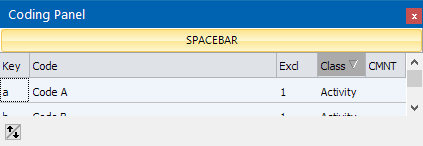
A coding panel listing the current Code Definition file appears - this panel might be empty.
There are basically two rather different approaches to enter a Marker.
SPACEBAR
The moment the Observation mode is activated, you can play the recording and enter an unspecified Marker into your log file whenever you see something noticeable.
▪Press the SPACEBAR to enter new line into your log file which is labeled as 'Marker'
Or
▪Click the top button in the Coding Panel:
Position Slider
If you do not want to watch the whole video, but use the slider so position the recording to a specific point in time, you can insert the Marker directly from within the time line:
▪Use the Time Frame slider and the Fine Tuning slider to position to the video
▪Right-click the Fine Tuning slider:

▪Select Add marker to enter a Marker into the log file.
Log Events
In order to log more specific observations in a structured way, you can setup a Code Definition file in which you specify the expressions you want to use to categorize your observations.
You can define a simple list with Codes (expressions, labels, Categories) or build a complex system with hierarchical Codes - depending on your needs.
Details for setting up your coding system, can be found under 'Define Observation Codes', later in this section.
Start Observation Session
Once you have defined your observation Codes, the basic principle of logging Events works like this:
▪Click Start - Observation - Start Observation to activate the Observation Mode.
The current Observation Mode determines how the software reacts while logging Events. You can switch Observation Modes within the Observation settings, but the coding mode 'Standard' suits most observations:
▪To select a different observation mode click
Start - Observation - Observation settings 
Details on each of the Coding Modes can be found in the corresponding sections in the Help file  .
.
How to continue depends on the chosen Observation Mode:
 | Coding mode: Standard (Ad-hoc) |
▪Position your video at the start of your session.
▪Click on the Code(s) that describe the current situation, to log the current time as the onset of an Event.
Each Code appears as a single Event line in the INTERACT document. This line contains the start time as well as the Code itself.
▪Start the video with the Play  button in the Multimedia Controls.
▪The moment the observed behavior ends, click on the same Code again, to log the offset of that Event.
The time value from the Timer display on the moment you clicked, is now entered into the current Event and the multimedia file continues playing.
▪Click on any of the available Codes to log the start time of another Event, the moment it starts.
IMPORTANT: If you work with Mutual Exclusive Codes, you only need to log the start of the next behavior, without logging the end time of the previous Event. This makes coding much faster!
| Coding mode:Lexical (Post-hoc) |
Note: Using the SPACEBAR to log the onset and the offset of each Event, saves you from 'looking into the future' and results in a seamless string of Events.
Single, sequential string of Events:
To log the first Event and start the video:
▪Press the SPACEBAR or click on the Start new event button in the Coding panel.
The video starts and the Event appears as a single line in the INTERACT Document, containing only its start time.
To log the end time of that Event:
▪Press the SPACEBAR again or click on the now available Stop current Event button in the Coding panel
The video pauses and the end time is entered. Now you can describe the Event just closed:
▪Click all the Codes that apply, sub-level Codes do appear automatically.
▪For better judgment, press F12 to replay the current Event.
To log the next Event and start the video again:
▪Press the SPACEBAR or click on the Start new event button in the Coding panel.
▪Continue as before.
Multiple, simultaneous strings of Events
To log the first Event and start the video:
▪Click on any of the available Codes in the Coding panel.
The video starts and each first level Code clicked, appears as a single Event line in your INTERACT Document. This Event now contains the start time and the Code you clicked.
To log the end time of an Event:
▪Make sure you click the same Code that was used to create that event!
The video pauses and the end time is entered. Now you can enter all required sub-level Codes that apply to the Event just closed.
To log the next Event and start the video again:
▪Click on any of the available Codes in the Coding panel, if applicable, or click the Play button, if no sequential Event is required.
▪Continue as before.
IMPORTANT: Remember to always close each Event with the same Code or [key] as it was created with!
| Coding mode: Refine Existing Events |
▪Make sure you already do have Events in your document. Either created automatically, following the Create Fixed Intervals instructions, or previously coded Events that need additional Codes.
▪Double-click the first Event or press F12, to play the time interval covered by that Event and watch the video.
▪Click on the corresponding Codes in the Coding panel, which describe the situation just observed (or press the assigned [keys]).
▪Select the next Event and proceed as before.
Note: Codes, that can be applied to the same Event, need to be assigned to different Classes! INTERACT does not create any new Events in this coding mode. All information is entered into the currently selected Event. Lexical chains can be used as well.