This INTERACT window, is not visible at start up, but appears automatically* once you start an observational session or whenever you click View - Coding Tools - Show Coding panel  .
.
The Coding panel shows the content of the current Code definition file, like this:
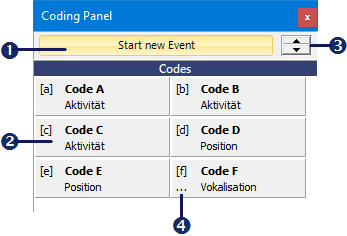
This window allows you to log Observation Codes with simple mouse clicks!
Item |
Description |
|
This button represents the SPACEBAR. Its exact functionality depends on the chosen coding mode. |
|
Available Codes - All currently available Codes are listed as clickable lines. Use them to insert the chosen Code. |
|
Line Spacing - Increase or decrease the line width for the Code line. |
|
Next level indicator - This little > icon informs you that there is an additional code level for that particular Code. |


Coding panel Contents
During the process of logging Events, the Coding panel always offers the currently available Codes.
If using multi-level Code definitions, the currently available Codeschange dynamically, depending on the latest Code definition file, the chosen Coding mode and the logging state you are in, at that specific moment.
You can find various step-by-step examples in the chapter START YOUR OBSERVATIONS.
Active Codes
While coding, the Codes you selected are highlighted in a different color:
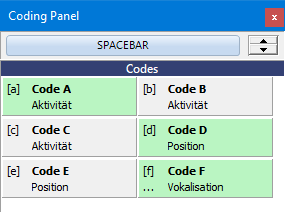
This way you can easily keep track of the currently active Codes:
*) If the Coding panel does not appear automatically, select the View - Coding Tools - Show Coding panel automatically check box.