In some situations, shifting the logged time information for all or a range of your Events is necessary.
Instead of changing each time code single handedly, you can tell INTERACT exactly how much all selected time values need to be changed and in what direction (start earlier or later, end earlier or later). The software performs the change for you in the wink of an eye.
Note: If you need to adjust complete DataSets, in order to compare their contents, read Move DataSets Virtually in Time instead.
Change Onset, Offset and/or Duration
You can change the onset and the offset individually and thus change the duration of the selected Events as well:
▪Select* all elements, for which the time values shall be corrected identically.
*) Use the CTRL or SHIFT key to select multiple lines.
▪Click Transform - Time Values - Shift  .
.
The following dialog appears:
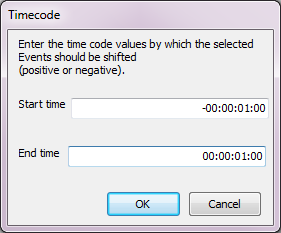
▪To shift the onset of the selected Events 1 second in start direction:
enter -00:00:01:00 into the Entry field.
▪To shift the offset of the selected Events one second in play direction:
enter 00:00:01:00 into the Exit field.
▪Confirm with OK
A second dialog appears, asking you to confirm your settings:
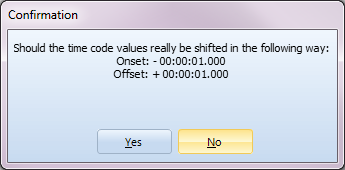
▪Click Yes to confirm to perform the changes.
INTERACT now changes all the onset and offset times for the selected elements accordingly; resulting in an increased duration for each selected Event of two seconds.
IMPORTANT: If you enter the same value, for both onset and offset, the Events are moved as they are. If you enter different values, the original duration is changed.
Add Date
Because INTERACT can handle dates in combination with time values as well, it is possible to use this Shift Time Values command, to enter the same date to all selected elements as well:
▪Select all Events to be altered.
▪Click Transform - Time Values - Shift .
▪Enter the date you need into the Start time and End time text boxes like this:
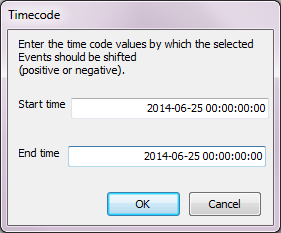
▪Click OK to confirm.
▪Confirm the confirmation dialog as well, to insert the date to all selected Events.
Align with frames
Although the time information looks perfect to you, there might be tiny gaps and overlaps on millisecond level that become apparent when making use of especially the State-Space-Grid. Due to latencies caused by the video, the millisecond value might not be a clean multiplication of the duration of a single frame. To eliminate those hidden 'errors', one mouse click is sufficient.
▪Click Transform - Time Values - Align  to take care of any discrepancies.
Expand all Markers
If you have logged certain Markers (Events/Codes without duration - also single points in time), maybe during a live observation, you can extend all those Markers to a predefined length for further analysis.
Example: You have logged markers whenever a problem occurred during a live observation. During the detailed analysis of the video material you want to examine the time between the last 30 seconds before the problem occurred and the first 60 seconds after this problem occurred.
You can use the Search routine to select all Events without duration with a simple search:
▪Select ¤Timecode.
▪Select the option Mark all single point events.
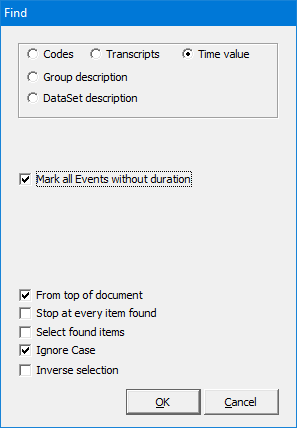
▪Confirm your search with OK.
INTERACT can now extend all selected single point Events easily, using Transform - Time Values - Shift :
▪Enter -30:00 into the Start time text box, to move the onset of the the selected Marker(s) 30 seconds rearward in time.
▪Enter 60:00 into the End time text box, to move the offset of the the selected Marker(s) 60 seconds forward in time.
▪Confirm your settings to extend all selected Events to a duration of 90 seconds.