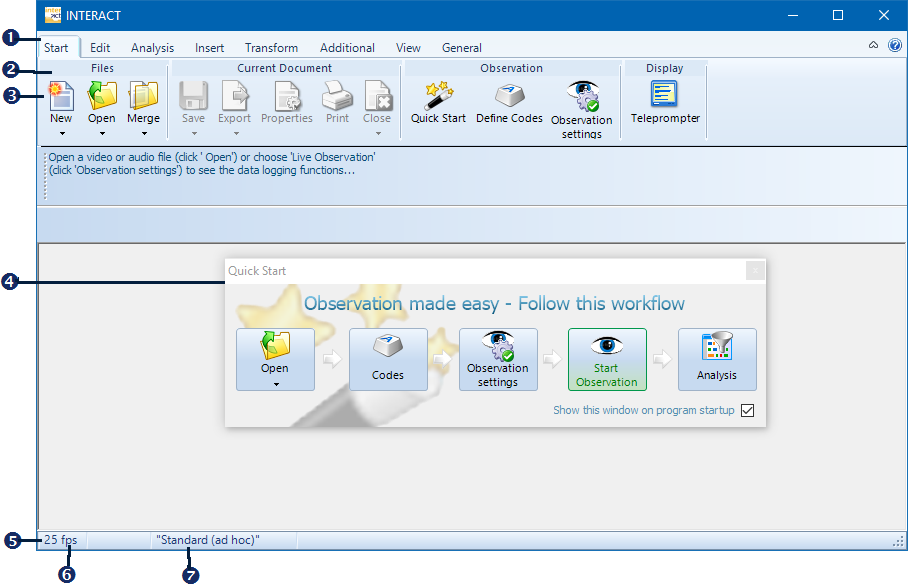
On startup, the main application window of INTERACT looks like this:
|
Tabs - Provide commands per task |
|
Group names - To group commands per task |
|
Commands - To perform a specific routine |
|
Quick Start Wizard - Provides the basic steps to get you started |
|
Status Bar - Shows general and file specific data in real time, like fps value, current coding mode, line number and duration of a selected line. |
|
25 fps - Current fps value for the data-file |
|
Coding mode - The currently selected coding mode is 'Standard (ad hoc)' |


Quick Start Wizard
If you are an experienced INTERACT user and do not want to use the Quick Start Wizard:
▪Clear the Show this windows on program startup and close the floating window.
▪To re-open the wizard, click Start - Observation - Quick-Start  .
.
Menu Structure
All commands are grouped per task or activity on a separate tab. Disabled commands become active the moment you create or open a data-file.
A detailed overview per tab can be found in Ribbons, Tabs and Groups. Basically, the names speak for themselves:
•Start - Offers all commands to get started, including document related commands like, New, Open, Save, File Properties, etc.
•Edit - All default commands like Copy & Paste, Find & Replace, data selection and sorting data can be found here.
•Analysis - All standard statistical and analytical routines can be access from here.
•Insert - Offers commands to manually insert list items, restructure your data and to define Independent Variables.
•Transform - To improve the quality of your analysis results the various data alteration commands available here give you enough to play with.
•Additional - Application add-ons like DataView and Highlight Movie Creator as well as special functionalities that are based on our IXL Extension technology, are located on this tab.
•View - A mixture of default window commands and INTERACT specific views for video windows, columns, and coding tools, are located here.
•General - Offers application wide settings, information and help commands.
A second ribbon, which is only visible as at least one multimedia file is opened, is called the Observation Ribbon. This ribbon can be torn off from the main toolbar, so it can be used as a floating control window, just like in earlier INTERACT versions. Details can be found in Observation Ribbon.