This functionality is sort of a combination of the Trim on Code filter and the Time based interval routines. It allows you to use a specific Code from a specific DataSet to create a dynamic time interval. This allows you to analyze your Codes, per occurrence of the selected Code.
This means that, instead of extracting all Codes that where coded while e.g. the Code 'Eyes closed' was coded (as the Trim on Code filter allows you to do), you can analyze exactly what happens during each occurrence of the selected Code 'Eyes closed'.
This works best for one DataSet at the time, unless the Events from one DataSet match the required periods for all Events.
Interval definition
▪Click Analysis - DataSet - Main Statistics _ to create a Time Line Chart.
▪Within the TLC toolbar, click Select Code for intervals .
.
▪Select the appropriate Class and Code from the upcoming dialog:
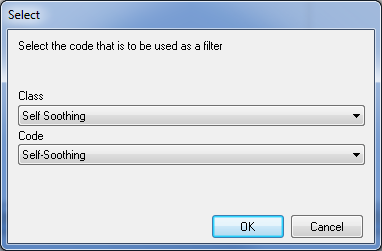
Note: The moment you have selected multiple DataSets for your Time Line Chart, you also need to pick the DataSet that hold the Events that are to be used for your interval!
▪Confirm your selection with OK.
The Time Line Chart now zooms in on the first occurrence of the selected Code, showing only this part of the data!
IMPORTANT: The statistics, exports and analysis routines available within the Time Line Chart, always reflect the data currently visible in the Time Line Chart. If e.g. you are ‘zoomed in' on just a part of your data, only this part is taken into account.The most interesting statistical values are the percentage of time per Code, for this Event as well as the exact number of co-occurring Codes and their duration.
▪Click on the, now available, Next code interval icon, to view the data that corresponds with the next occurrence of the selected Code.
The TLC 'jumps' through time, until it finds the next occurrence (=Event) of the selected Code and again displays just this part of your data. As always, the statistics only reflect the currently visible data.
▪Click on the Previous code interval icon, to move back through your data.
▪Click on the Zoom out icon  to return to a full view.