On the Multimedia tab you can switch between the available video players.
▪Click General - Program - Settings to open the 'Settings' dialog.
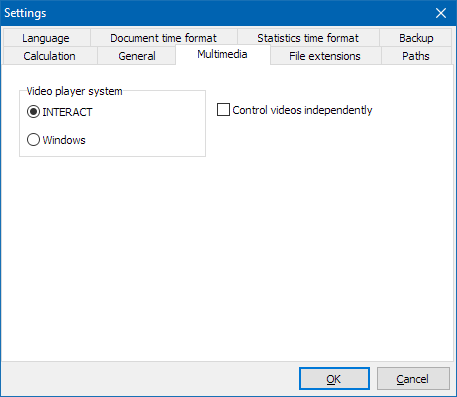
▪Select the tab Multimedia to change your video player engine:
INTERACT Player
Per default, the INTERACT Player is selected. This player can handle next to any modern video and audio format as well as streaming videos, independent of the local videos codec installation!
▪In most cases, make sure that INTERACT is selected in the player list.
IMPORTANT: If you want to listen-in on audio that is not available in the 'leading' multimedia file, select the option Control videos independently. This changes the behavior for videos with different start times.
GPU Encoding
If the CPU performance is not able to had
Windows Player
Some very special video types only work in combination with their corresponding DirectShow video codec. In that case you might need to switch back to the Windows player:
▪Select Windows in the player list.
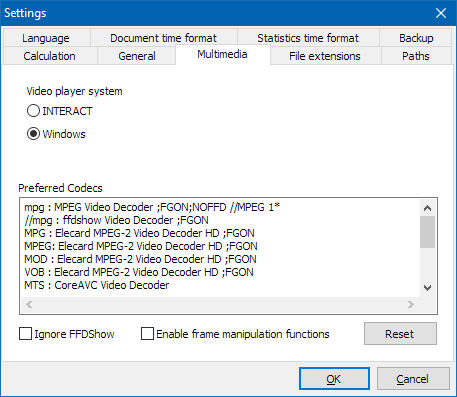
▪Make sure you have the correct DirectShow video codec installed AND activated on your system.
A list that covers the most common video types is predefined for this Windows player. Each video type is linked to a preferred DirectShow video codec. Make sure you are careful about installing the right video codec, as is described in the section Codecs and Playback Software.
IMPORTANT: If you run your video without the preferred video codec, a red cross starts blinking at the bottom of the video window, as an indication that wrong codec is being used.
Some additional options may help you to fine tune your video control when using the Windows player:
Enable frame manipulation functions - This option, which is disabled by default, allows you to switch the video rendering routine used for playback of the current video.
When disabled, INTERACT uses the latest default WMP video renderer, which includes a de-interlacing routine. This makes your picture looks much smoother, if the video codec used supports this feature. (It minimized the frayed borders for moving subjects).
If you enable this option, INTERACT uses an older rendering routine, as was implemented in earlier INTERACT versions. This renderer does not support the automatics de-interlacing, but not all videos do need that and some video formats only work if the old routine is used.
Additionally, INTERACT allows you to flip and/or mirror the video image when enabled. The required controls in the Multimedia window appear automatically. This can be useful correct video camera positions.
Note: This setting applies to each video opened after changing the setting. This means, that you can manually open one video with the option disabled and the next video with the option enabled.
Ignore FFDShow - If you have ffdshow installed on your system, but explicitly do not want to use it for your videos, enable this option.
Based on the information in the table with Supported Multimedia Formats, all tested video file types are linked to their required video codec in the program settings. This list can be edited manually in case you need other settings.
The file extension (indicating the container format) is followed by a colon and than the exact name of the video codec (as it is provided by the WMP engine). The information FGON, behind the codec name, means that the option Enable frame manipulation functions neds to be activated for this video type. Behid the // some additional information is added.
The default setup is:
mpg : MPEG Video Decoder ;FGON;NOFFD //MPEG 1
VOB : MPEG Video Decoder ;FGON;NOFFD //MPEG 1
//mpg : ffdshow Video Decoder (RGB) ;FGON //MPEG 1
MPG : Elecard MPEG-2 Video Decoder HD ;FGON //MPEG2
MPEG: Elecard MPEG-2 Video Decoder HD ;FGON //MPEG2
MOD : Elecard MPEG-2 Video Decoder HD ;FGON //MPEG2
VOB : Elecard MPEG-2 Video Decoder HD ;FGON //MPEG2
MTS : CoreAVC Video Decoder //AVCHD, H264
M2TS: CoreAVC Video Decoder //AVCHD, H264
WMV : Microsoft DTV-DVD Video Decoder //Axis H264
WMV : ffdshow Video Decoder //WMV1, WMV2, WMV3
WMV : CoreAVC Video Decoder //Axis H264
ASF : ffdshow Video Decoder
AVI : Xvid MPEG-4 Video Decoder //Xvid, Divx
AVI : ffdshow Video Decoder //x264, Xvid if configured correctly
IMPORTANT: Those settings do not save you from setting up your system correctly, for the required video codec! It only allows us to warn you, that something is wrong, by displaying a  at the bottom of the multimedia window. What setup is required for which format, is explained in the section Supported video Formats.