INTERACT is designed for working with videos as well as audio files.
Each multimedia file is played in a separate window; Audio files are played in an empty multimedia window. It is possible to visualize the audio track using the Audiograph  .
.
▪Read Analyze Audio for details on audio files.
Multimedia Window Specifics
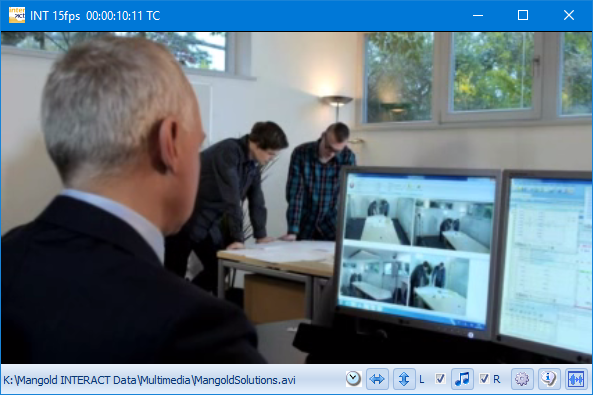
•Player ID - The characters in the upper-left corner tell you what player is being used:
INT = INTERACT player, DS = DirectShow Windows Player, QT = Apple QuickTime through Windows Player, VLC = VLC player.
•Frame rate - Right behind the player ID, the number of frames per seconds (fps) for the video is shown.
•Time information - In the title bar of each multimedia window, you see the current time code of the video, as well as the corresponding original time values with milliseconds.
•Size - Resize the window to 25, 50, 75 or 100% of the original video size.
▪Right-click in the window.
▪Choose the appropriate value from the pop-up menu.
•File name - At the bottom line the name and the path of the current video is shown.
•Position - Position and resize this window at any time (for example on a second monitor).
•
Multimedia files played with the INTERACT multi-format player look like this:
Note: The characters in the upper-left corner tell you what player is being used: INT = INTERACT player
Audio Visualization
To visualize the audio track available in your video file:
▪Click the Audio-graph icon in the bottom right corner of the multimedia window and wait a few seconds (depending on the length of your recording and the sampling rate).
The complete Audio track is now visualized directly underneath the video itself:
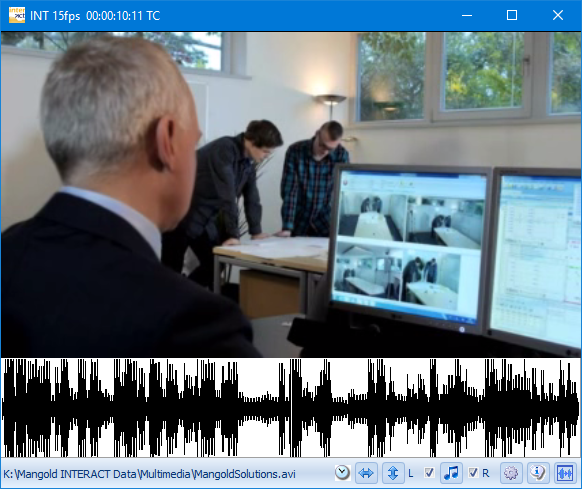
Note: The current position of the video is indicated by a vertical line in the audio graph.
INTERACT Player Icons
At the bottom of this window the following icons can appear:
|
Show Audio Graph - Visualizes the audio track of the current multimedia file underneath the video picture. |
|
Video information - Depending on the player, this icon opens a dialog with various details about the video. This is a great utility to identify any kinds of codec based problems. |
|
Multimedia Time Settings - This button allows you to adjust the start point of a video, the time code of the video and the real time duration of a video - in case of time lapse recordings. Read Adjust Multimedia Time values for details. |
|
Audio off - This icon tells you that the audio for the current video is switched off. Click the icon to switch it on. |
|
Audio on - This icon shows that the audio of the corresponding video is being played. Click this icon to switch off the audio for a video. This is especially useful when playing multiple videos simultaneously, because you can set this for each of the windows separately. The checkboxes with L and R on both sides of this icon allow you to listen to either the right or the left audio channel seperately. |
|
Mirror video* - To switch the viewing angle from left to right, click this icon to watch the video in a mirrored way. |
|
Flip video* - If your video is playing up-side-down, click this icon to watch the video in its upright orientation. |
|
Main video window - This symbol identifies the main video window, which is the video with the highest frame rate; it provides the leading time information. |


