INTERACT offers a powerful extension allows you to automatically create new Events adjoining a specific key Event:
Create Pre and Post Events for specific Key-Events
This routine enables you to automatically create Events of a predefined length, right before and after each occurrence of your specific Key-Event!
You can use these automatically created events to limit the period for additional observations during these surrounding intervals, or you can use these intervals to analyze what has been coded during these periods.
Example: You want to analyze the activities of an infant 30 seconds before and after the infant imitated the mother. With automatically created Events (that cover those pre and post periods), in combination with the Trim on Code filter or the Time-split command, simplify analysis a lot.
For better understanding, use our sample data to perform the routine as it is:
•To create compatible sample data, choose Start - Files - Open  > Demos > Example File for 'Pre and Post Events'.
In the Time Line Chart, this data looks something like this (with our 'Key-Events' in the top row):
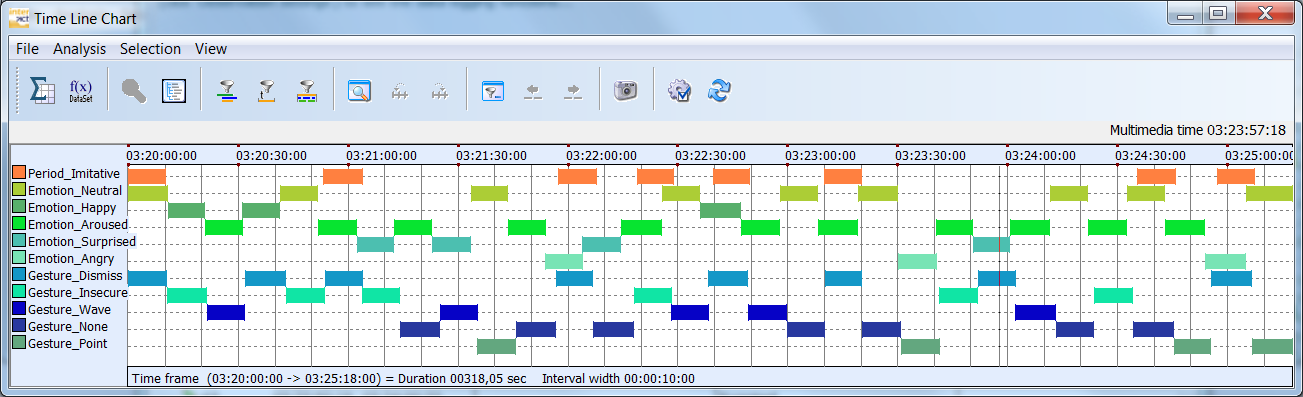
Because we are explicitly interested in specific periods around each time the Code 'Period_Imitative' was coded (30 seconds before and 30 seconds after), we want to create Events that cover exactly those periods. We call those Events 'Pre and Post Events'.
Once we have created those Pre- and Post-Events, we can make use of the Trim on Code filter to find all co-occurrences during those periods.
•Select Additional - Extensions - Functions  > Special data analysis > Create Pre and Post Events for specific Key-Events.
•Select the Code the represents your Key Event in the upcoming dialog:
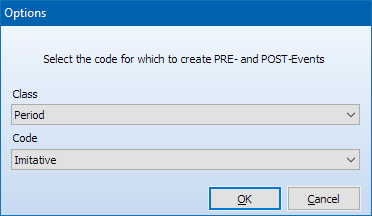
The next dialog allows you to specify the length of your new intervals and whether you want both the pre and the post interval or just one of the two:
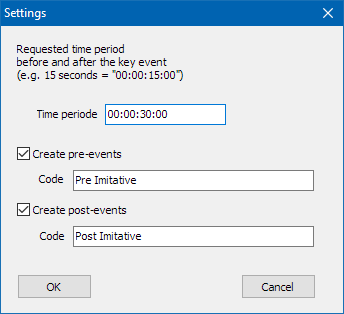
•Change the length of your interval, by altering the time in the Time period field.
•Clear or select the Create pre-events option, depending on your needs.
•Enter a user defined Code to label these new Pre-Events, if you want.
•Clear or select the Create post-events option, depending on your needs.
•Enter a user defined Code to label these new Post-Events, if you want.
•Confirm with OK to generate those Events.
The new Codes are entered into two new Classes named POST_<SelectedClassName> and PRE_<SelectedClassName>.
Looking at the results in the Time Line Chart, we now have all periods we are interested in:
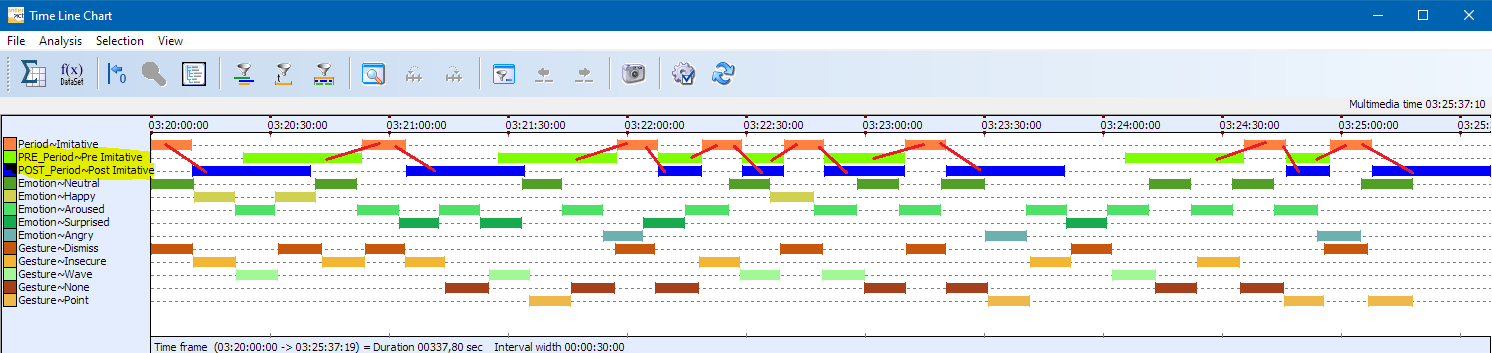
Note: If the 'Imitative' periods occurred shortly after one another, the Pre and Post Events overlap completely.
If 'Imitative' periods are logged repeatably, within the specified time frame, the Pre- and post Events are shortened accordingly.
Add Observations to Pre and Post Intervals
There are multiple ways to extend your observations limited to the Pre and Post Intervals created.
Details are described in the topic Observe Adjoining Intervalls.