Most users use INTERACT to log video based observations, but you can analyze audio files just as well. INTERACT accepts *. WMA, *.MP3 files an *.WAV audio files.
Audio files are handled as regular video files, without the images. This means, that visualizing audio is identical for both video and audio files, except for the visual images.
Visualize Audio
If your file contains an audio track, INTERACT can display the audio graph, WITHOUT the need to extract the audio into a separate file!
▪Make sure the default INTERACT Player is selected
To visualize the audio track available in your video file:
▪Click the Audio-graph  icon in the bottom right corner of the multimedia window and wait a few seconds (depending on the length of your recording and the sampling rate).
The complete Audio track is now visualized directly underneath the video itself:
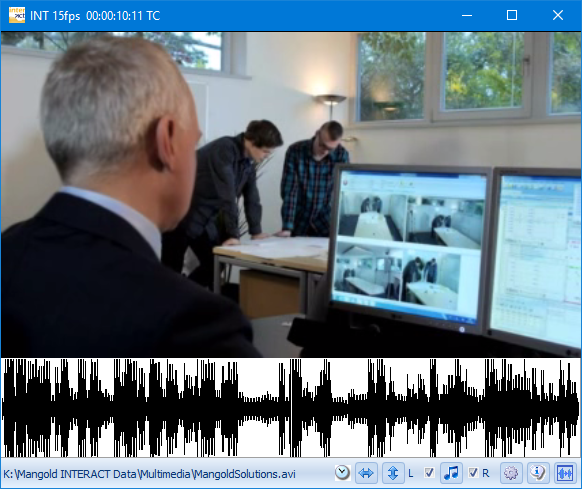
Note: The current position of the video is indicated by a vertical line in the audio graph.
Audio files can also be played simultaneously, just like video:
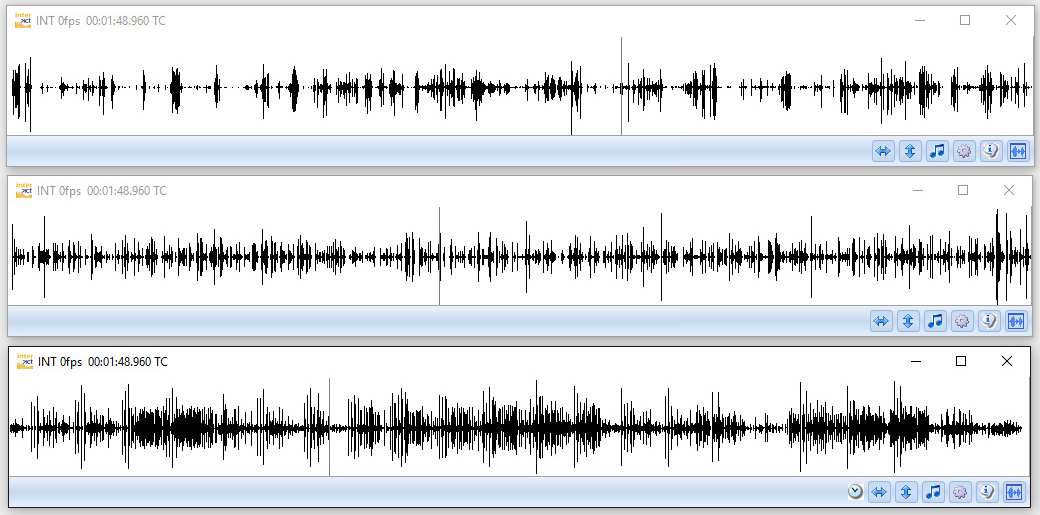
Note: The detail of the audio graph depends on the size of your Multimedia Window: the larger the window, the more details can be drawn.
After resizing a window, you can re-draw the audio graph for more details:
▪Click the Audio-graph icon twice.
IMPORTANT: Per default, INTERACT enables audio only for the 'leading' media file (the one with the  symbol).
The the moment you activate the audio of one of the other multimedia windows, the audio gets choppy.
This is caused by the way INTERACT handles the video-timing per default:
All multiple media files are played on a single time line, which allows you to start videos at different start times, showing a blank screen whenever the current playback time lays outside the time frame of that media file.
This 'single time-line' handling has an impact on the audio playback of all 'not leading' (no symbol in the media window)!
If you need to listen-in on multiple audio-tracks, you need to select the option Control Videos independently, within the Multimedia Program settings.
This provides good audio quality for all videos, but requires that all media files start at the same point in time.