If your data contains overlaps that should not be there at all, INTERACT can cleanup your data within a wink of an eye.
How well that works depends on your coding system of course, but the following scenarios are the most probable ones that can be resolved with this routine:
oYou coded your Event without making your Codes mutually exclusive.
oYou coded your mutually exclusive Codes in multiple passes, which puts the mutually exclusive mechanism out of order.
The resulting data-file might hold various usually tiny overlaps, because the offsets and onsets are not exactly successive.
Note: The overlap could be as tiny as a single frame, because the offset and the next onset are identical.
Remove Overlaps per Class
To make Events exclusive for a single Class:
•Make a right-click on the header of that Class.
•Select Remove all overlaps in this class.
INTERACT now adjusts all offset time values that collide with the onset of any succeeding Event with a Code in the selected Class, to ensure that they no longer overlap in time.
Remove all Overlaps for all Classes
To make all Events for all Classes exclusive in one pass:
•Click Transform - Events - Optimize  > Remove overlaps (make exclusive).
•Make sure the * is selected to perform the action for all Classes at once.
INTERACT now adjusts all offset time values that collide with the onset of any succeeding Event that hold a Code within the same Class, to ensure that they no longer overlap in time.
Check Overlaps and Gaps
If your data should be made exclusive over all Classes instead of per Class, or if you just want to see if any adjustments are required, INTERACT has yet another trick up his sleeve:
For seamless and sequential logged Events only!
INTERACT offers an automated routine to correct coding errors from a sequential coding session. This routine eliminates all parts where Codes do overlap in time as well as the gaps that occur if nothing has been coded at a specific time. This is done by extending or reducing the duration of the available Events.
This is how it works:
▪Open the file that needs to be checked.
▪Choose Additional - Extensions - Functions  > Checking routines - Check overlaps and gaps between Events.
A dialog appears, in which you are asked to set a time value for the gaps or overlaps that should not be counted as an error (in case that some Codes are allowed to overlap):
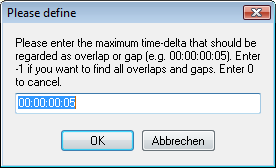
This enables to find just small errors due to video performance errors or minimal coding errors and leave the real gaps and overlaps untouched.
•
▪Confirm with OK.
You get a list with all errors found, identified by line number
Automated Correction
▪To correct all onset time values so that they follow seamlessly the previous given Code (i.e. its offset time value), click Yes
Manual correction
▪Click No if you are asked to correct the errors automatically.
▪Double click on any of the lines listed to jump to the corresponding Event in your data-file.
▪Check the time information and adjust it manually, as is described in Enter Time Values Manually.
| TIP: | Read the section Coding consistently to learn how to prevent most coding errors during a coding session. |
Routine details
This routine checks if the offset of the previous Event is followed seamlessly by the onset of the following Event. It also checks the validity of onset and offsets, ensuring that the onset is equal or smaller than the offset time.
This routine is an IXL extension an can be adapted to your needs, by opening it in the IXL editor (the last extension performed will automatically appear). Make sure you rename the extension and the command line, in order to keep the original function untouched.
▪Read the IXL Help file for details.