On the checklist content page, you can add and alter Questions for that Checklist.
A Question can be used to check, verify, and rate all kinds of activities or behaviors.
For this, Mangold CheckIT offers different question types to suit its purpose:
oText - For free text answers
oScale - For value-based answers using a slider
oMultiple Choice - For value lists, including the specification of the minimum and maximum number of allowed choices.
You can use any combination of Question types in a single Checklist.
All question types have the following options in common:
oA question field to enter your question.
oA media field enabling you to include media from your Media database into your question.
oA description field to add descriptive information to explain your question in more detail.
oA Required Yes / No option to specify if answering in mandatory.
Add Question
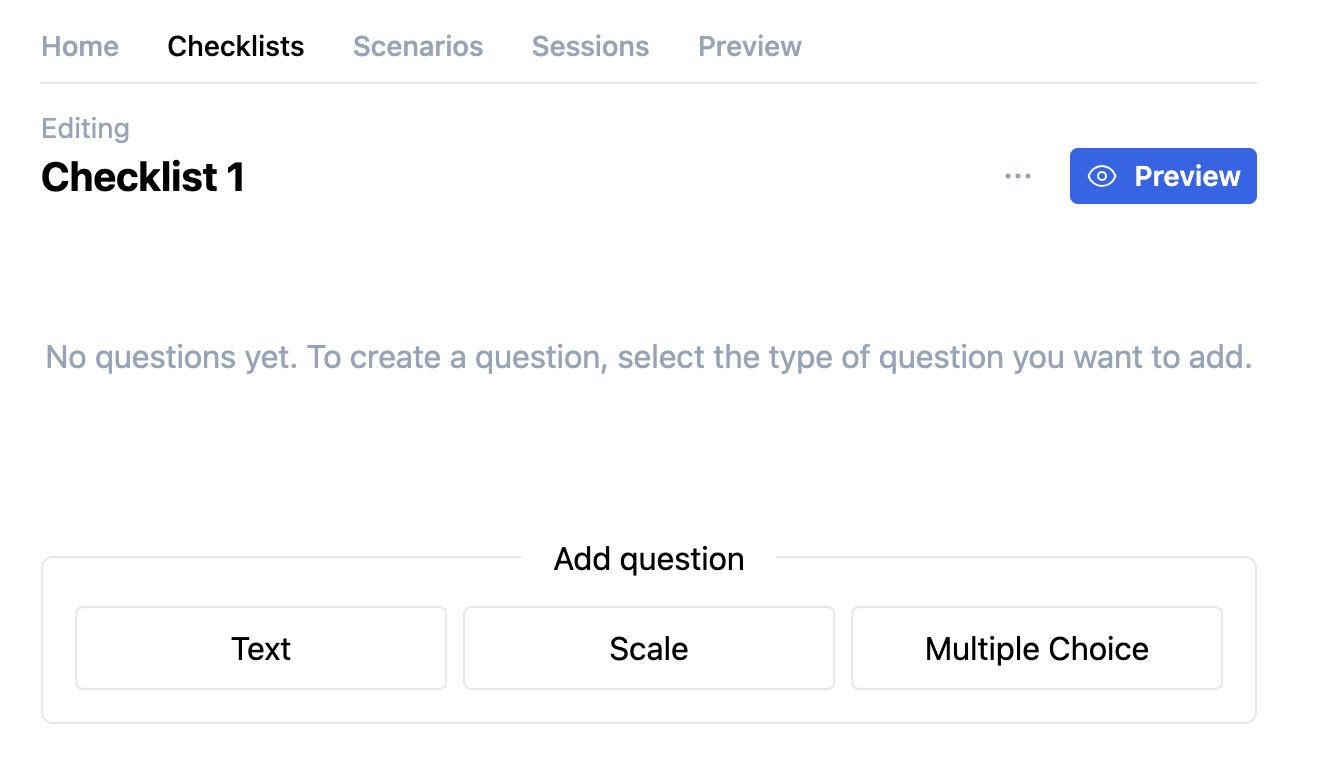
▪To add a question, click on the required Question type in the Add question section at the bottom:
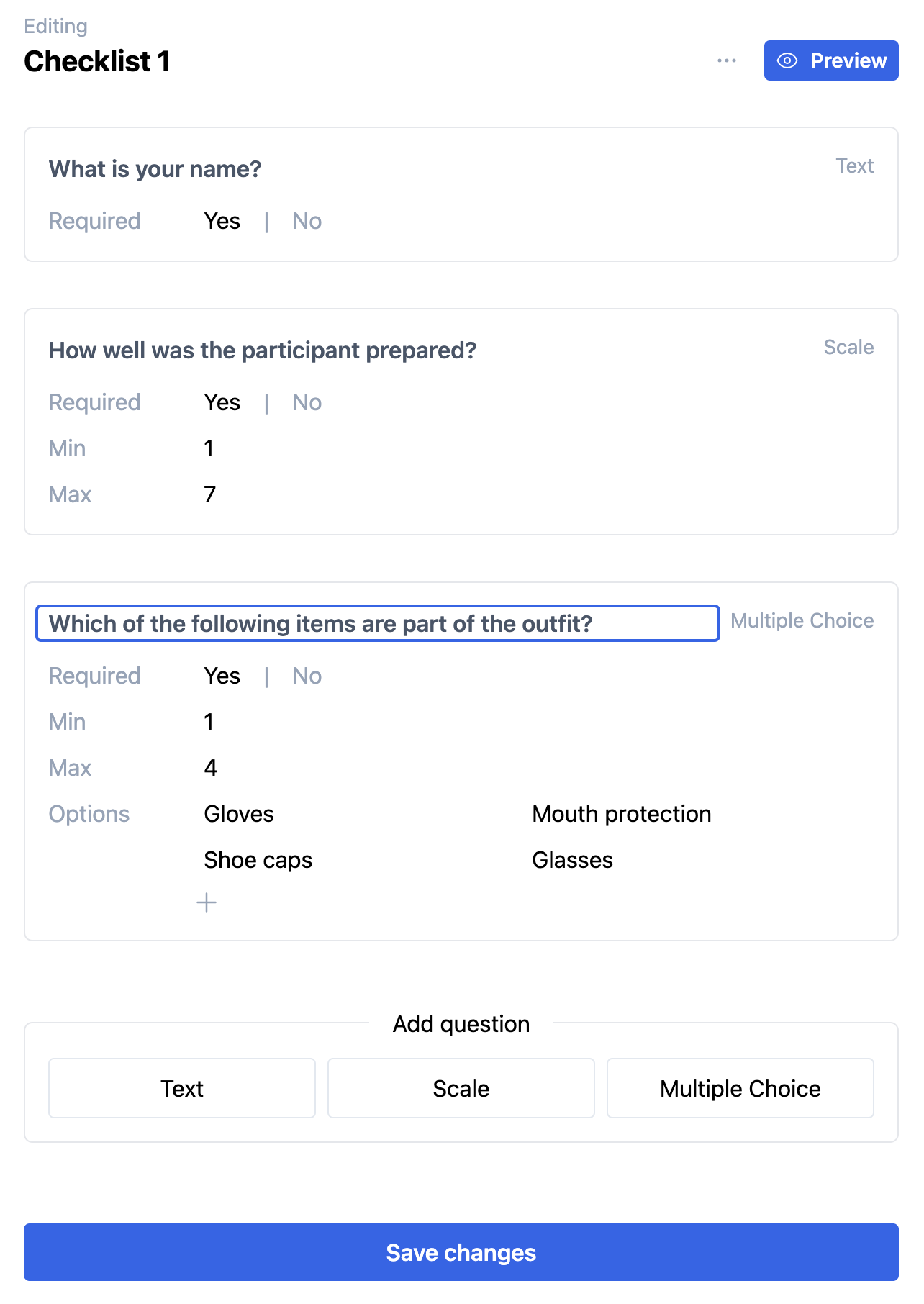
For each Question type, the available options are different, but for all types you need to enter the question in the top field that says "Enter your question here":
Save Checklist
▪To save your changes, click the big blue Save Changes button at the bottom of the current Checklist.
Note: To prevent data loss we strongly recommend to save after each question.
Duplicate Question
Each question must be unique, but in order to reuse the possible answers and other settings of an existing question, it is possible to duplicate:
▪Hover with your mouse over the question you want to duplicate.
In the top right corner of the question, some icons appear:
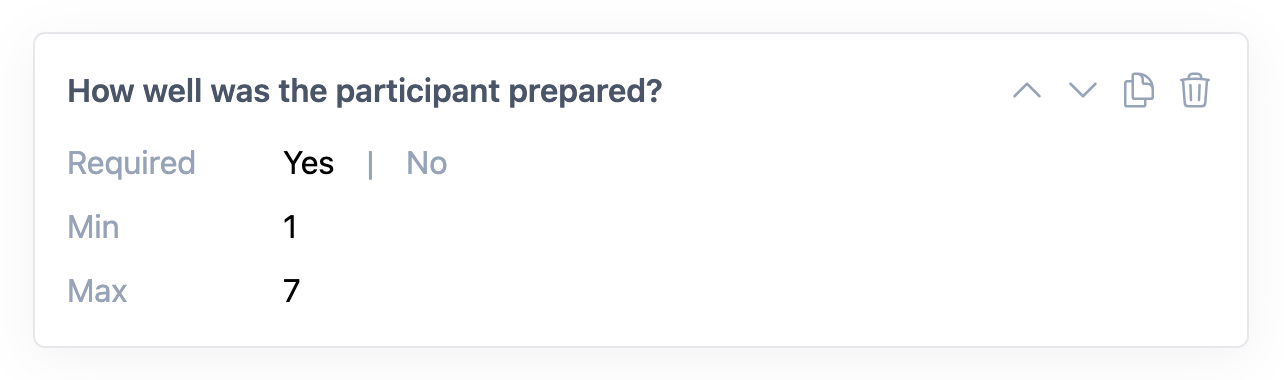
▪Click the 'Copy' icon to duplicate that question.
Delete Question
▪To remove a question from your checklist, hover over the question and click on the trash can icon.
Change Question Order
Each new question is added at the bottom of your checklist. Re-arranging the order of the available questions is possible:
▪Hover on top of a question.
▪User the arrows up and down to move that question to its desired position.
▪Click Save Changes to store your changes.
Checklist application
To use a Checklist, it must be assigned to a Scenario.
You can use one Checklist in multiple Scenarios.