This source type allows you to add physical and logical audio sources that are available in Windows to VideoSyncPro Studio.
This includes separate microphones, that are not part of the network setup as well as, for example, Dante Audio Sources that are available as WDM or ASIO source.
For further possibilities, read the section Special Audio Features setups
For each Windows audio Source, the audio is recorded in a separate audio file during your recording session.
It is also possible to add a windows audio device as an external audio source to a streaming camera source, in order to insert the audio of the selected device into the video.
Create New Audio Source
▪Click Create new Source.
▪Select Windows Audio Device from the appearing Select source type dialog:
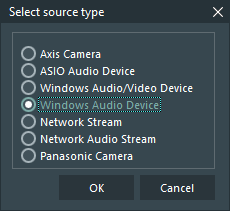
▪Confirm your selection with OK.
At the bottom of your Available Audio / Video Sources list a new empty source entry appears.
▪Enter a name for this source, e.g. 'Microphone'.
▪Select an audio device listed in the Audio device drop-down list:
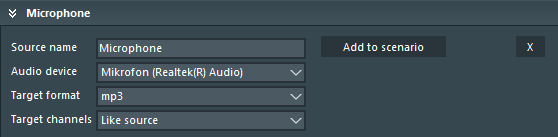
▪Select the Target format in which the separate audio file should be stored.
▪If your source offers multiple channels, the Target Channels drop down-menu enables you to limit the current source to a single channel only.
▪Click Add to scenario to insert this source into your current scenario.