The transcript field in INTERACT, allows you to enter free comments to each single line available in your data-file. Those comments are also referred to as transcriptions, utterances or annotations.
During the process of logging Events, however, it is quite bothersome to switch between the actual coding and entering any kind of comments into the Transcript field.
That is why INTERACT offers different approaches for different situations.
Utterance based Transcription
If you are focusing on utterances of mother and child and want to label those utterances based on their content, this is an easy approach:
▪Define a simple Code definition file with a single code for each actor, like this:

▪Select the coding mode Standard (ad-hoc').
▪In case of rather short utterances, select the Push & Release option as well.
▪Press the [key] of the corresponding actor, the moment the utterance starts.
▪Release the key or press it again the moment the utterance ends (depending on werther you activated the Push & Release option or not).
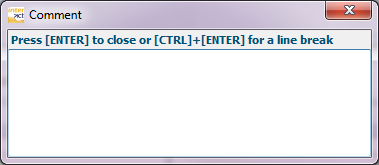
▪Enter the transcription into the upcoming dialog:
| TIP: | Press F12 to replay the current Event for more accurate transcriptions) |
▪Press RETURN to close the dialog and to continue with the video.
▪At the end of the video, click STOP to close the observation mode.
Classify utterances
If you do not want to label the utterance Events with observational Codes in one pass, you can focus on the utterances in one pass (as described above) and label those 'utterance' Events with your choice of Observation Codes in one or more additional passes:
▪Open or create a Code Definition that holds your Observation Codes to label the utterances.
▪Select the coding modeRefine existing Events.
▪Double-click the first utterance to watch the corresponding sequence.
▪Click the Codes required to label that utterance.
IMPORTANT: Make sure that all Codes that can be assigned simultaneously to the same utterance, are assigned to separate Classes.
Sporadic comments
You can of course enter a comment into the transcript area of any line, whenever you need to:
▪Click into the transcript area of the selected line.
▪Type your comment.
▪Select the Coding panel or the Multimedia window and continue as before.