Multimedia files (video and audio), that are used as your source for observation, can be linked to DataGroups and DataSets.
IMPORTANT: Linked videos are opened automatically, the moment you double click a time value or Event, inside your data-file.
If you have opened one or more multimedia files, the moment you create a new data-file, you are asked if you want to link those files to the new document:
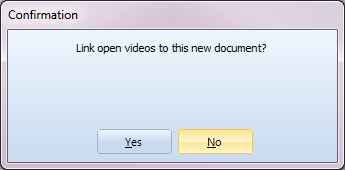
Depending on your answer, this is what happens:
 | No - An empty document is created. |
| Yes - Inside the new document, a DataGroup and a DataSet is created, in order to enter a file reference to the opened multimedia files. Before that happens, another question appears: |
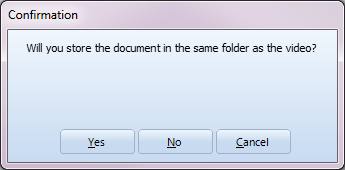
What answer is best for you, depends on local your file & folder policies (or the network- and external drives structure).
If possible, store the INTERACT data-file within the same folder as the source material. In that case, you can use the relative reference (find files inside the same folder), which allows you to re-locate, re-organize, rename and copy your folders, without losing the file reference.
If you do not have writing access to video storage drive, you'll need to use the absolute reference.
This is how INTERACT responds to your choice:
| No - INTERACT creates an absolute reference by entering the full name and path of the open multimedia files(s) into the transcript field of either the superordinate DataSet, including the current offset in milliseconds - if available, like this: |
Video: "F:\INTERACT_UserData2\Multimedia\MangoldSolutions.avi", OffsetMs:2500
It is important that you do not rename the video or any of the path items, otherwise INTERACT is not able to locate the file(s). If you store your videos on an external hard disc or file server, it is important that the disc is mounted under the same drive letter (F: in this example), otherwise INTERACT cannot find the video!
(In unsaved documents only full references work.)
| Yes - INTERACT enters only the name of the multimedia file(s), including any the time offset information - if available - like this: |
Video: "MangoldSolutions.avi", OffsetMs:2500
With such a relative reference, the file reference stays valid, for as long as the *.xiact file and linked multimedia file(s) are stored within the same folder.
| Cancel - No reference is entered. |
Semi-Absolute References
If you have multiple videos per scene, saving all the videos and files in a single folder tends to be confusing.
That is why you can create separate 'video folders' within a single 'study folder' to organize your videos in a structured way. You can then put all INTERACT documents together in the top level of your "Study" folder, as follows:
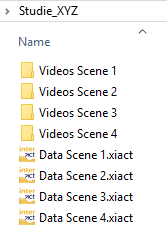
This allows you to insert at least drive letter independent references to your videos:
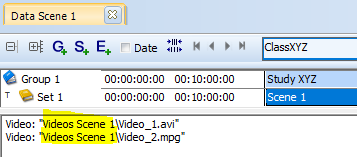
With the help of this file reference, INTERACT can help you keep track of all the different multimedia files and the corresponding data.
IMPORTANT: Linking your multimedia is obligatory as soon as you use multiple files that need to be synchronized manually, if you alter the duration of your video (time lapse recording) or if you have used one of the possible Video time code adjustments!
Insert a File Reference Manually
All file references are written into the transcript field of the corresponding DataSet.
▪Open the required multimedia.
▪Select a line in your document that contains data based on the opened file(s).
▪Click Insert - Reference - Multimedia to DataSet 
Or...
▪Make a right click inside the corresponding DataSet.
▪Choose Reference - Multimedia to DataSet from the context menu.
In both cases, a dialog appears, asking how you want to save the multimedia file reference, like described just before.
Note: Through this file reference, INTERACT knows which video to start, using the correct time reference, if you select and play a sub-ordered element of the DataGroup or DataSet.
Multiple File References
Linking multiple multimedia files works the same as linking a single file. INTERACT just creates a new line for each reference, like this:
Video: "..\Mangold INTERACT Data\Multimedia\MangoldSolutions.avi"
Video: "..\Mangold INTERACT Data\Multimedia\Observe_Measure_Evaluate.mpg"
Again you can make also use of the relative paths as described above.
New Multimedia Start point
Per default, the video offset (read Set new multimedia start point for further details) information, is saved in a millisecond value:
OffsetMs: 7683
Edit a File Reference Manually
You can also manually enter this information into the transcript area of the DataGroup or DataSet. You just need to make sure the content is exactly right, starting with the key-word Video: and make sure that all reading signs (:", etc) are in the correct position.
Copying information between DataSets and/or documents is also possible.
Note: If you start the Observation mode while you have opened a data-file with one or more previously linked videos, starting an observational session will automatically open the video(s) that are linked to the DataSet of your current selection!