This routine, enables you to search for specific behavioral combinations. A typical question for the Contingency analysis is: "How often is behavior A followed by behavior C within a predefined time frame, independent of other possible Codes in between".
With the Contingency analysis you can search for specific subsequent Observation Codes and create new Events, covering the time gap between the two Codes you were looking for.
Find Latencies between 2 Codes
Due to the various settings, this routine allows you to:
oCreate Task Duration Events between start and stop Codes
oFill gaps between two specific Codes
oIdentify Event chains, based on separate start and stop Codes, like for task durations.
oIdentify successional joint attentions
oIdentify chains of communications, as explained in Chains of Communications Setup.
Detect Contingencies
There are two types of contingencies for this routine:
 | Random Contingencies between Codes that may occur randomly. During this search, any Codes started in-between the preceding and the succeeding are ignored. Depending on the search method chosen, Events are supposed to be either (partly) overlapping or starting somewhere in the (near) future. |
| Sequential Contingencies for Codes that are part of a mutually exclusive coding system and you are looking for immediate contingencies where there is no gap between the preceding and succeeding Codes. |
The way INTERACT identifies these different types of contingencies is determined by the length of the Contingency Interval.
▪Open an existing INTERACT data-file or select Open  > Demos > Example File for 'Sequence Analysis' to create this demo data.
▪Click Analysis - Time sequence - Contingency  in the toolbar.
The upcoming dialog, enables you to define the preceding behavioral Code, as well as the subsequent Code. Also the Contingency interval value is set within this dialog:
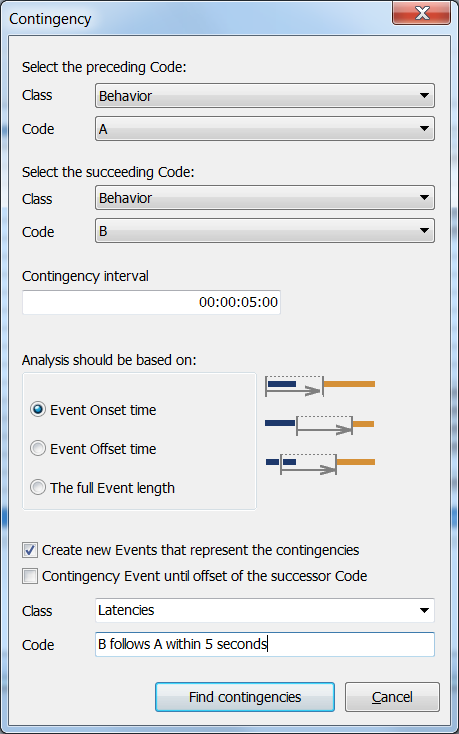
▪Select the Class and Code of the preceding behavior.
▪Select the Class and Code of the successional behavior.
▪Enter a fitting Contingency Interval:
| Random Contingencies - Specify the length of the interval, within which the second Code should follow the first Code, as a time code value (e.g. 05:00 = 5 seconds. To find all occurrences, pick a values as high as the length of your session) |
| Sequential Contingencies - To find immediate successions as occur using mutual exclusive Codes, set the Contingency Interval to 00:00:00:00 and select the second search method to identify those sequences. |
Note: Setting the Contingency Interval to zero means only succeeding Events that start immediately after the preceding Event are found. If your data holds a mixture of sequential and random contingencies, you might need to run the routine twice with differ settings to find them all.
▪Select a search method to determine the way INTERACT handles the duration specified in your Contingency Interval:
oEvent Onset time - If the interval starts at the onset of the preceding Event, this is what you need. The successional Code can occur before the preceding Event ended. The onset of the new contingency Event matches the onset of the preceding Code.
oEvent Offset time - Should the successional Code only be counted, if it started after the first Code has ended, this is your choice. The interval starts at the end time of the preceding Code. The onset of the new contingency Event matches the offset of the preceding Code.
oThe full Event length - To capture all possible successional Events with the selected Code, starting between the onset of the preceding Code until the offset + interval time, this option is what you need. The onset of the new contingency Event matches the Onset of the preceding Code.
Create Contingency Events
Last but not least, it is possible to create new Events, based on the contingencies found between the preceding and the successional Code. This results in 'real' Event entries in your data-file, representing the found latencies.
Those Events are available for all statistics:
▪Select the option Create new Events which represent the contingencies.
▪Select an existing Class or enter a new Class name in which those new Codes should be stored.
▪Enter a Code to describe the new Events.
▪Confirm your settings with OK.
Note: Per default, the offset of the new contingency Events equals the onset of the second Code. To extend the duration of your contingency Events to the offset of the successor Code, select Contingency Event until offset of the successor Code.
What happens next, is this:
oThe content of the current data-file is sorted by time.
oA search downwards (= up in time) for the first occurrence of Code 'A' in Class 'Behavior' starts, followed by a search for the first occurrence of Code 'B' in Class 'Behavior'.
oNow a test is performed to see if the start of B follows within the Contingency interval as defined, following the selected rules.
oDepending on the selected rules, the onset and the offset for the new Event is entered into the new contingency Event, long with the specified Class and Code information.
oAfter that, a new search for the next Code 'A' starts, ensuring that this Codes starts AFTER Code 'B'
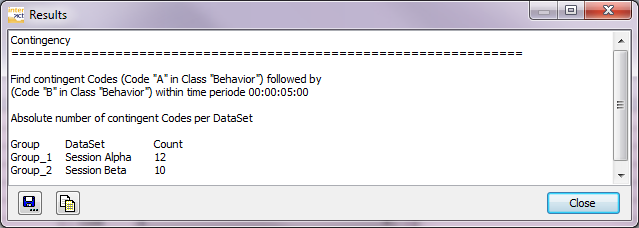
This task is performed separately for each DataSet.
The results are presented in a Results dialog like this:
New Events
If the option Create new Events that represent the contingencies was selected, new Events have been created within your data-file. One Event for each occurrence listed - including the correct time information, as well as the new Codes.
Those automatically generated Events, can be found in chronological order within your original data and are treated exactly like the manually logged Events. This means you get full statistics!
| TIP: | In combination with the Duration filter in the Time Line Chart, you can get the statistics on e.g. various intervals for automatically generated contingency Events for a specified reaction. Just define the contingency interval quite long (maybe 30 seconds or more), so many/all contingencies are found. The Duration filter can than be used to find out how often this reaction came within e.g. 10 seconds, simply by temporarily excluding all contingency Events with a duration longer than 10 seconds. |
Note: If you want to compare Code combinations, like whenever "Behavior A" and "Behavior B" where coded, how often does "Behavior C" follow this combination within x number of seconds, you need to create new Events for those behavioral combinations first. How to do that, is described in Find overlapping Events. The so created new Events that represent the overlapping Codes, can than be used to count contingencies.
Export Results
Like in most 'Result' windows in INTERACT, this dialog offers a Save as... and Copy
 button.
| Save as - Allows you to save the results in an external text file. This text file can be imported into your target application or send by email. |
| Copy - This command copies the data into the Windows clipboard. |
▪Choose Edit - Paste from the menu of your favorite target application to insert the content.