To view the log files of one or more recording sessions you need to open all relevant LogSquare 'projects' in the LogSquare Analyzer.
▪Double click a *.lsq LogSquare project to start the LogSquare Analyzer
Or
▪Click Start - Project - Open  to open one or more file through the default Open file dialog or use the drop down menu which will list recent projects.
All currently open projects are listed underneath Start - Files - Open :
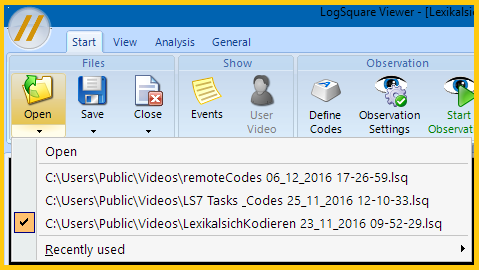
oThe name of the currently active project is displayed in the title bar and labeled with the selection marker in this list.
oIf you have opened more than one project file, you need to select a specific project to view its contents.
oLoading multiple projects enables you to compare log results in the statistics. You can display 'Duration of tasks' or 'Frequency of Codes' of multiple projects (=usually participants) in one chart!
▪Select the project of your choice and click the Play button underneath the screen recording video.
Close Project
To close a single project, you need to make
▪Select the project to be closed from the.
▪Close the project, by clicking the Close project icon on the File tab.