The empty LogSquare Viewer window looks like this:
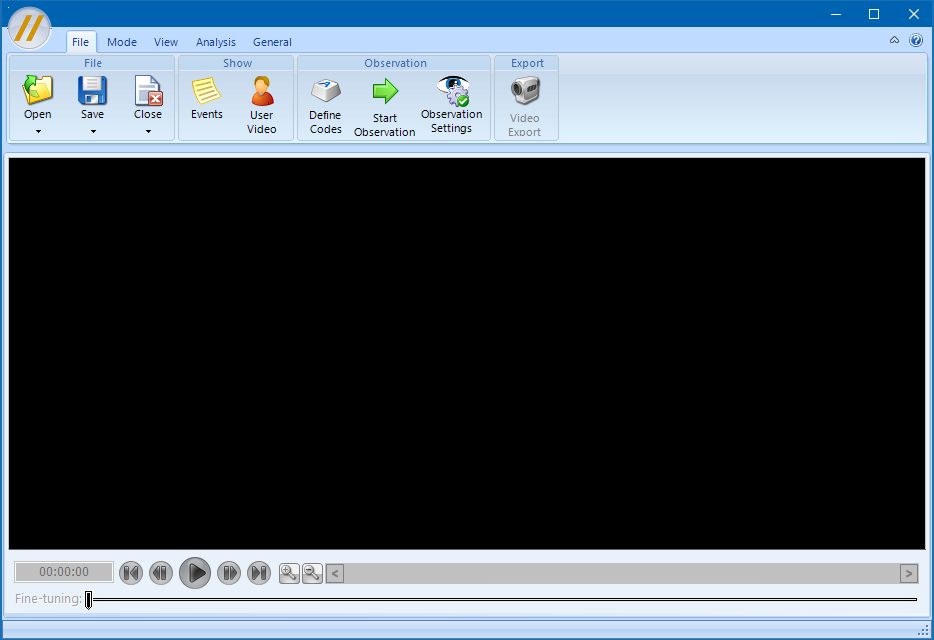
The moment you open a project file, the screen recording is shown inside the black area of this picture.
▪Select Start - Files - Open to open a previously recorded LogSquare session.
All currently open projects are listed underneath Start - Files - Open  :
:
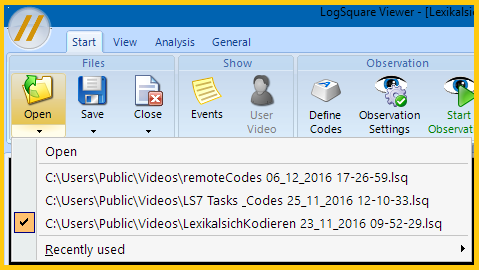
oThe name of the currently active project is displayed in the title bar and labeled with the selection marker in this list.
oIf you have opened more than one project file, you need to select a specific project to view its contents.
oLoading multiple projects enables you to compare log results in the statistics. You can display 'Duration of tasks' or 'Frequency of Codes' of multiple projects (=usually participants) in one chart!
▪Select the project of your choice and click the Play button underneath the screen recording video.
If you are interested in the additional information, like the activity log or the user video, you can view them in separate windows.
▪Click Start - Show -Events to get a look at the available Events in a separate window.
▪Click Start - Show - User Video to watch the users face during the test.
Note: Read the section Log Observations to learn how to log your observations.
| TIP: | Hide the tool bar by clicking the little arrow up icon, next to the  Help icon, at the top right of the screen to gain even more space. Help icon, at the top right of the screen to gain even more space. |
Review Screencast
To watch the recording as recorded:
▪Click on the Play button, directly underneath the screen contents, to watch the recorded session from the start.
Navigate using the Event panel
To play specific sequences based on the Events stored in the log file:
▪Click Start - Show - Events to open the Events panel.
This list holds all user activities, grouped by tasks, if you made use of the Task Management feature:
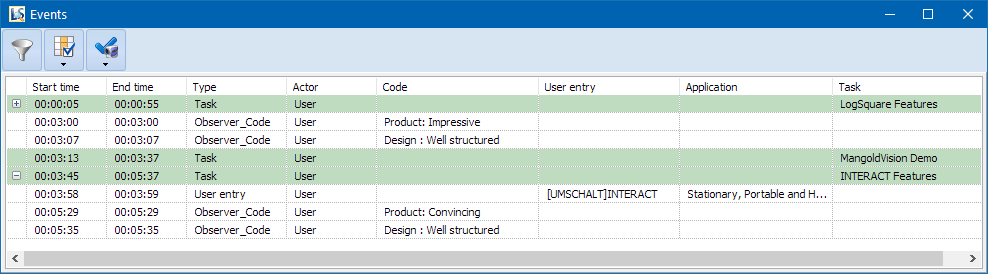
▪Re-size and position the Events panel to your needs.
▪Double click on the Start time or a line, to position the screen video at that point in time.
▪Double click on the End time of a line, to position the screen video.
▪Double click in one of the other columns, or press F12, to play the exact sequence of the selected line - from Start time until End time.
Navigate using the Time Line
The timeline offers multiple ways to control your video:

|
Timer - Display the current position in the screencast video |
|
Video Controls - Play, Frame by Frame, To start and To End. |
|
Extender - Increases the time covered by the Interval Slider |
|
Reducer - Reduces the time frame covered by the Interval Slider |
|
Interval Slider - Enables you to manually position the recording at a certain time frame |
|
Position - Slider to adjust the exact position within the Time Frame |
|
Time Frame - Exact duration of the current position of the Interval Slider |


Interval Slider
The Interval slider can help you to navigate through your data on a visual base:
▪Drag the Interval Slider ( ) to search the recording for a specific situation on the screen.
▪To position the screencast video more precisely, use the Frame by Frame video controls ( ) to navigate within the time frame covered by the Interval Slider.
The duration covered by the Interval Slider specifies the duration covered by the Fine turning ( ) Time Frame.
Note: This interval length is mainly of interest for those with long recording sessions, because it still allows you find the position you are looking using the Position slider ( ); the longer the duration covered by Interval Slider, the less accurate becomes your mouse positioning within the Fine Tuning time frame.
Filter Events
Note: Per default, the Events log hides all mouse activities!
If you want to analyze those Mouse Events, or want to limit the displayed types of data even further, you need the Event Filter feature...
IMPORTANT: The impact of your currently selected filter also affects the results of the charts!
Define Filter
The Events panel needs to be open, in order to perform this task:
▪Click Start - Show - Events to open the Events panel.
This list holds all user activities, grouped by tasks, if you made use of the Task Management feature:
▪Click Filter Events  , within the Events panel.
The Filter dialog opens:
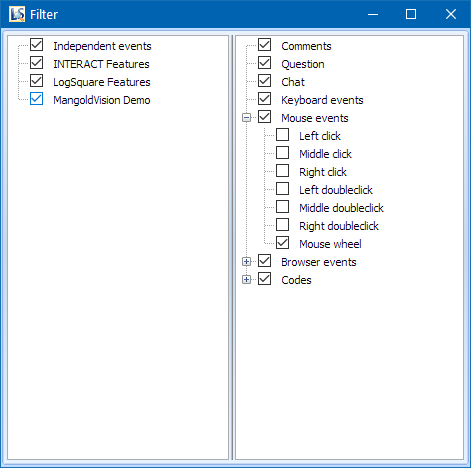
In the left pane, the separate tasks are listed - if available. All none task related activities are collected in 'Independent Events'.
In the right pane, the various activities are labeled according to their nature.
The Event panel will only list events that belong to selected items - only selected items can be analyzed!
Specify your data base for analysis:
•To analyze the activities for a specific Task only, select just the required task in the left pane.
•To analyze only task related activities, clear the selection for 'Independent Events' and keep all tasks selected.
•Clear the selection of the activity types that are not of interest for you.
•All frequencies (for codes as well as user/mouse activities) are split per Project and Task.
•To include (or exclude) specific mouse actions, unfold the Mouse events entry and select only the relevant mouse activities.
•To include (or exclude) specific Browser events, unfold the Browser events entry and select only the events you do need etc.
▪Select the information you want to see, compare and analyze.
All settings are applied immediately. As you can see, the number of lines is increased or reduced dramatically, depending on the choices you make.
IMPORTANT:
- The current filter automatically applies to all projects!
- The Event log list shows only the entries of the current project.
- Only data visible by the currently active filter settings is used by the Analysis routines!
- You can leave the Filter dialog open and still see the effect of your filter.