Single Monitor Setup
Per default, LogSquare records the whole screen.
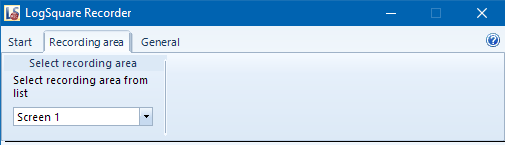
If you do not want to record the whole screen contents, it possible to set your recording area to cover only a part of your screen.
•Switch to the Recording area tab an select Custom from the list.
•Re-size the recording area with your mouse; it will snap to the next default screen resolution.
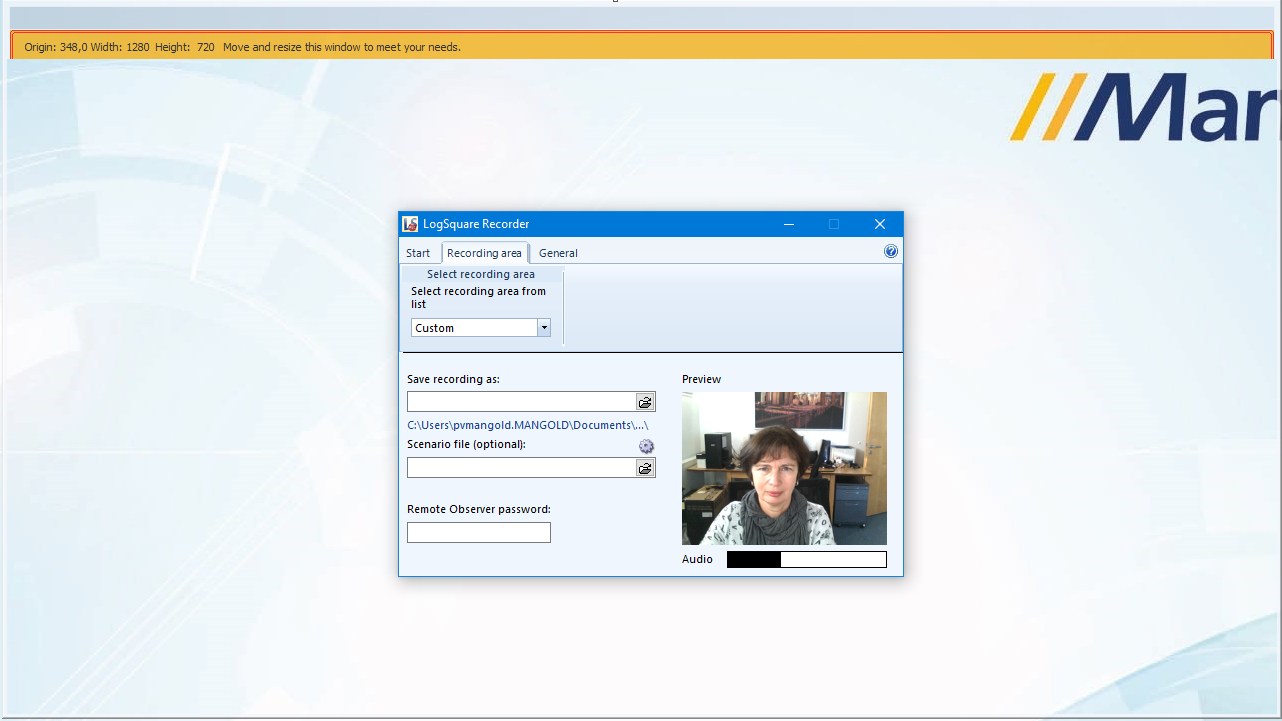
Note: If you select Full screen from the list, no frame will be visible.
•Return to the Start tab to hide the frame.
•
Multiple Monitor Setup
LogSquare automatically recognizes the number of monitors attached to your system and the recording area options change accordingly:
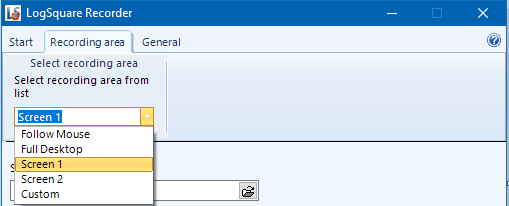
Follow Mouse default setting for multi-monitor-setups. It records the content of one screen at the time, but moving your mouse between screens automatically changes the focus of your screen recording!
The biggest advantage of this recording mode is that the resulting recording has a standard resolution and looks like a single screen setup, but in fact contains the content of any monitor the participant is currently working on with its mouse!
Full Desktop records the complete area covered by the Windows desktop, for multiple monitors this results in a very wide video.
Screen # records only the content of the selected screen number. Verify the position of the recording area as well as the resulting video before you start your official recording because Windows has multiple index tables for monitor numbering and Screen 1 in this list might not match Screen 1 in the Windows Display settings. Especially with laptops with additional monitors can hold surprises.
Single Screen Selection
To record a single screen only, you may want to change the recording area setup:
•Switch to the Recording area tab.
•Instead of the default Follow Mouse option, select the Monitor # you want to record from the Select Recording Area drop down list.
An orange frame appears on the selected screen, indicating the recording area.
Note: In LogSquare, the monitor selected as your 'Main monitor' in the display settings, is Screen 1; this means the numbering might differ from the numbers used by Windows in the display settings!
This happens whenever you have not set Display 1 to be your main screen.
•To return to the default setup, select Follow Mouse from the list.
IMPORTANT: If you limit the recording area to a single screen on a multi-monitor setup, you need to make sure that the application windows you are investigating, appear on the monitor being recorded!