First off all you need to ensure that the application or website to be tested is running smoothly on the participant computer.
For flawless functioning of the recordings, LogSquare needs to be installed correctly, as described under Installation in the LogSquare documentation.
If so, just start the LogSquare Recorder application:
▪Start the LogSquareRecorder.exe, either from stick, through the Start Menu or from the program folder of your computer, depending on your local installation.
If you are not sure all settings are still correct - maybe because you sit at another computer or you got yourself a new headset or webcam:
▪Click on one of the little gear icons behind the available Recoridng Options to get to the Recording settings dialog.
▪Make sure the correct devices for user video and audio are selected, as described in Recording settings.
If all is well, your LogSquare Recorder screen looks something like this, showing your webcam picture - if available:
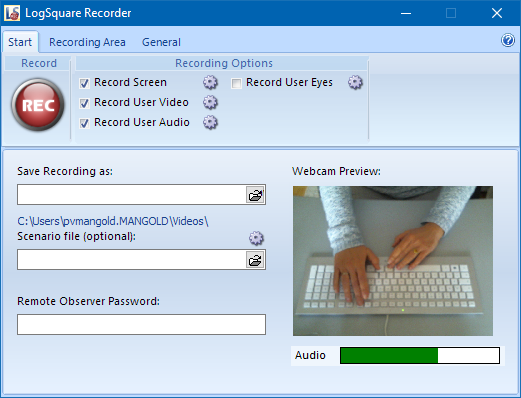
Recording Options
Verify if the required sources are selected and configured correctly, before you start your recording.
oRecord Screen - Records everything that happens on the screen within the selected Recording Area.
All keyboard and mouse activities are automatically logged as well. Audio played by the computer becomes part of the resulting screen video.
oRecord User Video - Activate this option to record anything in view of the selected webcam. The Webcam preview-area, as shown in the picture, shows what will be recorded.
oRecord User audio - Enable this to record any spoken user comments with the selected audio device. User audio is stored in the user video. To record only the user audio, you need to clear the selected webcam.
Note: User audio is saved in the user video file from the webcam.
oEye Tracking - If you have connected a Mangold EyeTracker, activate this option to track user gazes on the monitor in addition to the mouse trail.
▪Make sure the required Recording options are selected before you start the recording session!
Save Recording as
This name is used to create the physical project file during the recording.
▪Enter the name of your project into the Save recording as: field.
▪Make sure an appropriate storage path is displayed underneath your project name.
If not:
▪Click on the folder icon to select a destination location.
Storage locations
The final recording can be found in the specified storage path, as shown in blue underneath the Save recording as field, BUT during the recording session, all data is temporarily stored within this folder:
C:\Users\<CurrentUser>\AppData\Local\Temp\LSTMP_<YourProjectName>_<StartDate> <StartTime>
IMPORTANT: Make sure that there is enough disc space available on your C drive to temporarily store your recording!
Once the recording is stopped, all resulting files (screen video, user video & log file) are stored in a special <YourProjectName>.lsq container, referred to as 'Project file'.
This final project file is stored in the location of your choice, shown underneath the Save Recording as: field, which can be located on a different drive.
Per default, each project name is extended with a current time stamp, to ensure no recordings are accidentally overwritten.
Scenario File
Not required, but very helpful to conduct structured tests!
▪If you just want to perform a simple screencast session, leave the Scenario file field empty.
IMPORTANT: For professional usability testing, predefining a structured test case is vital, in order to get comparable results during analysis.
Selecting a previously created *.LogSquareScenarioFile enables you to:
oPresent on-screen survey questions
oDefine Impression Codes for the participant
oPredefine Observer Codes for live observations
Those optional functionalities are described in the section LogSquare Scenario Functionality.
▪For testing its functionality, select one of the demo scenario files that came with your installation under ...\Documents\My LogSquare Files\Demo Data).
▪Select your own *.LogSquareScenarioFile if you already did create one.
Remote Observer Password
To limit remote access, you can enter a password into the password field of the LogSquare Recorder. Any Mangold Remote Observer client needs to enter the same password before it can connect to that Recorder.
Further details can be found in the chapter Live Observation (Viewing Room).
Recording area
Per default LogSquare is set to make a full-screen recording.
If you do not want to capture all of your screen, you can change the size of the captured area as described in Recording area.