The screen video and the user video are not mixed during the recoding session. This has several advantages:
oIt saves CPU power during recording.
oIt enables you to create different export files based on the same recording session.
oYou can decide later on if you want to insert the user video or not.
Save Screencast Video
To use the plain screencast video as a whole (including the mouse cursor and the Eye Gazes (if available) but without the user videos), within another application:
•Click Start - Export - Screen Video  .
.
•Pick a location to store the avi file and click Save.
The video is now available as an xvid compressed avi video file at the selected location.
Save User Video
To use the plain webcam recording as a whole, within another application:
•Click Start - Export - UserVideo  .
.
•Pick a location to store the avi file and click Save.
The video is now available in its original format at the selected location.
Export Highlight Movie
If you want to insert the user video PiP into the screen video, or if you want to create a highlight video showing specific scenes only:
•Select the Events you want to include into the exported video within the Event panel, as is explained in Select Highlight Events.
•Click Start - Export - HighLight Movie  .
.
The add-on application Highlight Movie Creator is started:
With the add-on Mangold HighLightMovie Creator you can create a new video file based on the selected Events or Marker entries in your main Mangold application (INTERACT, LogSquare or VideoSyncPro),
▪Start the video editing routine from within your main Mangold application.
The selected Events are transferred to a cut-list based on which the HighLightMovie Creator edits the video(s).
Video Editing Settings
The now appearing settings dialog allows you to customize your output. You can choose from four different types of result videos and other parameters.
On the initial start, it should look like the first picture, but depending on the selected options, the dialog changes its appearance:
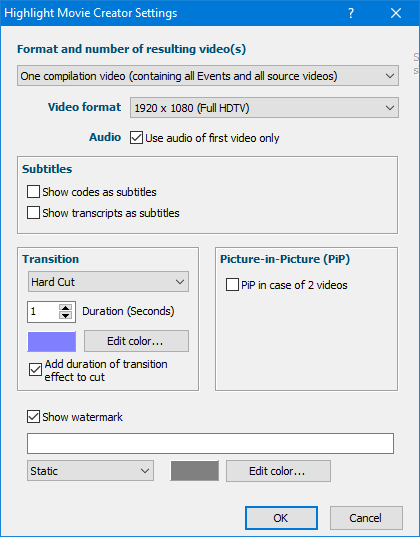
oOne compilation video (containing all Events and all source videos) - Results in a single video file that shows the content of all related source videos as a split-screen view. It can join up to 4 source videos.
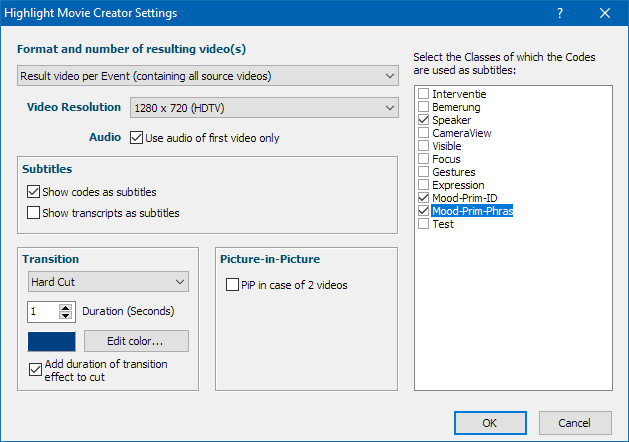
oResult video per Event (containing all source videos) - For each Event, a separate video is created. In case you have multiple source-videos, each resulting video shows all sources in a split-screen view. You can join up to 4 sources in one result video.
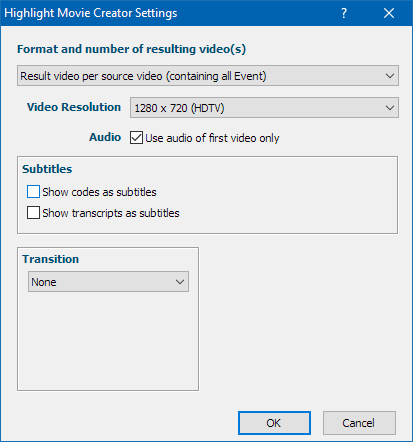
oResult video per source video (containing all Events) - Creates a compilation video that includes the sequences of all selected Events. Multiple sources are handled separately, resulting in as many videos as were linked to your DataSet.
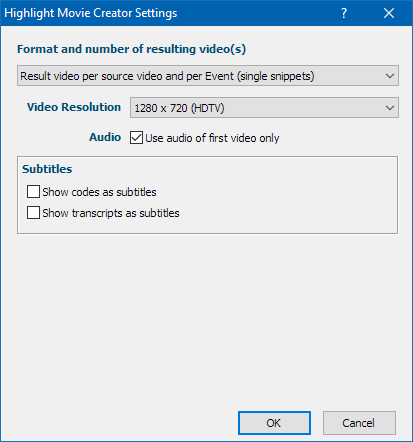
oResult video per source video and per Event (single snippets) - Creates a single video for each selected Event for each source video separately.
Video Resolution
You can specify the size of the resulting video(s):
•Select the required resolution from the selection list.
Note: The option Keep original format uses the resolution from the first video is only available in combination with a single source video.
Audio
Use audio of first video only - Prevents a cacophony caused by multiple audio tracks.
Subtitles
Insert subtitles in your result video, using the following options:
Show Codes as subtitles - Inserts the Codes logged within the selected Events, as a subtitle to the corresponding clip. The moment you activate this option, all available Classes appear in a new field at the right side of the HighLight Movie Creator settings dialog:
Select the Classes from which you wan to display Codes as subtitles: - This field lists the Classes available in the current data file.
•Select the Class or Classes of which the corresponding Code shall appear as a subtitle per clip.
Show transcripts as subtitles - Inserts comments, available within the transcription field of the selected Events, as a subtitle to the corresponding clip.
Transitions
For multiple Events within the same result video, you can specify the type of transition:
oNone - The Event-based clips are joined seamlessly.
oHard cut - Between the clips, there is a gap of the specified duration inserted.
oFade - Each Event-based clip is faded in and out. You can define the length of the transition.
Note: Transitions are not available if you select the output option that creates single snippets per Event.
Transition Duration
How long it takes to fade in and fade-out, or how long the gap between to clips is, is specified in seconds:
•Select the number of seconds for your transition time.
Transition Color
The transition color is shown in the colored box underneath the Transition Duration. You can specify the background color of the transitions:
•Click Edit colors... and pick the color you prefer from the standard Windows color picker dialog.
Timing
Per default, the transition time is added to the selected Events, so no visual information is lost due to the transitions.
•If you want the transition to be part of the sequence that is covered by the selected Event, clear the Option Add duration of transition effect to cut.
Picture in Picture
If you have two source videos, you can activate the option Picture-in-picture in case of 2 videos.
PiP position - Specifies in which corner the second video is placed.
PiP size - Specifies the size of the embedded second video, in relation to the output format.
PiP transparency - Specifies the transparency of the second video - lower value means less transparency, thus a more solid picture.
•Select the PiP Option only for editing 2 videos.
▪Click OK to confirm your settings.
Watermark
At the bottom of the dialog you can activate the Show Watermark option:
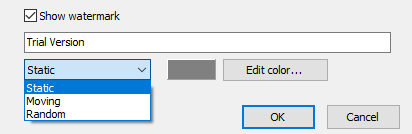
You can enter a text in the text box and decide how this text is displayed:
oStatic - The text is displayed at the upper left corner of the resulting video.
oMoving - The text slowly moves diagonally across the video image.
oRandom - The text randomly appears on different spots on the video image approx. every 5 seconds.
Save Output
After confirming the settings, a standard 'Save as' dialog appears.
•Select the target folder and enter an appropriate name for the new video.
•Click Save to start the editing process.
The editing routine starts, using the time information from the Events.
A dialog with a progress bar appears, informing you about the rendering process of the video:
In the background, the HighLight Movie Creator has created a cut list and starts rendering the resulting video(s). Depending on the length of the selected video sequences, this process can take some time.
How long exactly depends on the chosen options: Fading transitions take longer than hard cut transitions, no transition is again faster than that. Also, the Picture in Picture option takes longer than videos side by side. Last but not least, the output resolution also plays a significant role.
The moment the rendering finishes, the message changes accordingly:
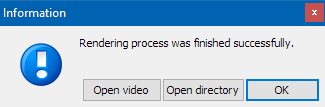
•Click OK to close the dialog.
•Click Open directory to open the folder in which you stored you highlight video(s).
•Click Open video to play the resulting video in your default media player.
Note: If you have linked multiple videos to one DataSet, all videos are edited.
If you want to edit just one of the videos, you need to temporarily disable the links for the unwanted videos by changing the keyword "Video:" pointing to the unwanted videos; e.g., into "Xideo".
Note: The PiP Option considers the screen video to be the main video and and user video is handled as the second video that is position in the chosen corner.