Each highlight-video is based on a selection of Events within the Events Log file.
▪Click Start - Show - Events to open the Events panel.
This list holds all user activities, grouped by tasks, if you made use of the Task Management feature:
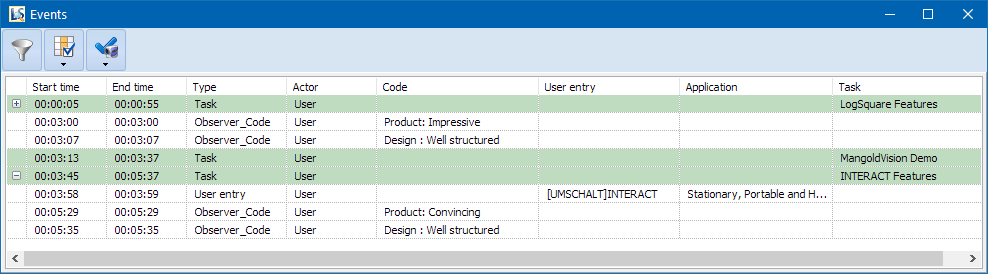
Select Events Manually
You can manually select any combination of Events.
▪Use SHIFT + Click to select a range of Events.
▪Use CTRL+Click to freely select any Event you want.
Select Events by Search
If you want to select a specific type of Events, for example Chat Events, Comments, Markers or those that hold a specific observation Code, make use of the available filter routines:
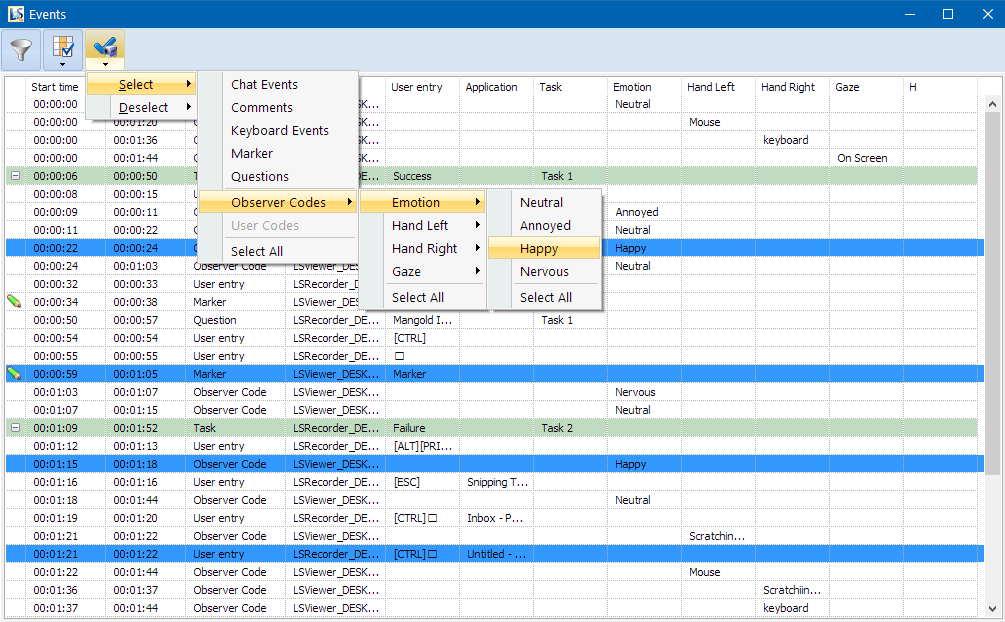
To select per Events type:
▪Select the corresponding item from the Select menu.
•Each selected line is highlighted in blue.
•Multiple selections are added to any previous selection!
•Selections are made across Tasks
For example: Pick Select - Markers and after that Select Observation Codes - Emotion - Happy to select all 'Marker' Events in combination with all situations where the participant looks 'happy'.
Remove Events from Selection
To manually remove an Event from your selection:
▪Perform a SHIFT + Click on any of the selected Events to remove it from your selection.
To remove all Events of a specific type from your selection:
▪Select the corresponding type from the Deselect menu.