Tasks are meant to define and described a specific job, to be performed by the participant.
Each task can be either time limited or unlimited, start automatically or manually and give a "time's up message" to the participant at the end of the predefined tasks.
Additionally, there is a special type of task that can be used for survey purposes only.
Add Task
▪Click on the Add Task button to open the Task Editor.
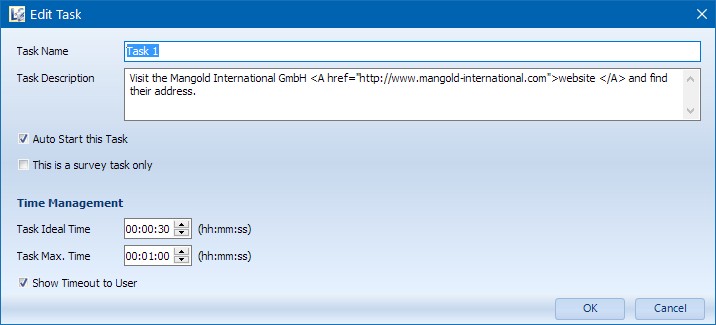
▪Enter the name of your task into the Task name field.
Note: Each Task Name needs to be unique within one Scenario File.
▪Enter the description of the task into the Task Description field.
TIP:You can used simple html tags to include links in your task description
▪Select the AutoStart Task option (recommended), to make sure the new task starts automatically the moment the previous task is finished.
The participant is informed of the new task by a separate dialog containing the task description.
The actual start time of the task is set to the moment the participant confirms this dialog, thus after reading its content.
▪For inserting a survey or questionnaire, select This is a survey task only.
This removes all additional time management options.
Time Management
Should the task be finished within a specific time:
▪Enter the corresponding value into the Task Max. Time field.
If there is an ideal time to finish the Task in:
▪Enter the corresponding value into the Task Ideal Time field.
▪Set a Max. Time value for the task to prevent endless sessions.
If you want your participant to know why a task, with a max. time limit, has disappeared:
▪Select the option Show timeout to user
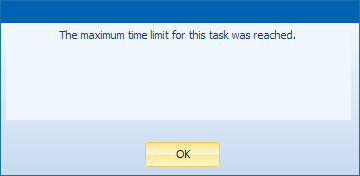
The moment a the time limit is reached the task is closed and this dialog appears:
▪Confirm your entries by clicking OK.
Edit Task
To make changes to any existing task, do as follows:
▪Double click the task you want to change
Or
▪Select the task you want to change.
▪Click on the Edit selected Task button to return to the Task Editor dialog.