For implementing bigger surveys and questionnaires, the Designer offers a special Task type that has none of the time restriction, autostart and message options, but serves as a question collection that is independent of all other tasks.
oQuestions allow you to get instant feedback from the participant, immediately after a task was finished, for best responses.
oQuestions need to be assigned to at least one task, in order to appear.
oQuestions can be reused among tasks
oEach task can hold as many questions as you like.
Add Question
▪Click on the Add Question button to open the Question Editor
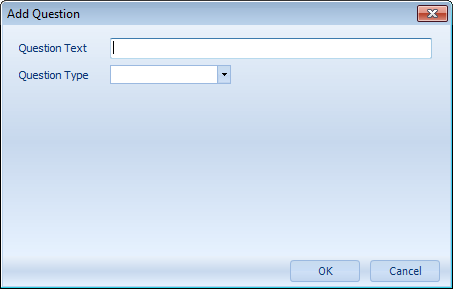
▪Enter your question into the Question Text field.
IMPORTANT: Each Question needs to be unique within a Scenario file, but you can re-use the same question for multiple Tasks.
▪Select the appropriate type for your question from the Question Type drop down menu:
oValue list - Allows you to create a value list for possible answers, only one valid answer allowed.
oNumber - For answers that should only contain a numbered value. The range of the value can be defined.
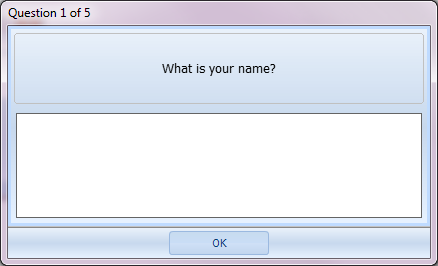
oText - If your question requires free textual entries, this is what you need.
oMultiple Choice - Allows you to create a list with possible answers, checkboxes allow for multiple answers.
Question Types
oValue list - Based on a predefined value list, the participant is able to select one answer per question:
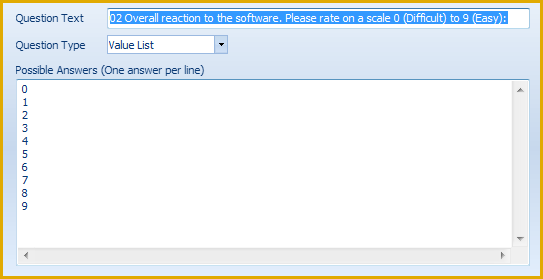
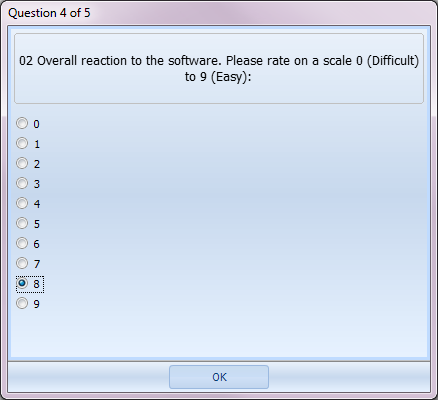
Value list questions are displayed like this, during the on-screen survey:
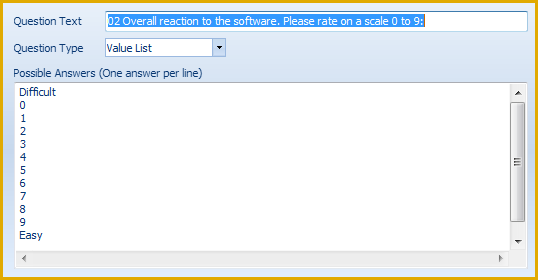
Alternatively, you can define your rating questions like this:
Which results in the following display during the on-screen survey:
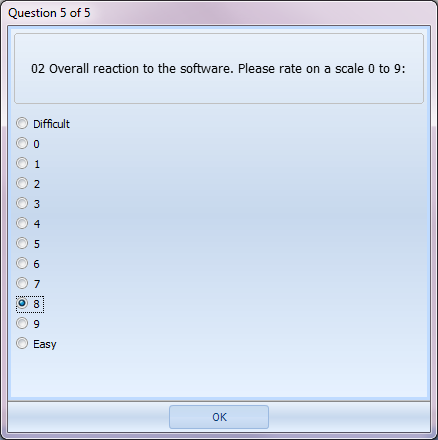
IMPORTANT: Make sure you instruct your users to only click the numbers as an answer.
oNumber - For questions that require a plain value as an answer. It is possible to define a number range in between which the given answer should be:

Number questions are displayed like this during the on-screen survey:
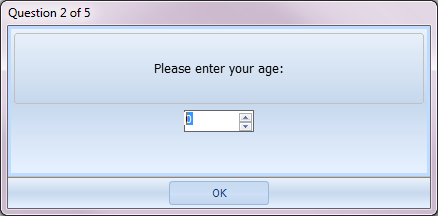
oText - For free textual answers

Free text questions are displayed like this during the on-screen survey:
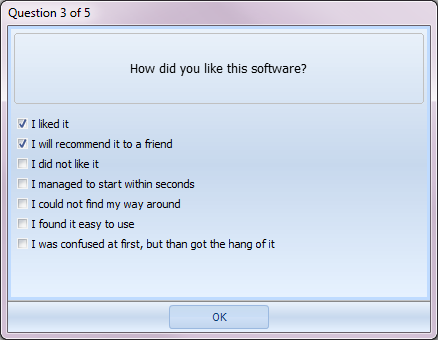
oMultiple choice - Based on a predefined value list, the participant is able to select multiple answers per question:
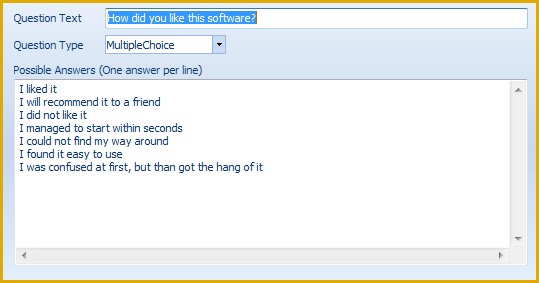
Multiple choice questions are displayed like this during the on-screen survey:
▪Confirm each question by clicking OK.
| TIP: | Take a look at the topic Perform a Survey and the predefined survey and sample scenario files that came with your installation to explore the various possibilities on how to implement your questionnaires. |