▪Click General - Settings - Settings and switch to the Recording section
or
▪Click the little  icon in front of the single recording options, to get directly to the required settings or navigate through Start - Recording Options - Record User Audio to this dialog:
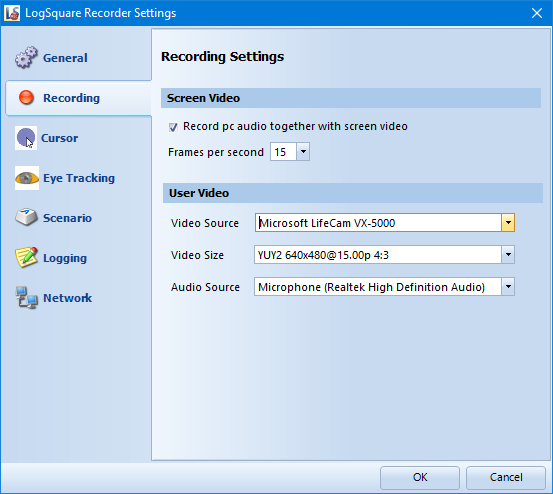
With these settings you can select the recording sources for user audio and video and influence the frame rate of the output of your screen casts.
Screen Video
Computer Audio - The option Record pc audio together with screen recording video includes any computer sounds into the screen recording.
Frames per Second - Number of video frames created per second for the resulting screencast.
IMPORTANT: Higher frames rates require more GPU/CPU power, lower frames rates require less. Especially in combination with EyeTracking, too high a frame rate will result in dropped frames in your recording.
In that case, the timing of the Event log will not match your video!
User Video
Video Source
Requires a working webcam that is correctly initialized by Windows.
▪Select the WebCam you want to use for recording from the list.
IMPORTANT: A webcam can only be accessed by one application at the time, so if you investigate an application that requires a webcam too (like e.g. Skype), AND want to record the user's face separately, you need two different webcams for your study.
Video Size
▪Select the required the size of the user video from the list.
What is the best size for you, depends on what you intend to do with it. Higher resolutions provide a larger image of the face, but it also requires more disc space and more CPU power during recoding.
Note: With some webcams, on specific systems, one or more sizes can cause recording problems.
Audio Source
Specifies the source for you user audio, which is recorded in combination with your User Video.
▪Select the microphone you want to use.
▪Verify if the audio-preview-bar underneath the WebCam area is moving and turns green whenever something is said.
| TIP: | To record only the user audio, you need to record a black user video. To do this, select <None> as your Video Source and select the audio source you want to use: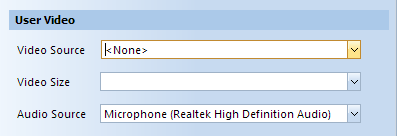 |