▪Click General - Settings - Settings and switch to the Cursor section:
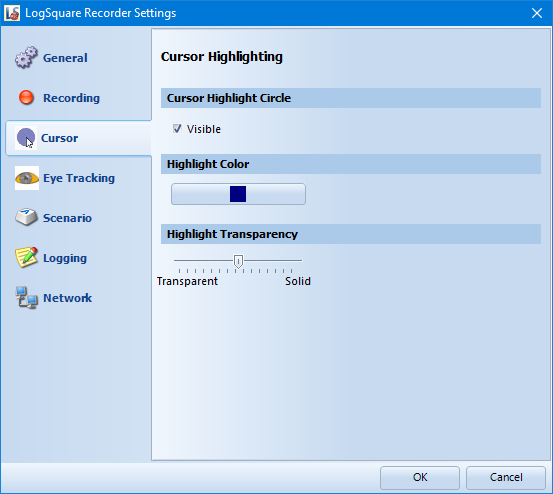
During a screen recording, the mouse is always recorded. To identify the location of the mouse more easily, the cursor is highlighted with a circle:
 for the mouse pointer or
  for a text cursor.
The color and transparency of this circle can be set to your liking:
Cursor Highlight Circle
If you do not want the highlighted circle around your mouse:
▪Clear the option Visible.
Circle Color
Alter the color of the highlighted circle around the mouse cursor:
▪Click on the colored box and pick your favorite color.
Transparency
Specify the transparency of the highlighted circle around the mouse cursor:
▪Pull the slider to the left to make the circle more transparent.
▪Pull the slider to the right for a more solid circle.