Our software offers a variety of routines to support users that are doing a lot of transcripts, most of them described in the section Transcriptions and Comments:
▪Define 'Comment-Codes', to enter transcriptions whenever such a Code was logged.
▪Use the SPACEBAR to enter comments, independent of a specific Event.
▪Enter transcriptions manually into the transcription area at any time.
▪Label expressions within the transcriptions to turn them into Codes.
▪Copy transcriptions into a special Comment column.
▪Various Observation Settings to adapt INTERACT to your preferred way of logging your observations.
Starting from INTERACT 16, we now also offer a basic text analysis routine for the information entered into the transcription area.
Count Settings
You can specify what information to include in the Text Settings.
▪Click Analysis . Text Analysis - Settings to open this dialog:
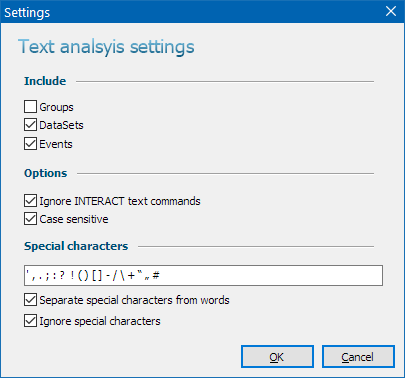
▪Select of what levels the content of the transcription areas shall be included in your statistics:
•Groups
•DataSets
•Events
To ignore the information INTERACT enters to store video references and independent variables in any of the transcription areas:
▪Select the option Ignore INTERACT text commands.
To ignore in what case a word was written:
▪Clear the option Case sensitive.
Special characters are used for multiple reasons. The characters known as 'special' are displayed into the text box.
To count words, independent of any combination with those special characters:
▪Select the option Separate special characters from words.
That way, the known special characters are counted in a separate column and a word is counted, independent of its position in a sentence (e.g. in front of a comma or a period).
To ignore any of the special characters in statistics:
▪Select the option Ignore special characters.
▪Click OK to confirm your settings.
Count Words per DataSet
To count all Words, split per DataSet:
▪Click Analysis - Text analysis - DataSets  .
.
▪Select the DataSets you want to analyze, either manually or by making use of the Independent Variables filter.
▪Confirm your selection with OK.
Count Words per selection
It is possible to count the words for the currently selected Events:
▪Select the Events that you want to analyze; either manually or using the command Edit – Find & Replace - Find  to select specific Events (e.g. all Events where the patient was talking).
▪Click Analysis - Text Analysis - Selected .
The results are presented in a table like this, splitting the occurrences per DataSet:
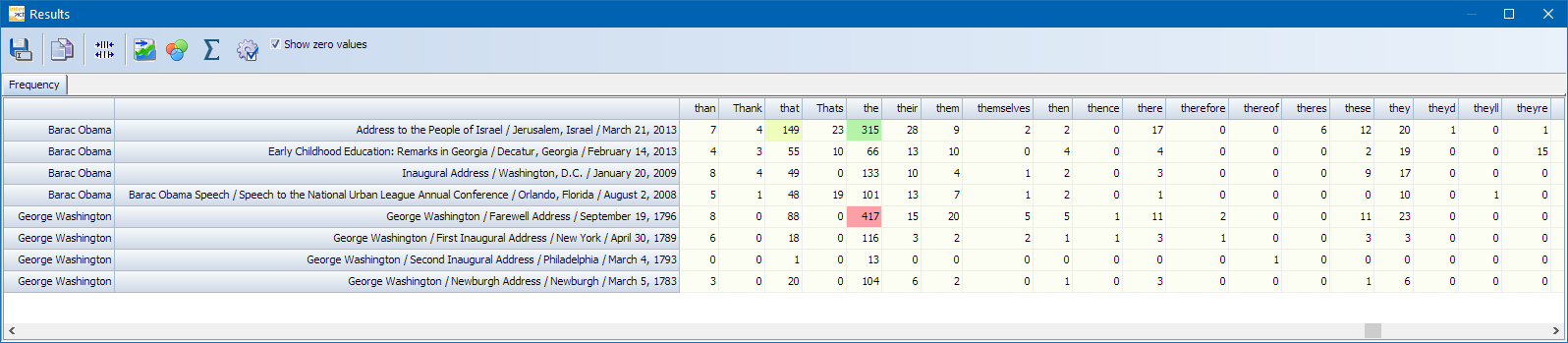
▪For an over-all total across the DataSets, click the Summarize icon.