Note: Transcriptions can be entered while coding or afterward, by entering the information into the Transcript Area while reviewing any vocalization Events.
INTERACT is not a typical transcription application, but is able to handle transcriptions in multiple ways. The biggest difference is, when entering your transcriptions with INTERACT, that you manually create Events to define the time stamps that correspond with the spoken words or sentences.
Transcriptions and comments can be entered directly into the Transcription area or with the help of an automatically appearing Comment-Dialog during a coding session.
These are your options:
 | Add transcriptions to existing Events - Each line has a free transcription/comment area at the bottom of the screen. You can enter your comments or transcriptions down there at any time. |
| Log 'vocalization' Codes - For incidental transcriptions of specific situations (Codes) during observation, INTERACT offers special Comment-Codes. How to set up such codes is described in Define Comment Codes. |
| Import external transcriptions - On the Additional tab the Functions group offers import routines for the transcription programs like ELAN and SALT. Contact us if you have other data. |
| Log continues transcriptions - If your initial focus is about the transcription of natural spoken words alone, read the topic about Continuous Transcriptions. |
| Link external Transcriptions - In case the transcriptions are available in an external word-processor document, you can link this document to the corresponding Set or Event as described in Attach Files as Comments. The transcriptions are not linked to the video time in that case, but are easily at hand for documentation. |
Location of Transcriptions
Basically, short comments can be entered into a regular cell instead of in the Transcription area. INTERACT even offers a special Comment-Class type that excludes its content from analysis.
But it does make a difference where information is stored or collected, depending on the type and structure of the information and what you want to do with it:
oMulti-line transcriptions should be stored in the transcription area, NOT in a regular cell in your data file.
oOnly data entered into the Transcription area is used in the Text analysis routine.
oTo automatically separate comment types, based on previously coded hierarchical Codes, a column-based collection is required.
oTranscriptions entered into the transcription area can be copied into a comment Class with a single command - as described further down.
oIt is possible to create real Codes from single words within a free Text entered into the Transcription area, this is not possible for comments in a Comment-Class.
Copy Transcripts
If you want to view your entries in a special (Comment) column, instead of the default Transcription field, you have two options to get that done:
| Afterwards - Use the extension Additional - Extensions - Functions  > Annotations - Copy Annotations into a Code column, to copy all comments into a new column named (Comment). > Annotations - Copy Annotations into a Code column, to copy all comments into a new column named (Comment). |
| During a coding session - Enter a copy of your textual input directly into a (Comment) column, during your coding session: |
•Click Start - Observation - Observation settings 
•Under Entering comments, select the option Copy comments additionally into a separate column.
•Change the column header to your liking, but it is advisable to keep the brackets. Those brackets () turn your column into a 'comment' column, which means that its content is not stored into the Code Archive and the entries do not show up in the statistics.
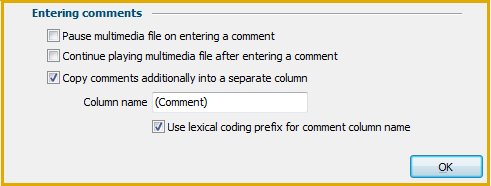
This coding option can be used in combination with any of the available coding modes. It even picks up any Prefix entries, if available.
Note: A top level Code, which is NOT the end of the chain, cannot be used as a 'Comment' Code.
Coding Options
The Observation settings offer several options, that influences the process of entering comments, as listed in Observation Settings. But not all settings are useful in every coding mode:
Coding mode: Standard
•Activate Pause video on entering comment and Continue playing video after entering comment.
(To prevent the video from moving too far ahead while you enter your text AND to continue playing, the moment you finished your comment.)
Coding Mode: Lexical
•Clear Continue playing video after entering comment.
(If you use a Comment code in the middle of your chain, to prevent the video from starting before you're finished coding)
| TIP: | The parentheses around the column name make sure that the column is NOT treated as a behavioral class. This means that the contents are not taken into account in the statistics. For more information about the different class types, see Class Types. |
IMPORTANT: To enter multiple lines, use the Transcript field as a target field only (clear the option Copy comments additionally into a separate column).
You can enter a forced line break using CTRL+RETURN, without closing the dialog. This is not possible in a Class column!
•Read the topic Enter Comments, Annotations or Transcriptions for implementation examples.