The standard 'copy', 'cut' and 'paste' functions of Windows are, of course, available within INTERACT.
You can use copy & paste to:
oEasily move elements between data-files, missing Classes are automatically created
oMove elements from one DataSet or DataGroup to another
oTransfer raw data to a third party application like MS Excel
Copy versus Copy without structure
INTERACT offers two different Copy commands:
 | Copy - The default copy command, copies only the selected Events, regardless of the DataGroup and DataSet structure. |
| Copy with structure - If you want to extract the selected Elements without loosing their DataGroup and DataSet structure, use the Edit - Selected - Copy > Copy with structure command. |
Copy & Paste Step by Step
•Select the lines you want to copy, using one to the methods described in Select Elements.
•Click Edit - Selected - Copy or press CTRL+C, or click Edit - Selected - Copy > Copy with structure if that is what you prefer.
•Open the document in which the copied elements should be inserted.
This can be another INTERACT data-file as well as any other document that understands ASCII data, like a MS Word or MS Excel document.
•Choose Edit - paste from the menu in the target document or press CTRL+V
All selected items now appear at the position you've pasted them. The following picture shows the results of copying three selected Events from an existing data-file, and after pasting them into:
oan empty INTERACT data-file
oan MS Word document
oan MS Excel document
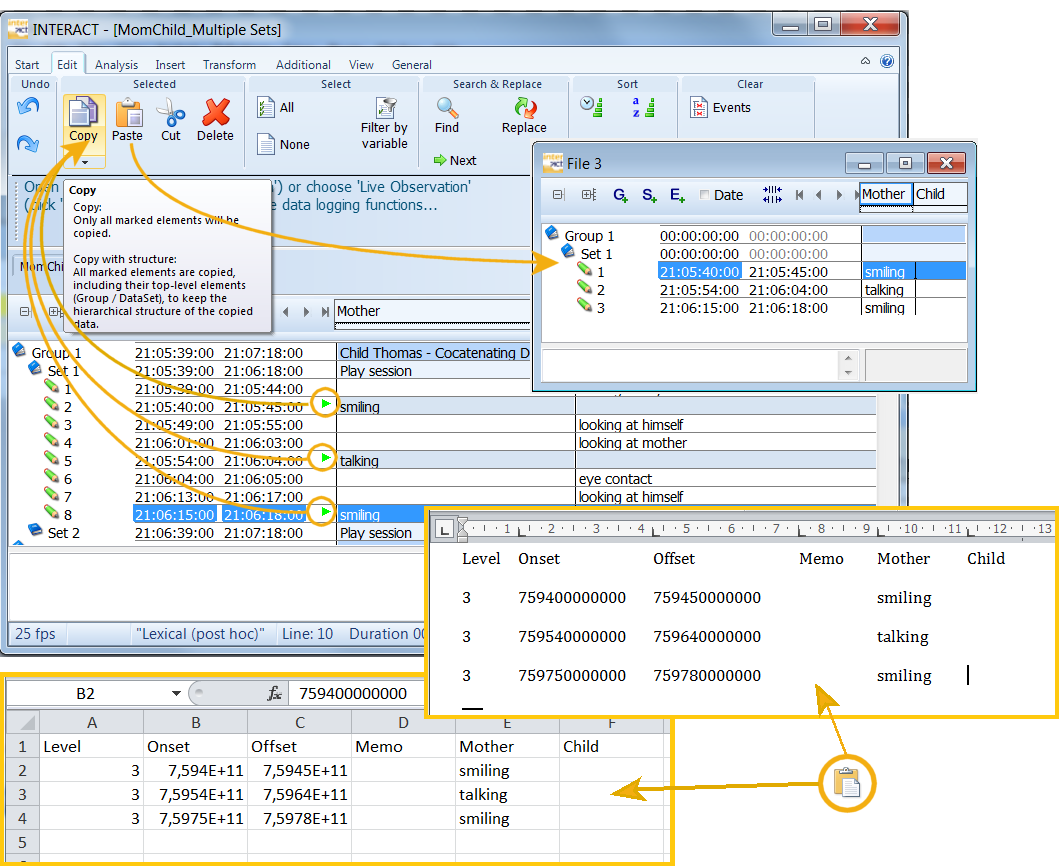
Note: The other way around is possible as well: edit your data in Excel and paste them back into an INTERACT data-file (if the data structure was left unchanged*).
* You have to make sure that the first row with the header information Level, Onset, Offset, Memo, etc. and at least the first 4 columns are within your selection! Also see Edit Document with ms excel.
| TIP: | To move elements between INTERACT Documents or within the current Document you can use the drag & drop functionality of INTERACT as well. Read Drag & drop Document elements for details. |