With this functionality, it is possible to export your raw data in various ways:
oExport all DataGroups, DataSets and Events the way they are visible in the current INTERACT document
oExport your data with an alternative time format
oExport all Events, including their duration per line
oExport selected Events only
oExport Transcripts in a table based structure
Select Codes to Export
You can either export the complete data-file or only specific information:
▪Click Start - Current Document - Export  > Raw Coding Data.
▪Select the Classes and Codes you want to export:
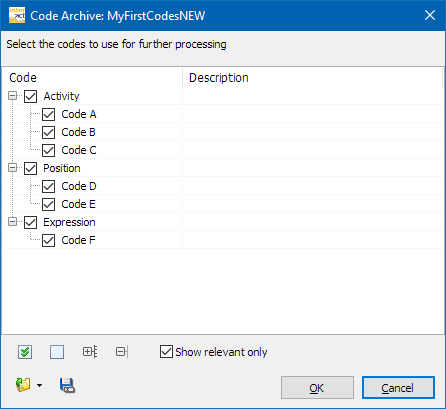
After confirmation of your selection, the export settings dialog opens:
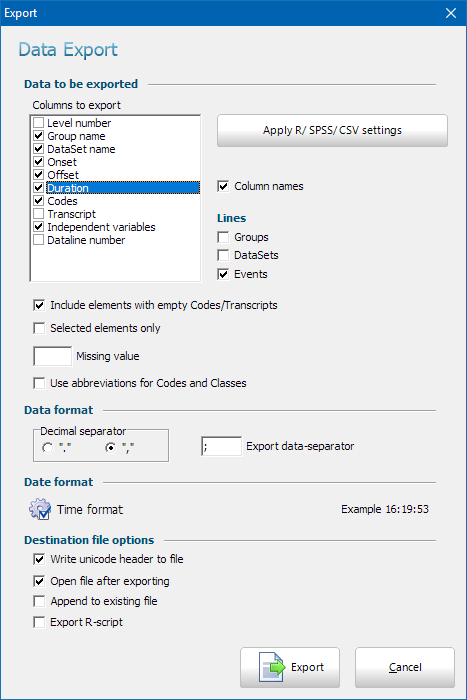
In this export dialog you can decide what exactly has to be exported:
Columns to Export
All available fields are listed here. Each selected field becomes a column in the output file:
oLevel number - To rebuild the original file structure, each DataGroup line is labeled 1, each DataSet line with 2 and each Event line is labeled with a 3, within the output file.
oDataGroup name - Exports the information available in each DataGroup description line.
oDataSet name - Exports the information available in each DataSet description line.
oOnset - Start time values of each line.
oOffset - End time value of each line.
oDuration: Exports the duration for each line. Duration = Offset - Onset + 1 frame.
(Because an Event of just one frame has, of course, a duration of 40 ms or 33,333 ms and not 0)
oCodes - Emits all Observation Codes from your data-file, in separate columns per Class.
oTranscript - Export all text, entered in the Transcript field, for each line of the document.
oIndependent variables - Creates a column for each variable and enters the corresponding value for that Set into each Event line.
oData line number - Exports the line number for each line for the current data-file.
Specify Columns & Lines
You can limit and organize the exported data to your needs:
▪Select the columns you want to export, within the Columns to export list.
▪Drag & drop the column names into the right order, as required in your output file.
▪If you want to export your data without column headers, clear the option Column names.
Lines to Export
You can include or exclude the hierarchical information, available in DataGroups and DataSets, under Lines:
▪Select Events to export all Events holding one of the selected Observation Codes.
▪To export a list of Groups or to insert a DataGroup line above the Event lines, select DataGroups.
▪To export a list of Sets or insert a DataSet line above the Event lines, select DataSets.
Note: The DataGroup and DataSet lines in combination with the Event lines are usually NOT helpful when using the exported data in third-party applications.
Empty Lines & Empty Fields
If your data contains empty lines for the selected Classes, you can include or exclude those lines (that will only list their onset and offset information), depending on your needs:
▪To exclude all empty lines, clear the option Include elements with empty Codes/Transcripts.
(This is especially useful when exporting Transcripts only.)
Limit export
It is possible to export the currently selected lines only:
▪Perform a search or make a manual selection of Events within your data-file, before you open the 'Data Export' dialog
▪Activate Selected elements only.
Missing Values
You can replace all empty fields (Classes without a Code for that Event) with a predefined value during export:
▪Enter the value you need (e.g. "-", "0" or "EMPTY"), into the Missing value text box.
Replace Codes with an Alternative Description
If you make use of the abbreviations for displaying/translating alternative Codes in the statistic results and the Time Line Chart, you may also use those 'abbreviations' during export:
▪Select Use abbreviations for Codes and Classes to export the expressions entered into the Abbreviation column in your Code Archvie.
Exported Data Format
For processing your data in third-party software, the output format of your numbers as well as the column separator symbol are very important.
Per default, all columns are separated by the default list separator from your system. In europe, this is usually a semi-colon (;), in the US a comma (,). Those separators automatically result in a *.csv file.
▪Select the Decimal Separator required.
▪Enter the Data separator your software expects.
Most common separators are ; , [TAB]
Note: US csv files are separated with a comma (,), european csv files are separated with a semi-colon (;), because the decimal separator is a comma (,) instead of a period (.).
The button Apply R/SPSS/CSV settings will set those values, among other things, to your system defaults.
Select Time Format
You can choose between different formats for all exported time values:
The selected time format applies to both the display of the statistical durations as well as the export format.
▪In the export dialog, click the Time Format Settings  icon.
icon.
▪Choose the Time format that fits your data best:
•hh:mm:ss:ff (Timecode) - International timecode, which provides frame accurate time information and equals the default Document Time Format.
•hh:mm:ss.xxx (Time.milliseconds) - Regular time notation including milliseconds.
•hh:mm:ss.xx (Time.centiseconds) - Regular time notation including hundredth of seconds.
•hh:mm:ss (Time short) - Standard time notation in which the frames are cut of. Most third party application can handle this time information. (e.g. Spreadsheet applications are capable of correctly calculating with time information in "hh:mm:ss" format).
•ss.xxx (Seconds.milliseconds) - All time information is shown in second and milliseconds.
•ss.xx (Seconds.centiseconds) - All time information is shown in second and hundredth of seconds.
•fffffff (Video frames) - All time information is recalculated into frames. This value enables you to do frame accurate calculations in other applications. If you divide this value by the frames per second setting, used in the current document, you get the duration in seconds.
•xxxxxx (Milliseconds) - All time values are listed in milliseconds.
Long Term Observations
If the duration of your observations exceed the magical border of 24 hours, you can include the number of days into the notation of your statistical durations:
•Date format - If your observations exceed the 24 hours limit you can select how the days are displayed:
- None: Total duration is listed in the selected time format.
- # of days: The number of days is listed in combination with the remaining time in the selected time format.
- yyyy-mm-dd: Shows duration in years-months and days and the remaining time in the selected time format.
•Show date if zero - If not all durations exceed the 24 hours limit, this option assures that all durations are formated with day information.
•Day Symbol - Allows you to specify the character that is displayed behind the number of days.
•Date /Time separator - Enter a special character if you want, per default a SPACE is used.
| TIP: | Because the time format is set identically for all time columns (onset, offset and duration), you may want to add a separate 'Duration' column to your data, using the script described in Add Duration Column. |
Destination file options
oWrite unicode header to file, writes an invisible header which is important for
oTo automatically open the exported result, select Open file after exporting.
oTo extend an existing export file with the exported data from your current data-file, select Append to existing file.
The selected file is overwritten. The new version of that file contains the original data as well as the new data.
oThe option Export R-script additionally creates an R compatible script as explained in R script details.
Starting the export
After making your choice among all those options:
▪Click the Export button, to start the export procedure
▪Name the export file in the upcoming 'Save as...' dialog and save it in a folder of your choice.