If you want to make a full natural-spoken-word-transcription of your video with INTERACT, without bothering about particular Codes, this is the probably easiest approach:
Prepare Coding Mode and Options
▪Click Start - Observation - Define Codes  to open the Code definition dialog.
▪Select the option Enter comment after coding with the SPACEBAR at the bottom of the current Code definition dialog (even if the there are no Codes at all).
▪Close the dialog.
▪Click Start - Observation - Observation settings  , to open the Observation settings dialog.
▪Select the Coding Mode Lexical (post-hoc).
▪Take a look at the Empty Event Handling options. If you are not sure what to take, select Leave as is. This can be adjusted to your needs later.
▪Clear all options in the section Entering Comments:

▪In case of rather short utterances, select the Push & Release mode option as well.
▪Confirm your settings with OK.
Start Transcription
▪Open you multimedia file.
▪Slow down the playback speed to your needs, using the two little arrows on the far right of the video controls.
▪Click  .
.
▪Position your video to the first relevant part.
▪Press the SPACEBAR to start the video from here.
This logs the start time of the first word and creates an empty Event.
▪Let the video run until the first sentence or utterance is finished.
▪Press the SPACEBAR again to pause the video and log the end time of that utterance or sentence.
▪Enter the transcription into the now appearing dialog:
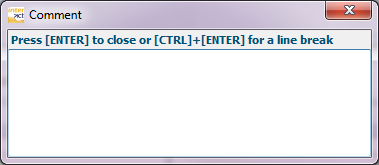
| TIP: | Press F12 to replay the current Event for more accurate transcriptions and better understanding. |
▪Press RETURN once you are finished with this transcription.
▪Press the SPACEBAR again to start the video and log the next Event.
▪If nothing is said, let the video run until the next words are spoken.
▪Press the SPACEBAR to end the silence and press RETURN to close the Comment dialog.
Note: You can pause the video at any time and 'rewind' it manually to set the exact time.
▪Press the SPACEBAR again to log the start of the next utterance.
▪Repeat the steps described.
| TIP: | You can delete any empty Events afterward, if you want, or fill them all with a Code like 'silence' using the Edit - Replace command. |
Add Speaker Information
For analysis of speaker time and such, INTERACT requires at least a Code per Speaker in the Class columns of the data file. Again there are multiple ways of doing that.
 | Add Speaker code while transcribing - When you add a list of potential speakers to your code definition file, you can tag each event with the appropriate speaker ID or "silence" code just before entering your transcription. Much like described in Enter Code-based Comments. |
Note: In that case, do NOT activate the option Enter comment after coding with the SPACEBAR, but activate the CMNT option for the speaker Codes instead.
Start and End time for each Event are still logge with the SPACEBAR, but after the video pauses, you FIRST identify the speaker and enter the transcription after that.
| Add Speaker Code in a second pass - You can add a speaker Code to each 'transcription'-Event in a second pass, using the coding Mode Refine Events. |
| Enter Speaker ID in Transcription - For those who are used to other text-based transcription programs, adding the speaker into the transcription text might also be an option. It means you need to type the full speaker ID again and again, which is not the INTERACT way, but if you label these entries with a #, the IDs can be turned into Codes with a single command. Example: #Tom: "How are you?" Would result in a speaker Code 'Tom:' How that works i described in Turn words into Codes. |