What comes next can be of help in any of the following situation:
oDuring Text analysis on your transcription, you discover that certain words are used extremely often and would like add those as a Code to the corresponding Events.
oYou used specific expressions in your comments that you'd find useful to have as a regular observation Code; offering duration statistics and enabling the exploration with any of the other analysis routines like Sequence Analysis, State-Space-Grid or finding Contingencies.
oYou were exploring your material without a predefine coding scheme, entering anything noticeable as a comment and now you want to turn some of your entries into Codes, to access the full range of statistics INTERACT has to offer.
In any of those and probably more situations, turning specific words from your comments/transcriptions into Observation Codes can be useful.
All you need to do, is label those words with a # and than you can make use of the command Convert abbreviations in annotations into Codes.
Label Words
To turn your 'expression' into '#expression', you use the Replace command:
•Select Edit – Find & Replace - Replace  .
.
▪Select the option ¤ Transcripts.
▪Enter the text you want to replace into the Text field.
▪Enter the new description into the Replace with field.Like this:
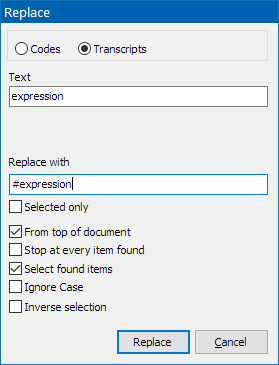
•Click Replace to perform the action.
Now all occurrences of the word 'expression' are turned into '#expression'
Note:Pay attention to spaces around a word!
Create Codes from #words
Once your expression is labeled with the #:
•Select Additional - Extensions - Functions  > Annotations - Convert abbreviations in annotations into Codes
Now all #-words are entered within a new Class column named 'NewCode'.
Remove #
To remove all # signs from the transcripts again, use the Edit – Find & Replace - Replace command again:
•Replace # with nothing, or replace '#expression' with 'expression'.
Rename 'NewCode' Class
Once your expression has been successfully converted into a Code, rename the automatically create Class 'NewCode' to a more appropriate name:
•Triple click the header and enter a descriptive name.
IMPORTANT: The Convert abbreviations in annotations into Codes routine can, per pass, only turn one '#expression' per Event into a Code!
Running the routine a second time for an other expression will remove previous entries within the Class 'NewCode', if their # label has been removed.
| TIP: | If you have to turn multiple expressions into Codes, perform all of the above actions per expression separately (including the renaming of the Class and removal of the # labels). This results in multiple Classes, each with only one Code. To merge the content of the resulting Classes afterwards, you can make use of the command Transform - Codes - Move and Combine  , as is described in Move & Combine Codes. , as is described in Move & Combine Codes. |