The Statistics group offers duration and frequency based statistical values.
▪Click Analysis - Statistics - Tasks  .
.
Project selection
A dialog listing all open projects appears, allowing you to exclude some of the opened projects from the analysis:
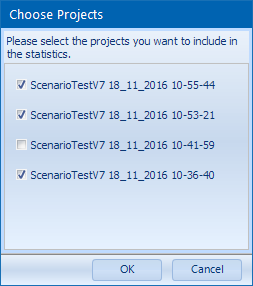
▪Make sure only the projects you currently want to compare are selected.
▪Confirm with OK, if the selection fits your needs.
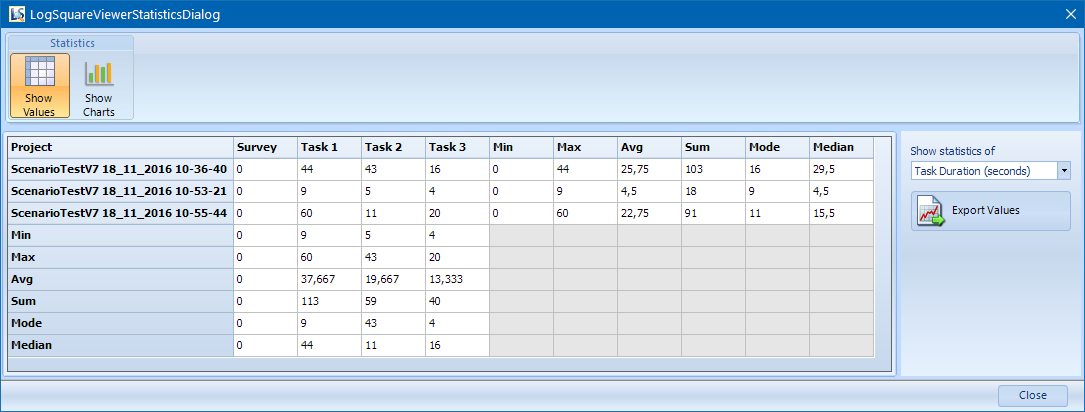
A new LogSquare Analyzer Statistics Dialog opens, showing the statistical values over all selected project files:
▪To return to the main LogSquare Analyzer window, click OK.
Statistical values
The default view of those statistics is a table with Task Duration values.
▪Use the drop down menu at the right to switch between the available values:
oTask Duration (seconds) - Shows duration per task and project in seconds, calculated from the start code of the task until the end code of the same task.
oTask Duration (minutes) - Shows duration per task and project in minutes, calculated from the start code of the task until the end code of the same task.
oTask Succeeded - Count on tasks per completion type, showing you the number of 'Aborted', 'Failed', 'Completed' and 'Succeeded' tasks over all selected projects.
oNumber of Codes - Counts the codes entered, if done so, independent of the Task they were used in. You can use the Filter settings to restrict the results on one specific Task or to exclude task.
oNumber of Events - Summarizes the frequency of each mouse activity, Keyboard events, Left-click, left-double-click, Mouse wheel, Right-click and Question. This is again cumulated over the complete recording session. To restrict the values to a specific task, use the Filter dialog to reduce the data to be analyzed.
▪Select the value you are interested in.
Export statistical values
In order to save the results for further processing, you need to export them:
▪Click on the Export Values button.
▪Enter a valid name and choose a location in the default Save as... dialog now popping up
▪Confirm your export by clicking Save.
The results are saved in a *.csv file (values are separated by a , or a ; depending on your local system settings), which can be imported into Excel or most other third party applications. The exported file contains the same values as currently visible in the Statistics dialog.
Chart statistics
The second view on your data within the Statistics dialog is a chart based visualization of the selected data:
▪Click on the Show Charts icon to switch to the Chart view.
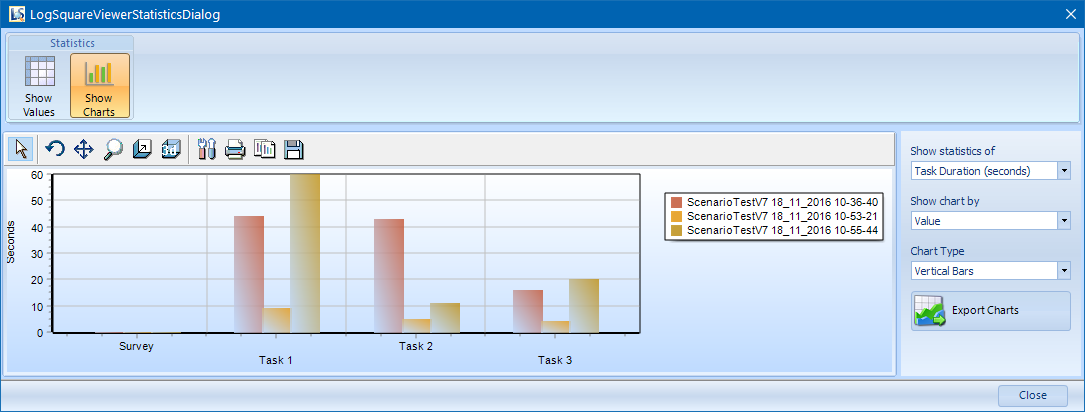
The panel at the right side enables you to change the way your data is presented:
▪Select the value type you are interested in from the drop down list underneath Show statistics of.
▪To change the grouping of your data, change the entry for Calculate statistics by.
▪Switch from the default Vertical bars chart to the Horizontal bars chart by changing the Chart type.
Chart Layout
The small chart toolbar offers some commands to turn , move and resize the chart picture:

▪Select an icon for the required action (pay attention to the hints that pop up after 1 second of hovering on-top of a button) and use you mouse to make the changes.
▪For more detailed editing of the chart, click Edit  to open a dialog with a vast amount of layout possibilities.
The most important items can be found here:
Chart Title - Tab Chart/Titles/Style. Select Visible and enter the required text.
Axis labels - Tab Char/Axis/Labels. Make sure you select the right axis in the Axes list before you make any changes.
Axis Title - Tab Chart/Axis/Title. Make sure you select the right axis in the Axes list. Enter your text in the Title field.
Export chart
To create a picture from the chart itself, you can simply export it into a jpg picture file:
▪Click on the Export Chart button.
▪Enter a valid name and choose a location in the default Save as... dialog now popping up
▪Confirm your export by clicking Save.