The Analysis tab offers some great views on the collected data; either for one specific project file or for multiple projects at once.

Following views on your data are available from within the corresponding groups:
Show Statistics
oTask duration* in seconds per participant project
oTask duration* in minutes per participant project
oNumber of tasks Succeeded, Completed, Failed and Aborted for all projects, split by task.
oCode frequency** values per Project
oAccumulated Mouse-Events count split by project.
oTask duration* chart per Project
oTask duration chart per Task
oCode frequency** chart per Project
oCode frequency** chart per Code
oMouse activity frequency chart per Project
oMouse activity frequency chart per Activity
Show Questions
This command is only visible when a questionnaire was implemented.
oAll questions per Task with the given answers per participant project.
oSummary of given answers per Question over all projects
oPercentage on given answers over all selected projects.
Show comments
This command is only visible when comment were made.
oAll comments are listed, split by task and project file. Comments outside any task duration are listed as Independent Comments.
*) Task duration comparison can only be performed if you have used the task management feature as described in the LogSquare Scenario Functionality section.
**) Code frequencies can only be compared if you did make use of the coding facility as described in Log Live Moderator Observations.
Event frequencies will be available for every recording session.
Data selection
The visible values depend on the selected projects as well as the Filter settings applied to your Events.
▪Open all project files you want to analyze within the LogSquare Analyzer.
Note: Per default, the Events log hides all mouse activities!
If you want to analyze those Mouse Events, or want to limit the displayed types of data even further, you need the Event Filter feature...
IMPORTANT: The impact of your currently selected filter also affects the results of the charts!
Define Filter
The Events panel needs to be open, in order to perform this task:
▪Click Start - Show - Events to open the Events panel.
This list holds all user activities, grouped by tasks, if you made use of the Task Management feature:
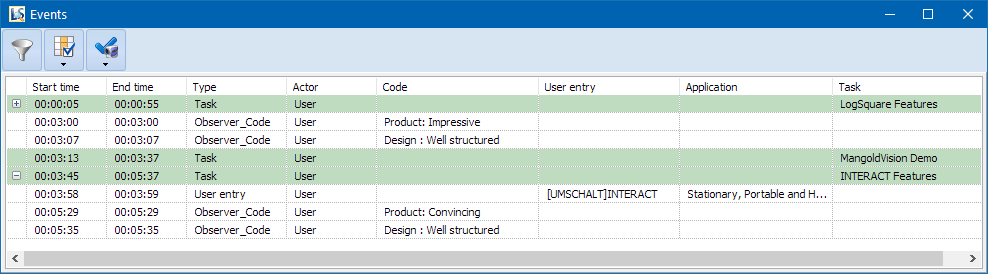
▪Click Filter Events  , within the Events panel.
The Filter dialog opens:
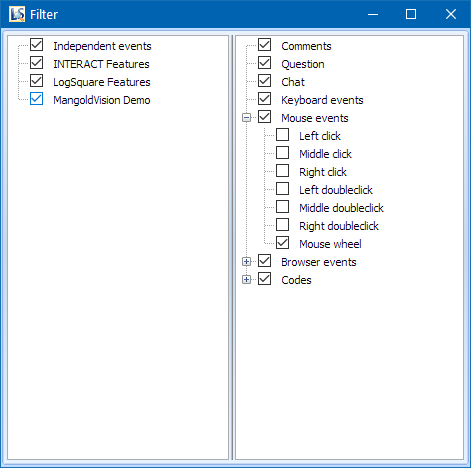
In the left pane, the separate tasks are listed - if available. All none task related activities are collected in 'Independent Events'.
In the right pane, the various activities are labeled according to their nature.
The Event panel will only list events that belong to selected items - only selected items can be analyzed!
Specify your data base for analysis:
•To analyze the activities for a specific Task only, select just the required task in the left pane.
•To analyze only task related activities, clear the selection for 'Independent Events' and keep all tasks selected.
•Clear the selection of the activity types that are not of interest for you.
•All frequencies (for codes as well as user/mouse activities) are split per Project and Task.
•To include (or exclude) specific mouse actions, unfold the Mouse events entry and select only the relevant mouse activities.
•To include (or exclude) specific Browser events, unfold the Browser events entry and select only the events you do need etc.
▪Select the information you want to see, compare and analyze.
All settings are applied immediately. As you can see, the number of lines is increased or reduced dramatically, depending on the choices you make.
IMPORTANT:
- The current filter automatically applies to all projects!
- The Event log list shows only the entries of the current project.
- Only data visible by the currently active filter settings is used by the Analysis routines!
- You can leave the Filter dialog open and still see the effect of your filter.
Project Selection
You can only compare data from open projects, but not all open projects need to be displayed in the next chart!
The moment you click one of the available Analysis routines, LogSquare enables you to remove certain projects from the next analysis:
▪Click one of the routines available on the Analysis tab.
A dialog listing all open projects appears, allowing you to exclude some of the opened projects from the analysis:
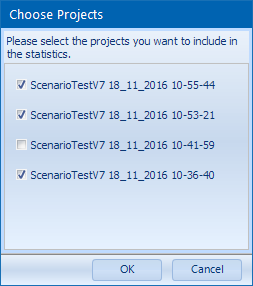
▪Make sure only the projects you currently want to compare are selected.
▪Confirm with OK, if the selection fits your needs.