As described in LogSquare Designer, it is possible to create a scenario file with questions, whether or not in combination with tasks or as a plain survey routine.
The questions and possible answers, entered in this scenario file, are presented as an on screen survey. Each question is displayed separately and the type of possible answers may vary from question to question.
You can choose between the following question types:
oText
oNumber
oMultiple Choice
oValue List
Details and specifics on those formats are listed below.
LogSquare comes with the following default questionnaires prepared for you:
oSUS - System Usability Scale to measure overall satisfaction.
oQUIS - Questionnaire for User Interface Satisfaction to create a satisfaction profile.
oUSE - Usefulness, Satisfaction, and Ease of use for measuring usability.
All of those files are read-only, to prevent that you accidentally damage their content.
Note: You can use any of those surveys to your liking. You can copy them to adapt them by removing or adding questions, or by using them as a template for setting up your personal tasks so the questionnaire is presented immediately after your tasks are finished.
Create a Survey
▪Use the Windows Start menu to open the LogSquare Designer.exe
▪Select File - New to design your own scenario file
▪Click on the Add Task button to open the Task Editor.
▪To implement survey questions, independent of any task, select the This is a survey task only option in the Task definition dialog:
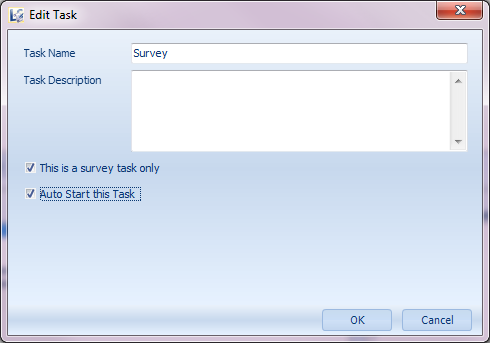
▪Maybe enter some description, to introduce the survey to the participant, into the Task Description field.
▪Confirm this task by clicking OK.
Create Questions
▪Click on the Add Question button to open the Question Editor
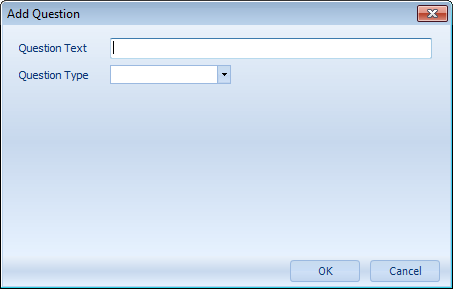
▪Enter your question into the Question Text field.
IMPORTANT: Each Question needs to be unique within a Scenario file, but you can re-use the same question for multiple Tasks.
Available Question Types
oValue list - Based on a predefined value list, the participant is able to select one answer per question:
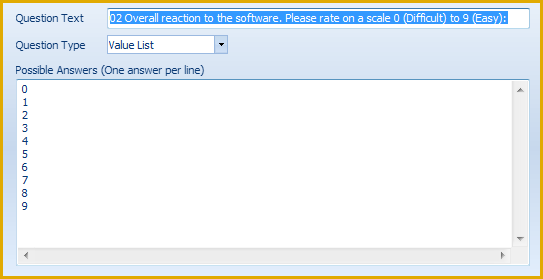
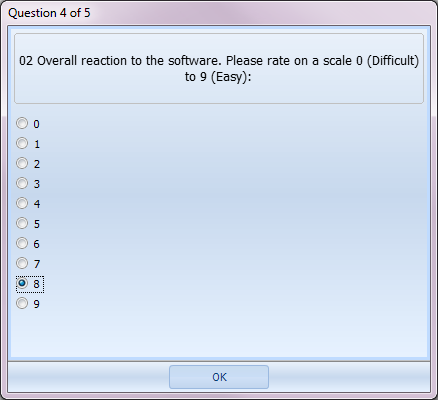
Value list questions are displayed like this, during the on-screen survey:
Alternatively, you can define your rating questions like this:
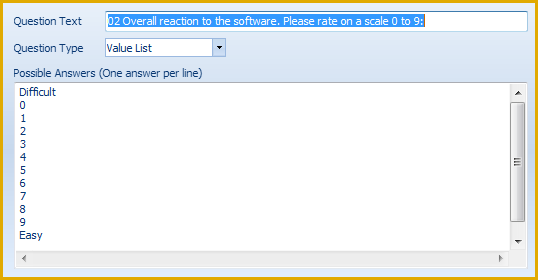
Which results in the following display during the on-screen survey:
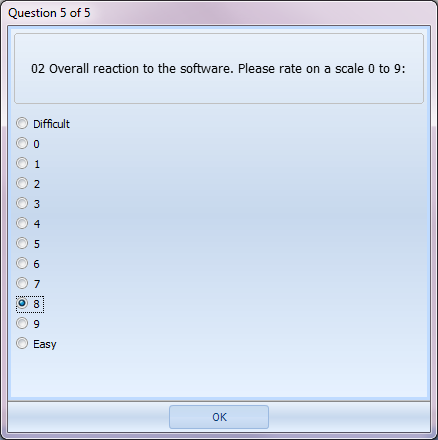
IMPORTANT: Make sure you instruct your users to only click the numbers as an answer.
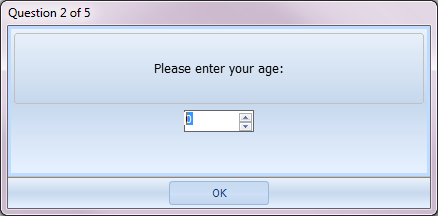
oNumber - For questions that require a plain value as an answer. It is possible to define a number range in between which the given answer should be:

Number questions are displayed like this during the on-screen survey:
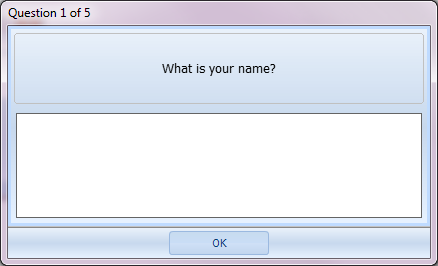
oText - For free textual answers

Free text questions are displayed like this during the on-screen survey:
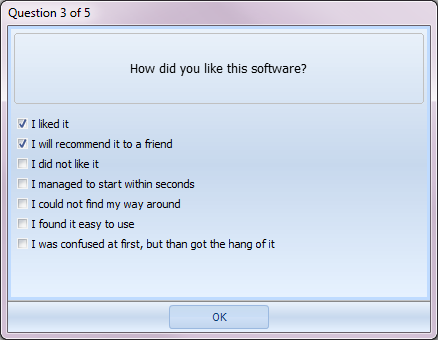
oMultiple choice - Based on a predefined value list, the participant is able to select multiple answers per question:
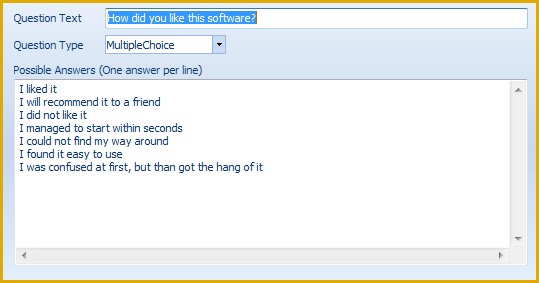
Multiple choice questions are displayed like this during the on-screen survey:
▪Confirm each question by clicking OK.
Assign Questions to Survey
Because only questions assigned to a 'task' are displayed on screen, it is important to select all required questions, while the corresponding survey task is selected:
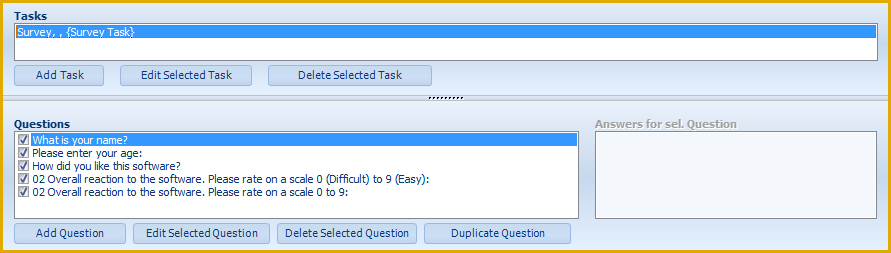
▪Select your survey (or any other task) from the Task list.
▪Select as many questions as you want to be displayed on screen for that particular task.
▪Repeat this step for additional Tasks or survey entries if available.
▪Click File - Save to store your Scenario File.
Note: It is possible to re-use the same question for multiple tasks, because the statistics will automatically split the answers per task - previous answers will NOT be overwritten!